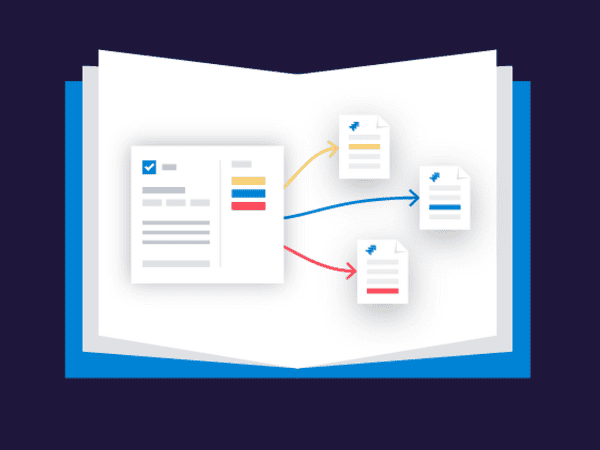








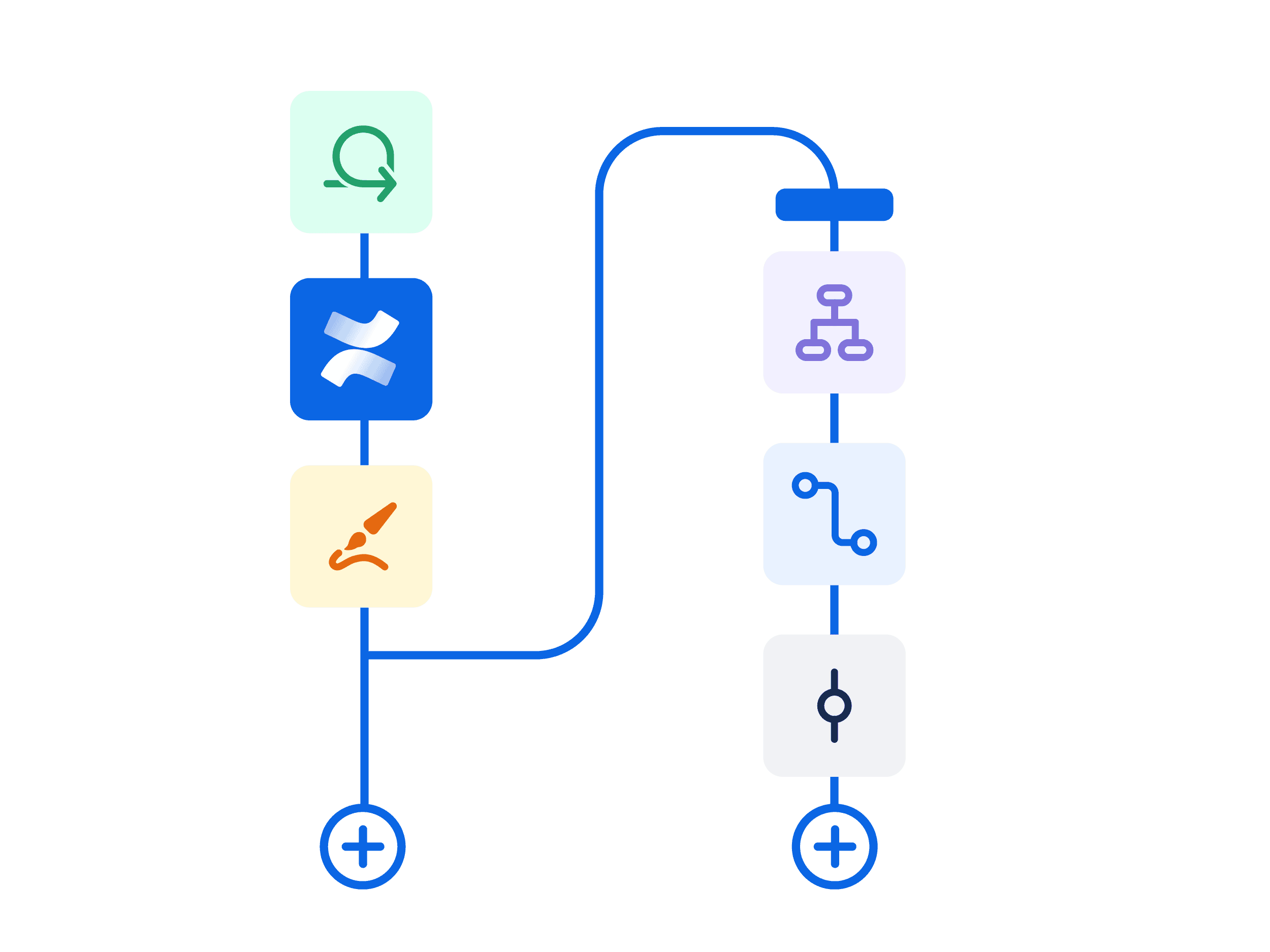

Jira automation lets teams replace repetitive manual work with no-code rules made of three parts: a trigger, conditions, and actions. It runs natively in Jira Cloud and can update work items, send notifications, or create subtasks on its own. Native automation handles single-project tasks well, but it has limits with advanced copying and cross-project jira sync. To keep work items aligned across projects or instances, teams pair automation with Elements Copy & Sync, which adds field-level copying and two-way synchronization. This guide explains how Jira automation works, where it stops, and how to extend it.
TL;DR
- Jira automation explained: Jira automation runs no-code rules built from triggers, conditions, and actions to handle repetitive work items in Jira Cloud.
- Three building blocks: Every rule combines a trigger (what starts it), conditions (what must be true), and actions (what it does).
- Where native automation stops: Jira automation struggles with advanced copying, cross-project syncing, and complex work item relationships.
- Jira sync with Copy & Sync: Elements Copy & Sync adds two-way jira issue sync so field changes stay aligned across projects and instances automatically.
- Creating subtasks: Automation actions can create a subtask in Jira automatically when a new work item is created.
What is Jira Automation and how does it work?
Jira Automation is a no-code feature that runs rules to perform repetitive tasks and complex workflows for you. Instead of updating work items by hand, you define a rule once and Jira applies it automatically whenever the conditions are met. Rules are built in a visual editor, require no scripting, and are available in Jira Cloud.
Used well, automation lets teams focus on meaningful work while routine steps, such as assigning, transitioning, or notifying, happen on their own. This improves both speed and consistency across a project.
What are triggers, conditions, and actions in Jira automation?
Every Jira automation rule is built from three components that run in sequence:
- Triggers start the rule. A trigger can fire on events inside Jira, such as a work item being created or a field value changing, or on external events from connected services like GitHub.

Conditions refine the rule by setting criteria that must be true for it to continue. If a condition is not met, the rule stops.

Actions are the tasks the rule performs, such as editing a work item, sending a notification, or creating a subtask.

Together, these three components automate multi-step workflows and keep task management consistent across the team.
What advanced Jira automation features should you know?
Beyond basic rules, Jira automation includes a few advanced capabilities that make rules more flexible:
- Branching: lets a rule act on both the work item that triggered it and related work items, such as subtasks or linked work items. For example, when a parent is marked Done, the rule can run separate actions on each of its subtasks.

- Smart Values: allow dynamic access to data inside work items. For example, you can add days to the current date or pull a work item summary into a notification.
- Rule Actor: the user or system that runs the rule must hold the permissions needed for the actions it performs.

How do you create a subtask in Jira automatically?
You create a subtask in Jira automatically by adding a “Create subtask” action to an automation rule. When the trigger fires, for example when a new work item is created or moved to a given status, the rule generates the subtask without any manual step. This is one of the most common ways teams use Jira automation to enforce a standard checklist on every new work item.
For repeatable structures across whole projects, branching can create or update several subtasks at once. When you need to replicate full hierarchies, including custom fields, native automation reaches its limit, which is where a dedicated copy-and-sync tool helps.
What are the limitations of Jira automation?
Jira automation is strong for single-project workflows, but it has limitations with advanced copying and complex work item relationships. Native rules offer limited control when you need to duplicate work items with all of their custom fields, replicate a full project structure, or keep data synchronized across separate projects and instances.
In practice, three gaps come up most often: precise field-level copying, cross-project and cross-instance synchronization, and ongoing two-way updates once items are linked. These are exactly the scenarios a dedicated app is built to cover.
How do you set up Jira sync across projects with Elements Copy & Sync?
You set up Jira sync with Elements Copy & Sync, an app that extends native automation with field-level copying and automatic synchronization. You choose which fields and data to copy, link the work items, and changes then propagate automatically so both sides stay aligned. The app handles configurations that built-in automation does not, including custom fields and complex relationships.
Two capabilities make this practical for teams:
- Advanced work item copying: define precise rules for duplicating work items, including custom fields and configurations that native automation usually skips.
- Greater control over syncing: pick exactly which data to sync; when a change is made, synchronization happens automatically, keeping projects up to date.
Can Jira automation sync issues between projects or instances?
Native Jira automation can copy some values between work items, but it is not designed for reliable, ongoing jira issue sync across projects or separate instances. For continuous two-way synchronization, including across Jira instances, a dedicated app such as Elements Copy & Sync maintains the link and updates both sides whenever data changes.
To see this in action, watch how to create a new project from a template using the app:
After watching, you can explore the app on the Atlassian Marketplace or go straight to the Elements Copy & Sync documentation to set up your first sync rule.
FAQ — Jira automation and Jira sync
Is Jira automation available in Jira Software and Jira Service Management?
Yes. Jira automation is available natively in both Jira Software and Jira Service Management on Jira Cloud. The rule builder and available triggers differ slightly between the two products, but the core trigger–condition–action structure is the same in both.
How many automation rules can you create in Jira?
The number of automation rules and monthly executions depends on your Jira Cloud plan. Free plans include a limited number of rule runs per month per site, while Standard, Premium, and Enterprise plans offer higher or unlimited executions. Check the Atlassian pricing page for the current limits tied to your plan.
What is the difference between Jira automation and a Jira sync tool?
Jira automation handles event-driven actions within a project: it reacts to changes and performs tasks like transitioning work items or sending notifications. A Jira sync tool such as Elements Copy & Sync goes further. It creates a persistent link between work items across projects or instances and keeps selected fields continuously updated in both directions, even after the initial copy.
Can you use Jira automation to copy custom fields between work items?
Native Jira automation can copy standard fields between work items using Smart Values, but support for custom fields is limited and depends on the field type. For precise, reliable copying of custom fields — including complex field types — a dedicated app like Elements Copy & Sync gives you full control over which fields are copied and how they are mapped.
How do you trigger a Jira sync when a field changes?
With Elements Copy & Sync, synchronization is automatic: once a sync rule is configured, any change to a mapped field on the source work item is pushed to the linked work item without manual intervention. You define which fields to watch and which direction changes flow, one-way or two-way.
What to take away from this guide
Jira automation covers the vast majority of routine workflow needs: transitioning work items, notifying teams, creating subtasks, and enforcing field rules. It is a solid foundation for any Jira project management setup.
Where it stops is equally clear: advanced field-level copying, cross-project structures, and reliable ongoing jira issue sync require a dedicated tool. Combining both gives teams a complete automation stack, one that handles daily tasks natively and complex synchronization with precision.