










Clone Jira issues across projects, teams and instances
TL;DR
- Three ways to clone Jira issues: native Jira clone, Automation for Jira, or a dedicated app like Elements Copy & Sync.
- Clone vs duplicate: a clone is a copy of a work item; a duplicate flags that two work items report the same thing.
- Native options are free but manual; Automation adds control but has global-rule execution limits and no attachment cloning.
- Copy project across instances: you can copy a Jira project from one instance to another and keep work items synchronized across Jira Cloud sites.
- Permissions matter at scale: restrict who can clone and where, using roles, JQL conditions, or recipe triggers.
There are many reasons you might need to clone Jira issues: escalating a ticket from a service desk to a software project, replicating tasks across teams, or bulk cloning issues in Jira to migrate an entire project. Sometimes it’s simply about sharing issue details with someone who lacks access to the source project.
Jira includes native clone and move features, but they fall short the moment your needs go beyond a simple one-off copy: no bulk operations, no comment syncing, no cross-instance support.
In this guide, we cover every option to clone and move Jira issues, from native features to Automation to dedicated apps, so you can find the right approach whether you need to copy a Jira project from one instance to another, build reusable Jira project templates, or streamline a recurring workflow.
When should you clone an issue to another project?
Cloning issues is the most time-efficient way to make existing information useful for other people or additional situations in Jira. Common scenarios include:
- Move work items from the designer’s board to the developer’s project
- Share a bug or change request from a support portal with an engineering team
- Clone between company-managed and team-managed spaces
- Move or clone issues from instance A to B, and vice versa
- Replicate an epic for multiple teams that each have a project
- Clone a task from the current project to add it to an epic in another project
- Migrate all the issues from one project to another
You already hold a lot of information from a customer or an employee, and you have likely spent time configuring those fields. Reusing that data helps your whole team get more out of Jira.
What is the difference between cloning and duplicating in Jira?
In Jira, a clone is a work item created by copying another work item. A duplicate is a work item that repeats another, typically flagged when two reporters raise the same bug and the later reporter doesn’t know it already exists.
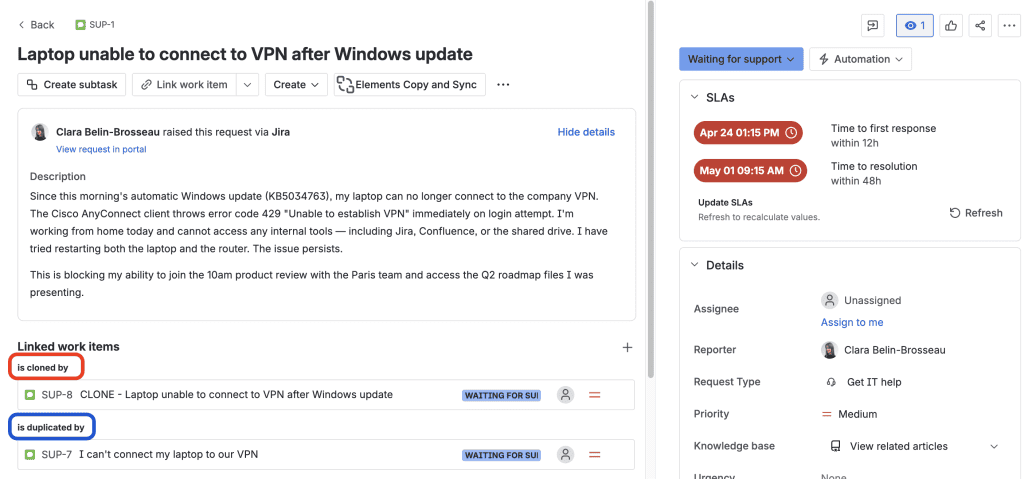
The words are synonyms in everyday language, but in Jira they are two distinct link types that serve different purposes: clone records that one item is a copy of another, while duplicate marks redundant reports.
How do you clone issues in Jira?
Methods fall into two categories: native Jira features (native cloning or Jira Automation) or Atlassian Marketplace apps.
Option 1: How to natively clone a Jira issue
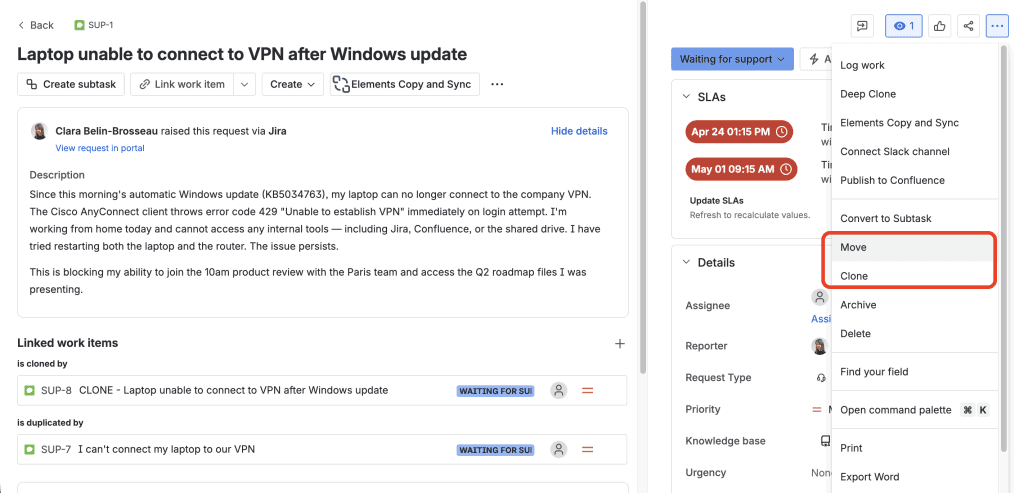
To clone a Jira issue, open the issue, select Clone from the Actions menu.
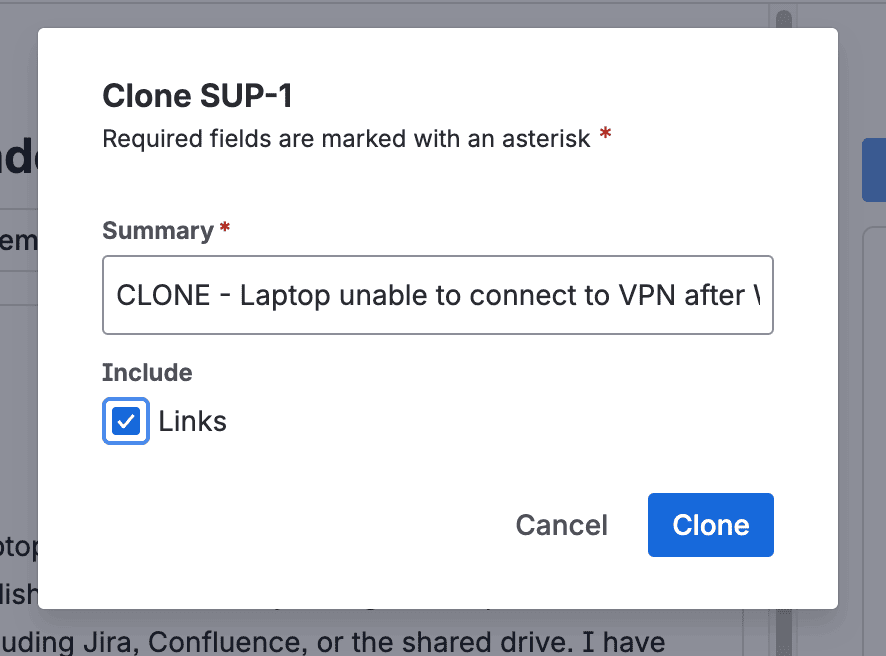
Jira creates a copy prefixed with “CLONE” at the start of the new summary and lets you optionally include links. No other options are available.
To move the work item, select the destination project and item type, map the statuses, then update any fields. If the new item has required or custom fields (like a story-points estimate on a Story), you may need to complete them before finishing. On Jira Cloud a clone link to the original remains after the move, you can remove it.
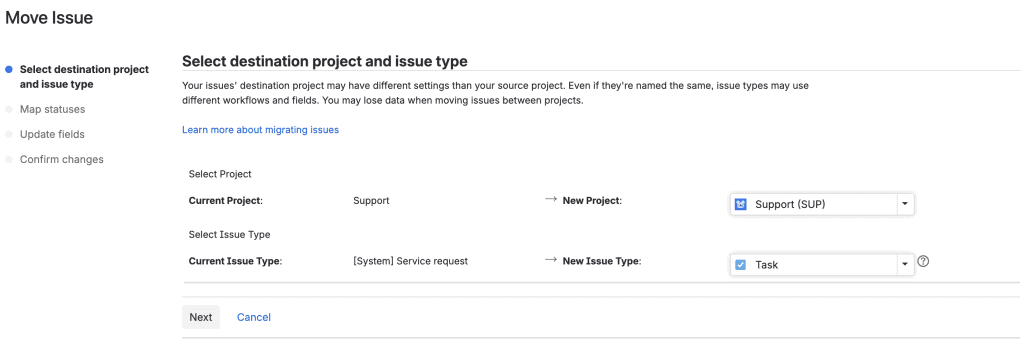
When moving a work item with custom fields, make sure the fields exist on the target project and even then you may be prompted to set values. Between team-managed and company-managed spaces, you may not be able to clone everything, since team-managed spaces are self-contained and don’t share custom fields.
Pros and Cons of using Jira native cloning feature
| Pros | Cons |
| Free, built in, nothing to configure ahead of time | Manual and click-heavy for every clone |
| Clones most fields and attachments | No comment cloning; no synchronization |
| Simple for small instances/teams | Error-prone and slow at scale (many projects/users) |
Native cloning is free, built-in, and requires zero configuration, making it a perfectly valid option for small teams with occasional, straightforward needs.
That said, it shows its limits quickly: no bulk cloning, no comment or time tracking sync, no support for copying a Jira project from one instance to another, and a multi-step process that becomes error-prone when repeated across many projects or by multiple team members. If any of those constraints apply to your situation, Automation or a dedicated app will serve you better.
Option 2: How to clone Jira issues with Automation
Automation is included in Jira Cloud. It can clone an issue, or create a new work item in a different space and copy values across. Get started from the Automation template library, which includes a rule that clones an issue to another project and links the two when an item is transitioned.
Automation clones won’t copy attachments, links, or comments by default, though you can build additional rules to sync comments.
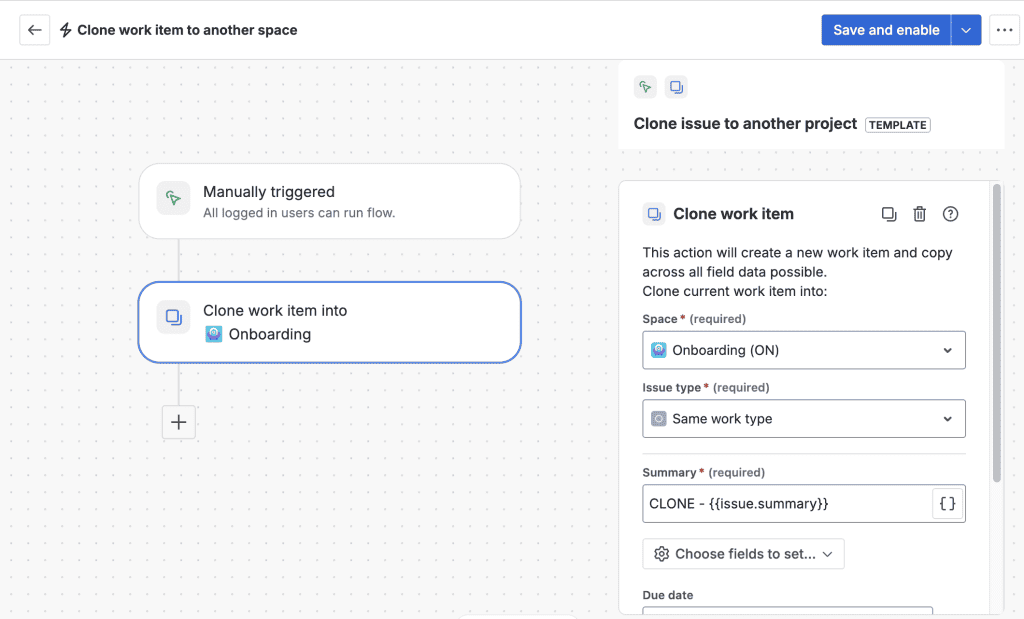
Pros and Cons of using Jira Automation
| Pros | Cons |
| Included in Jira Cloud; large community | Global rules (multi-project) have monthly execution limits |
| Strong control over which fields are cloned | Complex cloning (multiple fields or full hierarchy) requires to set up several rules |
| Can trigger manually or automatically | Advanced field values need JSON; no attachment cloning |
Jira Automation is a solid middle ground, more powerful than native cloning, and already included in Jira Cloud. It works well for teams with structured processes that can be fully automated, like triggering a clone on a workflow transition.
That said, the setup complexity is real: configuring custom field mapping requires writing valid JSON, rules need ongoing maintenance, and attachments cannot be cloned at all. More advanced workflows, like cloning a project with its subtasks or escalating an issue to another project, require chaining multiple rules together, which adds significant complexity and technical overhead. Execution limits on global rules (those spanning multiple projects) can also be a constraint at scale. For straightforward, fully automated triggers, Automation does the job but if your team needs flexibility, field mapping without code, or attachment copying, it’s worth considering a dedicated marketplace app.
Read more about what to choose between Jira Automation and Elements Copy & Sync depending on your specific use case
Option 3: How to clone Jira issues with Elements Copy & Sync
Apps add flexibility, and Elements Copy & Sync balances robust features with friendly configuration. You first build a recipe: conditions for which work items can be copied (space, item types, priority), where the clone is created (space and item type, fixed or user-selectable), and what is cloned (fields, attachments, comments). Field mapping makes it easy to copy, for example, the Description of the source into the Environment field of the new item.
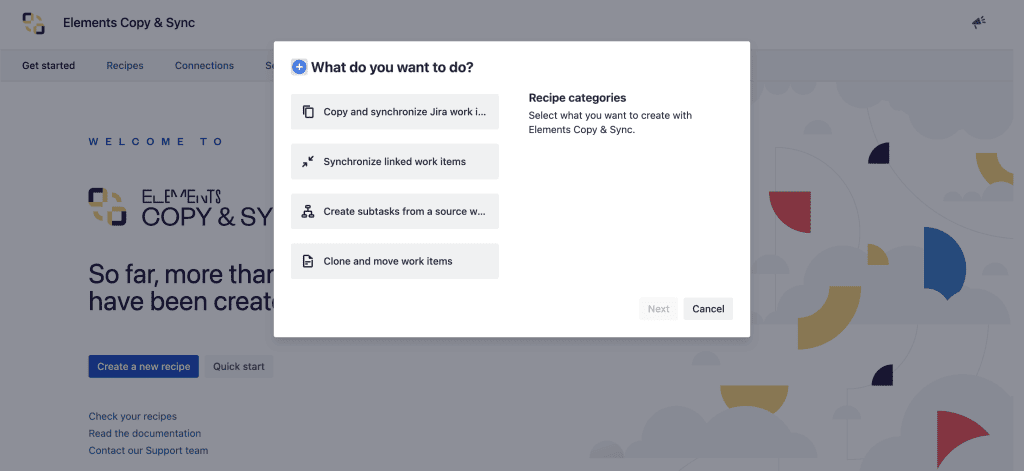
Once a recipe is active, you can run it either from the Actions menu, as a workflow post-function so cloning happens during a transition or from an Automation rule. Read more about recipe triggers.
Escalate a Jira issue from your support team to your dev team
When a customer raises a request that requires engineering work, you can configure a recipe to instantly clone the JSM issue into the right Jira project, with all relevant fields, attachments, and comments copied across, and changes synchronized in both directions as the issue progresses.
Check the demo on issue escalation
Bulk clone many Jira issues at once
Need to replicate an entire project setup? You can bulk clone multiple Jira issues at once (epics, stories, tasks, and subtasks) reusing existing project structures as templates. This is useful for onboarding new clients or launching repeatable projects while reducing manual error.
Follow the step-by-step guide to bulk clone Jira issues
Copy a Jira project from one instance to another
Work doesn’t always stay in one Jira instance. You can clone and synchronize issues across multiple Jira Cloud sites. It is useful when you copy a Jira project from one instance to another, coordinate with external partners, or work across subsidiaries, keeping key information aligned with live updates when items change.
Read more on how to clone and sync Jira issues across different instances
Automatically synchronize cloned issues
What sets Elements Copy & Sync apart from native cloning and most other apps is that any cloned issue can be kept synchronized with its source. When a field is updated, a comment is added, or an attachment is changed on the original issue, those changes are automatically reflected on the clone and you can configure synchronization to go in one direction or both. This is a game changer for cross-team workflows where multiple people need to work on linked issues without manually keeping them up to date.
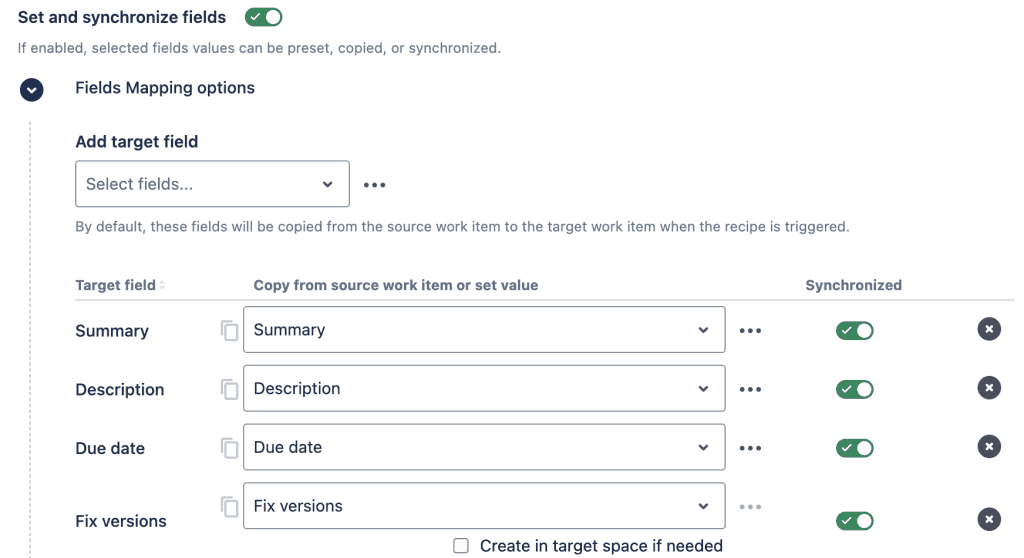
Check how to synchronize cloned Jira issues
Pros and Cons of using Elements Copy & Sync
| Pros | Cons |
| Fine-grained recipe configuration: fields, attachments, comments | Paid add-on |
| Automatic synchronization between source and cloned issues | Initial recipe setup required |
| Works across multiple Jira Cloud instances | |
| Bulk clone epics, stories, tasks, and subtasks at once | |
| Post-function option: cloning runs in the background, no extra clicks | |
| Guided process reduces user error |
Elements Copy & Sync is the right choice when cloning is a recurring part of your workflows, not a one-off action. If you need to escalate issues between teams, bulk clone Jira issues to replicate a project structure, copy a Jira project from one instance to another, or simply ensure that cloned issues stay automatically synchronized, it covers what neither native cloning nor Automation can handle on their own. The upfront recipe configuration is minimal compared to the time it saves at scale.
How do you control who can clone issues in Jira?
With a handful of users, controlling cloning may not feel essential. As adoption spreads; say from 10 projects to 60, the risk of cloning the wrong item or moving a clone to the wrong space rises, creating clean-up work.
Native Jira
In Jira Cloud, there is no dedicated clone permission: any user with the Create Issues permission can clone an issue, with no way to restrict this by role or user group out of the box.
Automation
Rule conditions can check whether a user exists or belongs to a group before executing, limiting cloning to a subset of users.
Elements Copy & Sync
You can restrict which work items can be cloned (by type, priority, status, or a JQL filter) and where, plus set permissions by user, group, or role.
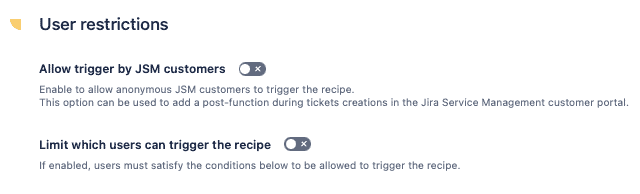
See the recipe triggers and user-restriction settings in the documentation.
How do you clone an issue from Jira Service Management to Jira?
Here is a common scenario to clone an issue from JSM to Jira: a customer raises a request on a Jira Service Management portal that requires the development team. The bug details need to be cloned and moved into the developers’ project so they can add it to a sprint.
With a recipe-based approach, the recipe might be available for all item types on the support desk that are In Progress, creating the clone in one of three pre-selected spaces as a Bug with a “blocks” link. The recipe summary shows whether fields, comments, and attachments are copied, and whether synchronization is active so later changes on the support desk flow to the clone.
Two extras help in this situation:
- Show the cloned item’s status on the customer portal so requesters stay informed (users need permissions on the linked items).
- Synchronize fields, comments, and attachments from the JSM item to the software item, in the direction you choose, so developers receive new information the customer adds later.
Watch how to clone a Jira issue from Jira Service Management to Jira.
What are the best practices for managing cloning in Jira?
- Assign users to the correct roles or groups, especially if you limit move permissions by role.
- Review custom fields across projects so the cloned item stays coherent in its new project.
- Check the source and destination workflows.
- Ask project admins how users should clone and move: individually, choosing the target themselves, invisibly via post-function, or in bulk?
- Test any clone-and-move app in a staging instance first.
By picking the option that fits your needs, you optimize your instance for users and simplify instance administration.
Frequently asked questions about cloning Jira issues
Can you clone a Jira issue to another project?
Yes. Clone the issue from the Actions menu, then use Move to send the copy to another project, mapping statuses and required fields. Automation rules and apps can also clone directly into another project, including as a workflow post-function.
Can you bulk clone Jira issues?
Native Jira clones one work item at a time. To bulk clone, replicating epics, stories, tasks, and subtasks together, you need Automation rules or an app such as Elements Copy & Sync, which can clone entire project structures at once.
How do you copy a Jira project from one instance to another?
Native move works within a single instance only. To copy a Jira project from one instance to another, use an app that clones and synchronizes work items across Jira Cloud sites, keeping fields, comments, and attachments aligned with live updates.
Does cloning a Jira issue copy comments and attachments?
Native cloning can copy attachments but not comments. Automation copies neither by default. A recipe-based app can copy fields, attachments, and comments, and keep them synchronized.
Watch Alex Ortiz video on how to clone a Jira issue from Jira Service Management to Jira