










TL;DR
- Definition: Jira project templates are pre-configured project setups (work item types, workflows, board, fields) you select when creating a new project.
- Coverage: Jira Cloud ships with 30+ templates for software, service management, work management, and product discovery, the foundation of project management in Jira.
- Custom templates: saving your own Jira project management template is only available on Premium and Enterprise plans.
- Main limitation: templates apply structure at creation time only; no content, no updates, no Jira sync between projects afterwards.
- Workaround: Elements Copy & Sync lets you clone a Jira project (structure + content) and bulk clone work items across projects, turning any project into a reusable template on any plan.
Jira project templates are ready-made project configurations, work item types, workflows, fields, and board setup, that you choose when creating a new project. They remove the need to configure each project from scratch: pick the template that matches your way of working (Scrum, Kanban, ITSM…) and Jira applies the structure automatically. Templates are a fast starting point for project management in Jira, but they have real limits: they only act at creation, custom templates require a Premium plan, and they can’t keep related projects in sync. This guide covers how they work and how to scale beyond them.
What are project templates in Jira?
A project template is a predefined blueprint Jira applies when you create a new project. It determines:
- the work item types available (epic, story, task, bug, request types…),
- the workflows those work items follow,
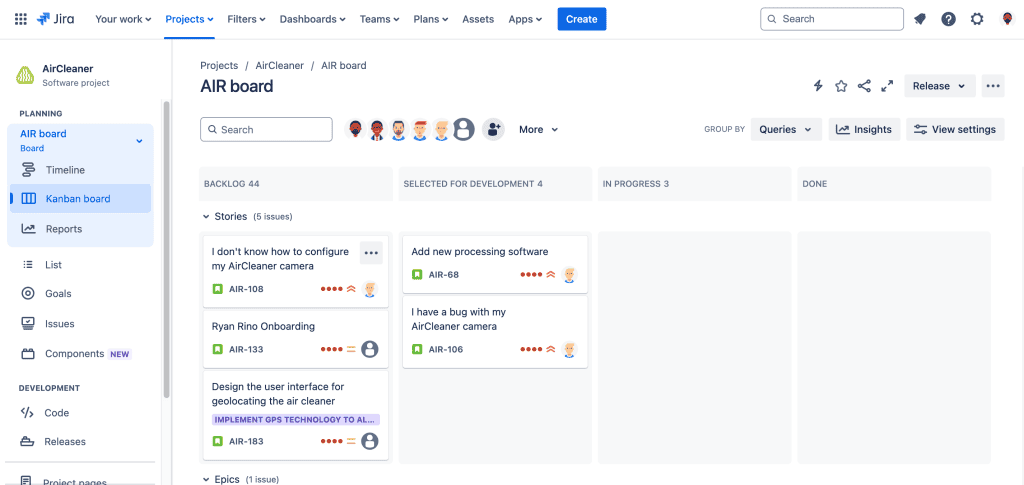
- the board type (Scrum or Kanban) and default views,
- preset fields and screens appropriate to the use case.
Templates exist for both team-managed and company-managed projects. Team-managed templates give project admins autonomy; company-managed templates rely on shared, centrally administered schemes, the better fit when many projects must stay consistent.
Which Jira project templates are available?
Jira’s template library is organized by use case:
| Category | Example templates | Typical users |
| Software development | Scrum, Kanban, Bug tracking | Dev & DevOps teams |
| Service management | ITSM, Customer service, HR, Facilities | IT & support teams |
| Work management | Project management, Task tracking, Marketing | Business teams |
| Product & design | Product discovery, Design | Product teams |
In total, Jira Cloud offers more than 30 templates. Each one shows a preview of its workflow and work item types before you commit. For business teams, the “Project management” template under Work management is the most common Jira project management template.
How do you create a project from a template in Jira?
- Go to Projects → Create project.
- Browse the template library by category, or search by name.
- Select a template and review its work item types and workflow.
- Choose team-managed or company-managed (when both are available).
- Name the project, set the project key, and click Create.
Setup takes under a minute, which is exactly why templates are the default starting point for new projects.
Why use Jira’s native project templates?
Native templates cut project setup from hours to minutes. They encode Atlassian’s defaults for common methodologies, so teams start with a sensible workflow instead of an empty shell. For organizations spinning up many similar projects, one per client, per release, or per service, templates also enforce a baseline of consistency, which simplifies reporting and cross-project searching later on.
What are the limitations of Jira project templates?
Native Jira project templates have four practical limits worth knowing before you standardize on them:
- They act only at creation time: A template stamps the initial structure. If your standard evolves, existing projects don’t update, you reconfigure each one manually. For recurring configuration changes, consider automating repetitive setup with Jira automation.
- They copy structure, not content: Templates don’t include pre-filled work items, checklists, components, versions, or attachments. A “project starter kit” with recurring tasks isn’t possible natively.
- Custom templates are gated by plan: Saving a reusable custom template is a Jira Cloud Premium/Enterprise feature. On Free and Standard, the closest native option is copying an existing project’s schemes (company-managed). A partial, admin-heavy workaround.
- No cross-project sharing or Jira issue sync: Teams handling similar work items across multiple projects (e.g., a customer escalation tracked by support and engineering) get no native mechanism to share or synchronize them.
Can you create a custom project template in Jira?
Yes, with conditions. On Jira Cloud Premium and Enterprise, admins can save a configured project as a custom template and surface it in the project creation flow. On other plans, the practical alternatives are reusing shared schemes in company-managed projects, or cloning a “model project”, content included, with a third-party app whenever a new project is needed.
How do you clone a Jira project to go beyond template limits?
This is where cloning and synchronization apps fill the gap. Elements Copy & Sync extends Jira’s templating model in three ways:
- Clone a Jira project entirely, including its work items, hierarchies, attachments, and comments, effectively turning any well-configured project into a living template, with content included, on any Jira plan. See how to clone an entire project in Jira and how to configure project cloning recipes.
- Bulk clone work items across projects, so recurring task sets (onboarding checklists, release runbooks, client kick-off packages) can be stamped into new projects in one operation.
- Keep cloned work items in sync: when the source changes (status, fields, comments), linked copies update automatically, solving the cross-project consistency problem templates can’t address.
This approach is particularly useful for teams running a scaled agile framework, service teams escalating requests to delivery teams (see our Jira change management workflow examples), and PMOs that copy a Jira project structure several times per quarter. To evaluate it on your instance, try Elements Copy & Sync on the Atlassian Marketplace.
FAQ
Are Jira project templates free?
Yes. all native templates in the library are included on every Jira Cloud plan. Only custom (saveable) Jira project templates require Premium or Enterprise.
Can I change a project’s template after creation?
No. A template is applied once, at creation. You can modify the resulting configuration (workflows, work item types), but you can’t swap templates. To change approach, create a new project and move work items into it.
Can a Jira project template include pre-filled tasks or work items?
Not natively, templates define structure only. To start projects with recurring content (checklists, standard epics), clone a model project or bulk clone work items with an app such as Elements Copy & Sync.
What’s the difference between cloning a Jira project and using a template?
A template applies a structural blueprint maintained by Atlassian (or your admins on Premium). Cloning duplicates a real, existing project, structure and content, and, with a sync-capable app, keeps the copies aligned afterwards.
To go further, start from your best-configured existing project, clone it as your internal standard, and document which fields and workflows are mandatory. That single “model project” approach scales better than template documentation that drifts out of date.