







How to clone issues in Jira: understanding the basics and navigating limitations
7 min read
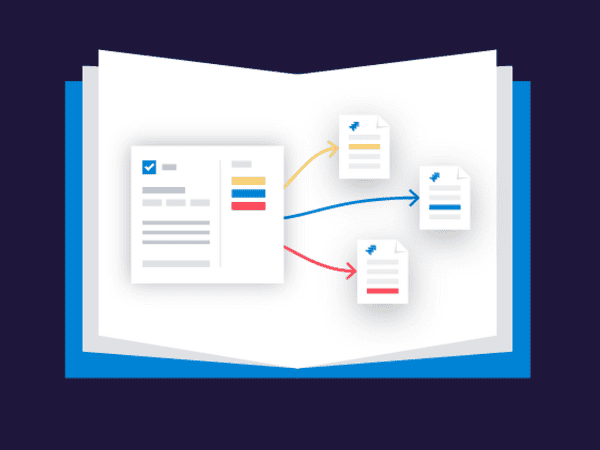

Jira’s built-in clone feature lets you duplicate a work item in a few clicks; summary, description, assignee and priority are copied automatically into a new work item. It works well for simple, recurring tasks. But for teams managing epics with stories and subtasks, or work items linked by dependencies, the native feature has hard limits: subtasks are not cloned, links are dropped, and hierarchies are ignored.
This article explains exactly how to clone Jira issues using the native feature, what gets copied (and what doesn’t), and when you need to go beyond it.
TL;DR
| Native Jira clone | Duplicates the summary, description, assignee and priority of a work item in a few clicks. |
| What is not copied | Subtasks, issue links, comments and history are excluded from the native clone. |
| No hierarchy preserved | Cloning an epic does not clone its stories or subtasks — each level must be cloned manually. |
| When native is enough | Simple recurring tasks or bugs to retest in a different environment. |
| For complex cases | Apps like Elements Copy & Sync handle full hierarchy cloning, including links and attachments. |
What does “clone Jira issue” mean?
When you clone an work item in Jira, you’re essentially creating a duplicate of an existing ticket. This duplicate carries over key data fields such as the work item summary, description, assignee, and priority. Cloning allows teams to quickly replicate tasks without manually re-entering the same information again and again.
For example:
- A QA tester might clone a bug work item to retest it in a different environment.
- A project manager may clone a task that recurs monthly, like “Generate performance report.”
- Developers could clone Jira issues to use as templates for similar feature requests.
Instead of starting from scratch, cloning ensures consistency and saves time.
How to clone an issue in Jira (step-by-step)
Copying in Jira is built into the core functionality and is accessible to all users with the correct permissions. Here’s how it works:
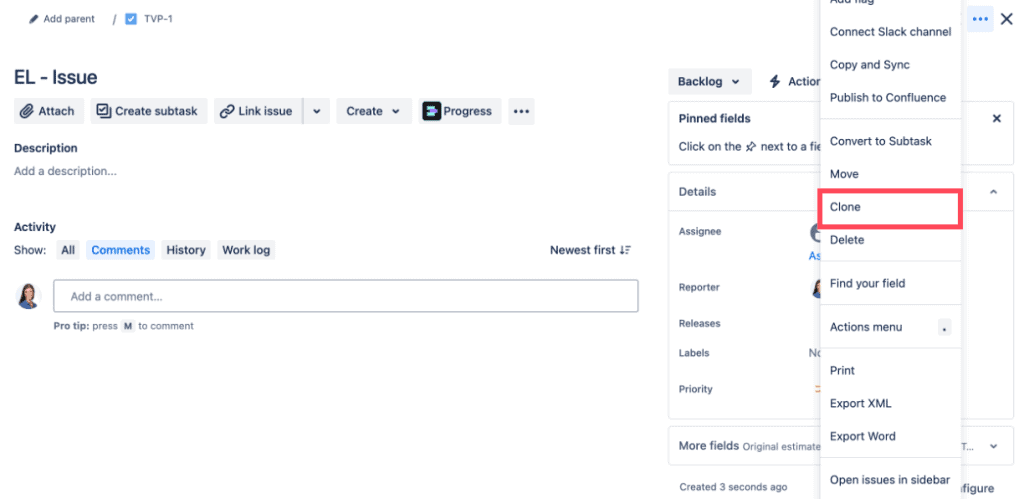
Select “Clone”
In the work item’s action menu (usually represented by the “…” icon), select Clone.
Open the work item you want to clone
Navigate to the work item you’d like to duplicate.
Adjust the details
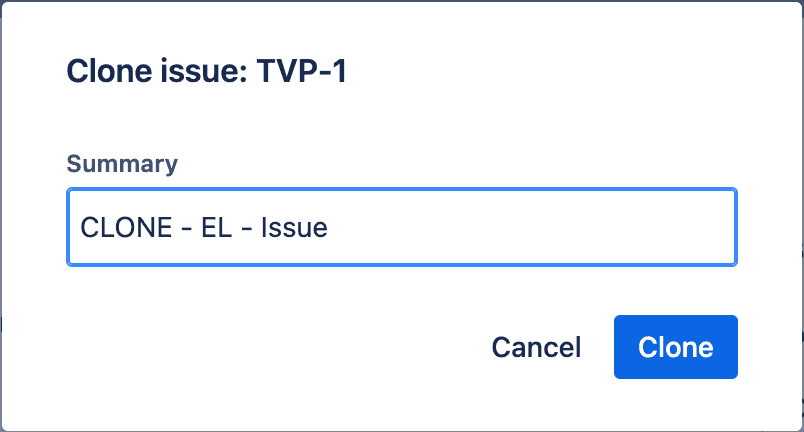
A dialog box appears, allowing you to modify certain fields. Jira will automatically add the prefix “CLONE – ” to the summary of the new work item, but you can adjust this or edit other fields if necessary.
- Save and create
Once you confirm, Jira generates the new work item with the selected fields copied over.
👉 Tip: If your admin has configured custom prefixes or additional clone options, you may see slightly different settings depending on your Jira instance.
What information gets cloned in Jira?
When you clone a Jira issue, the following elements are typically copied:
- work item summary (with the “Clone” prefix)
- Description and custom fields
- Assignee and reporter
- Attachments
- Priority
- Labels
However, not everything carries over. By design, Jira avoids duplicating certain aspects to prevent confusion. For example:
- Time tracking data (e.g., logged hours)
- Comments
- work item history and activity log
- Links to other work items
This makes sense if you’re using cloning to spin up a new piece of work, but it quickly becomes limiting when dealing with more complex work item hierarchies.
Limitations of Jira’s basic cloning
At first glance, cloning in Jira seems like a productivity booster. But once you move beyond simple tasks, you’ll start to notice the drawbacks. Let’s look at the most common ones.
1. No subtask duplication
Cloning does not automatically copy subtasks. If you clone a parent task or epic, Jira will only duplicate the top-level work item. All subtasks or child work items remain behind, requiring you to clone them manually.
Example:
If you clone an epic with 15 user stories and each story has 3 subtasks, you’ll need to create nearly 60 clones by hand.
2. No linked work items
Cloning doesn’t replicate links between work items. If your task is connected to dependencies, blockers, or related tickets, those connections vanish in the clone.
3. Manual effort and human error
Because you must manually replicate subtasks and links, the process is time-consuming. More importantly, it’s prone to errors, teams might forget to clone a related bug or misplace dependencies, leading to inconsistent workflows.
4. Lack of hierarchy preservation
Large projects often rely on work item hierarchies (epic → story → subtask). Jira’s cloning ignores this structure, which can be a serious barrier for teams managing scaled Agile projects.
When is basic cloning enough?
Despite its limitations, it can be useful in simpler scenarios:
- Duplicating a single recurring task
- Re-testing a bug in a different environment
- Spinning up a new feature request similar to an existing one
If your workflow doesn’t involve subtasks, dependencies, or large hierarchies, the built-in cloning may be sufficient.
How to overcome Jira cloning limitations
For teams that need more than just a copy of a single work item, Jira Marketplace apps can extend cloning capabilities dramatically.
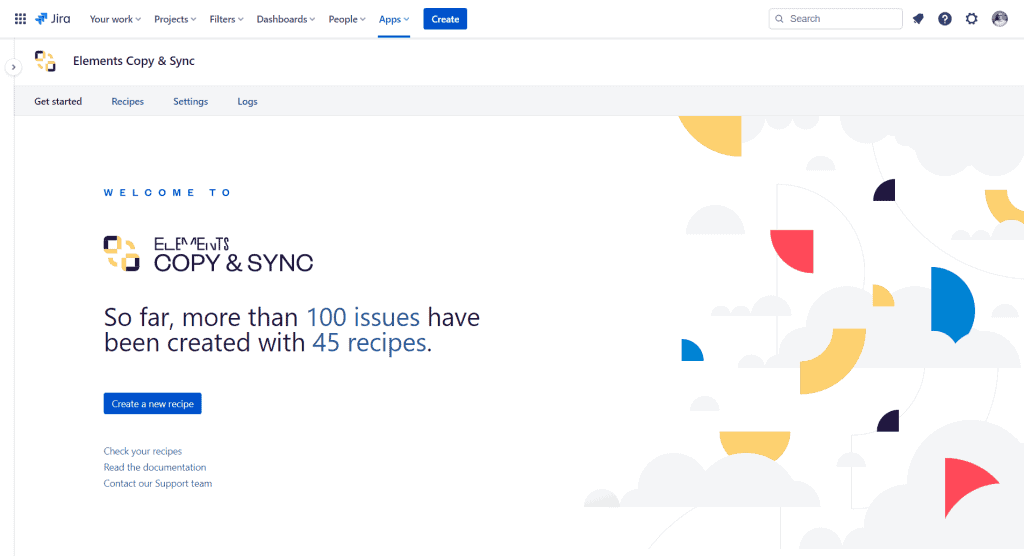
Elements Copy & Sync
One of the most popular tools for enhanced copying is Elements Copy & Sync. The app allows you to:
- Copy and synchronize Jira work items recipe (epics with all stories and subtasks)
- Preserve links between issues
- Duplicate attachments and comments
- Automate cloning to reduce repetitive work
- Sync changes between the original and cloned issues to keep them aligned
This means instead of spending hours manually recreating structures, you can duplicate them in seconds while ensuring nothing gets lost in the process.
Best practices for cloning Jira issues
If your team frequently clones Jira issues, here are some tips to keep your projects tidy and efficient:
- Use clear naming conventions
Customize the “Clone” prefix to something more meaningful (e.g., “Template,” “Recurring,” or “Copy”). - Document your process
Standardize when and why cloning should be used across your team to avoid cluttering your Jira instance with unnecessary duplicates. - Leverage apps for complex cases
If you regularly clone hierarchies, invest in a tool like Elements Copy & Sync to save time and reduce errors. - Review cloned work item carefully
Always check cloned tickets for missing subtasks, links, or context before assigning them.
Read our guide on cloning Jira issues
FAQ: cloning Jira issues
Can I clone multiple Jira issues at once?
Not with the native feature. It only clones one work item at a time. Bulk cloning Jira issues (selecting multiple work items and duplicating them in a single action) requires a Marketplace app. Elements Copy & Sync supports bulk cloning via Jira’s work item search or board views.
Can I clone a Jira issue to another project?
The native clone creates the duplicate in the same project. Cloning across projects or across Jira instances requires a dedicated app. Elements Copy & Sync supports both cross-project and cross-instance cloning, with field mapping to handle differences in project configuration.
Does cloning a Jira issue create a link between the original and the clone?
Yes. By default, Jira adds a “cloned by / clones” link between the original work item and the new duplicate. This link is visible in both work items and can be removed manually if not needed.
Is there a way to automate cloning in Jira?
Not natively. Jira Automation does not include a built-in “clone work item” action. Apps like Elements Copy & Sync integrate with Jira Automation to trigger cloning based on conditions. For example, automatically cloning a template work item when a new sprint starts or when a specific field value is set.
Conclusion: should you clone Jira issues?
The ability to clone Jira issues is a simple but powerful capability. For small, recurring tasks, it helps teams save time and maintain consistency. However its limitations, particularly the lack of subtask and link duplication, make it less effective for large projects.
If your team needs to clone complex work item hierarchies or ensure dependencies remain intact, relying on Jira’s native clone feature alone may not be enough.
Tools like Elements Copy & Sync fill this gap, enabling complete, automated duplication and synchronization.
By understanding both the strengths and weaknesses of Jira cloning, you can make better decisions about when to use the built-in capability and when to upgrade your workflow with dedicated apps.