




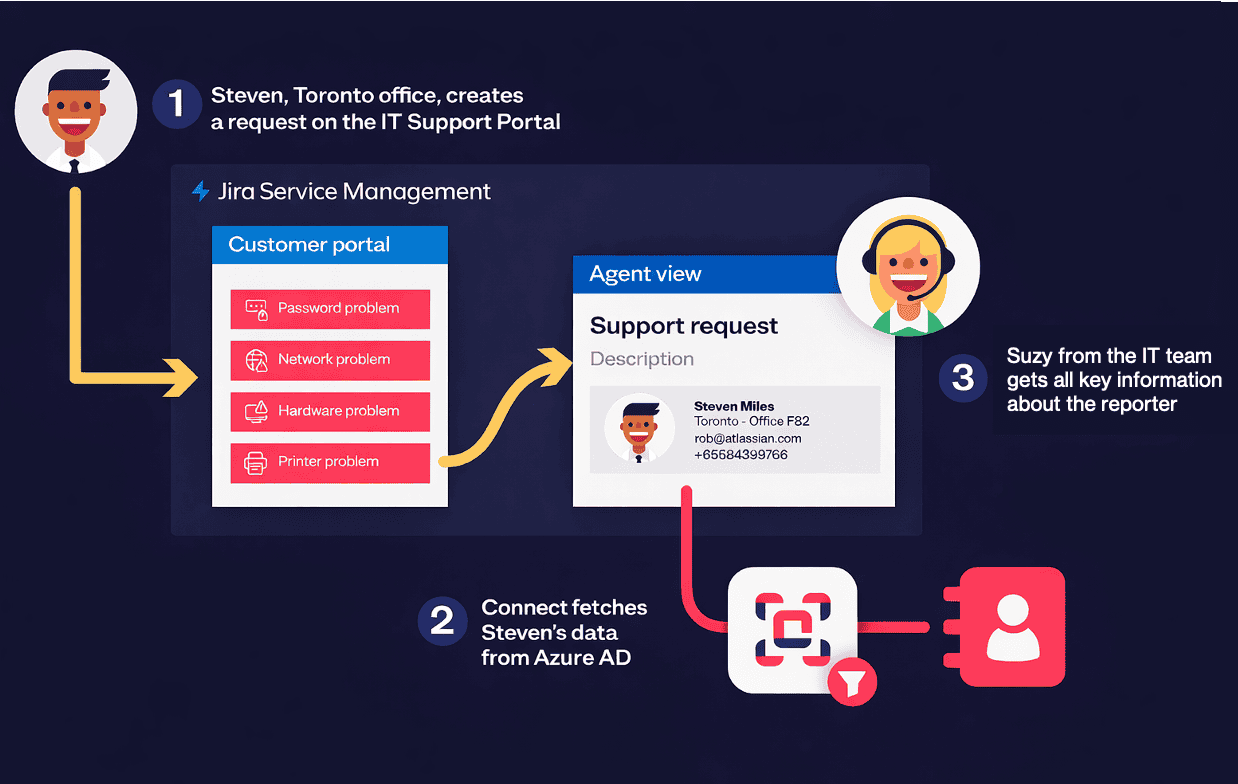

Service teams running a Jira Service Management project often need to have data that has been accurately collected upon receipt: customer IDs, asset tags, office locations, contracts, catalog items. Default Jira fields (Summary, Description) don’t enforce structure, so admins create a custom field for each requirement and hope requesters type the right thing.
In practice, free text leads to mismatches, clean-up work, and an issue history that’s hard to query. Elements Connect addresses this by letting you integrate external data in custom fields and place it directly on Jira Service Management request forms. A requester selects live values from your data while creating the ticket, and the created issue stores those selections, so agents see the same, reliable data.
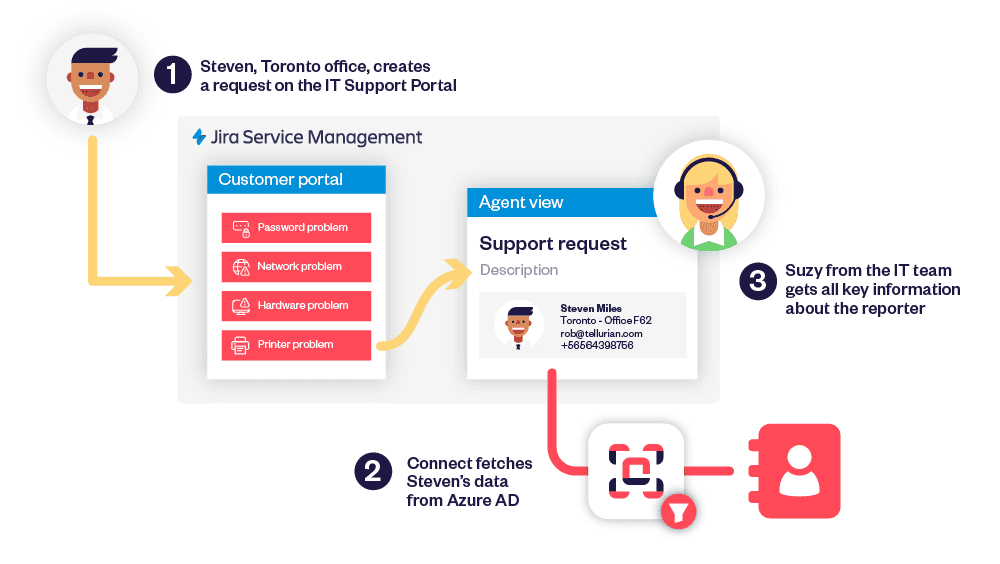
Why Jira Service Management benefits from connected custom fields
Each project tends to have its own taxonomy (customers, offices, products) living outside Jira. If a field relies on a static list or manual entry, values drift. By contrast, a custom field retrieves options dynamically from the system that owns the data (REST API & database). That means one place to create and curate the list, and one place, the work item, to store the selected value. The result in Jira is simpler queues, accurate routing, and reports that reflect reality across projects and issues.
What’s new in JSM
Elements Connect’s connected custom fields have been available on Jira issues for a while. The change is that they’re now portal-ready in JSM projects. You can create a single-select & multi-select (with text search allowed), backed by an external source, and add that field to any request type. Options are retrieved when the form loads or as the user types, so the fields always mirror the current dataset, no nightly syncs and no duplicated tables inside Jira.
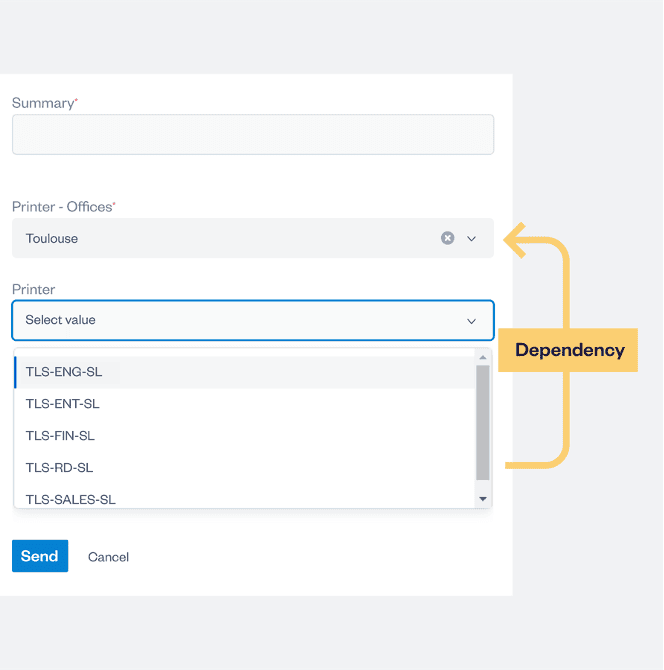
Cascading dependencies are supported as well. If aparent field (Offices) changes, thechild field (Printer) filters its options immediately, helping the requester create a correct, well-scoped issue.
For the complete matrix of supported variables and behaviors on the portal versus the agent view, see Using connected custom fields on JSM projects.
How to add your first connected custom field (step-by-step)
- Create a custom field in Elements Connect. Select the data source (REST API or database) and write the query that returns the column you want to display.
- Click Add field to portal. Choose the target JSM project and the request type that needs the field.
- Place the field in the form layout. Save and preview the portal to confirm the options load. Once you had your custom field on customer portal, then it will automatically be added to the agent’s view.
- (Optional) Create a child field and made it dependent to have his options according to the values selected on the parent field. Make sure both fields are present on the same form/screen.
- Submit a test request. Verify that the created issue stores the selected values in the mapped custom fields, and that agents can view or edit it on the issue screen.
From there, reuse the same field configuration across additional request types without duplicating setup. Because the field reads from your data, updates to the external list are reflected the next time someone creates a request.
You can try it for free here.
Supported today on the portal and agent views
- Portal forms and agent view. The same connected field appears for customers and agents.
- Dependencies between fields. Parent/child fields filter instantly when both are present on the form or screen.
- Dependencies with the requester. Element Connect’s connected custom fields can be configured to display only the external data linked to your requester.
- Field types. Single-select & multi-select (with text search allowed) are common choices for custom fields on a JSM project. But all fields like Read only and User can be add. You can even create one field on the request form with single select and read only information attached to it.
Practical example: from request to issue (select → store → report)
Imagine a hardware request for a printer problem. On JSM, the requester selects a portal from the relevant project to create his request. The Elements Connect’s connected custom field Office, in this portal, is already filled according to the requester informations (example: Toulouse because it’s his workplace). He can now fill the custom field Printer , which is filtered according to the location of Toulouse.
On the agents side, they see the same field values on their screens, can adjust if stock changes, and automation can route the issue to the right queue. Because the fields hold structured values, you can filter, report, and measure SLAs reliably across projects.
Tips for clean configuration in JSM projects
- Prefer searchable mode for large datasets; it’s faster than loading thousands of options and reduces scrolling.
- Name fields clearly (e.g., “Customer — from CRM”) and add concise help text to reduce questions.
- Limit column to what the form must show; keep sensitive attributes out of Jira.
- Test dependencies with real data. Place parent and child fields together to ensure the child field filters.
- Report on the stored values. Because selections land in custom fields on the issue, dashboards and queues can use them directly.
Short FAQ
Will the same custom field work across multiple request types and projects?
Yes. Add the field wherever it’s needed; configuration stays central and reusable.
Are values live or cached?
Connected data are retrieved cached and you can configure the cache duration for balance between freshness and performance.
Can agents see and edit the field on work items?
Yes. The Elements Connect’s connected custom fields is available in the work item view, matching what customers selected on the portal, but the agent can edit the field directly on the work item in case this is needed.
Can users select multiple values in one field?
Yes, use the multi-select picker field type. Users can select multiple values; each is saved in the custom field on the created issue and works with JQL, queues, and dashboards. Prefer searchable mode for long lists to keep performance high.
How do I migrate a free-text field to a connected custom field without breaking issues?
Create a new connected custom field, add it to the project screens, then copy data from the old text field with Jira automation (rule: when edited → set new field to old value). Keep the old field for history/labels, and report on the new field going forward.
Streamlined connected fields for JSM
Jira covers the basics for managing field configs, but Elements Connect bridges the external-data gap: you can create custom fields, surface live options on portal forms, and have each issue consistent across each project, without maintaining parallel lists or scripts.
Dive deeper in the guide: Connected custom fields on JSM projects.
Try it in your site via the Elements Connect listing on the Atlassian Marketplace, and watch quick walkthroughs onElements YouTube.
If you often roll out similar request types or onboard new teams, adopting a dedicated connected-fields setup pays off: you’ll standardize capture at create time, keep Jira issues reliable, and scale patterns cleanly across environments.