








TL;DR
- Most common cause: a failed clone usually comes down to missing field mappings, insufficient permissions, or work item type mismatches.
- Fastest fix: open the recipe, confirm required fields are mapped, then run a test clone before troubleshooting further.
- Missing comments or attachments: enable Copy comments and Copy attachments in the recipe so all content carries over.
- Audit log: use it to see every clone and sync event with timestamps, status, and error details.
- Prevention: keep configurations consistent across projects and re-test recipes whenever workflows or custom fields change.
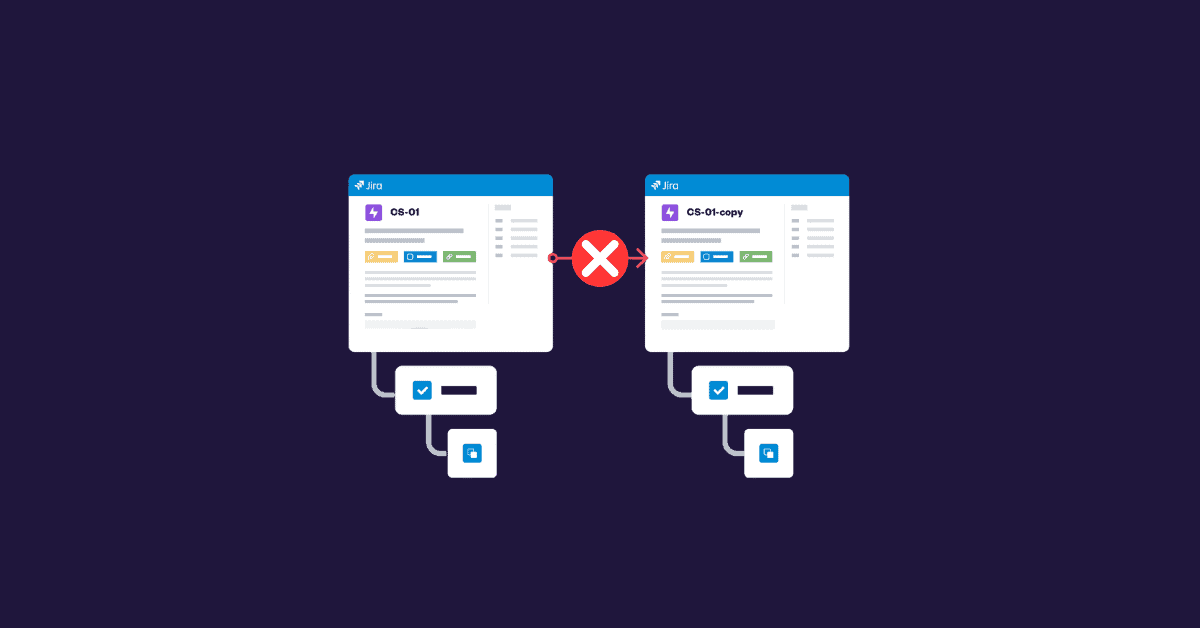
A Jira clone issue usually fails for one of five reasons: a required field isn’t mapped, the user lacks permissions, the source and target work item types don’t match, an automation rule creates a loop, or comment and attachment syncing is switched off. In most cases you can fix it by opening the recipe, checking the field mappings and permissions, and running a test clone. This guide walks through each cause of a failed clone, how to diagnose it with the audit log, and how to prevent cloning issues in Jira from happening again with Elements Copy & Sync.
How does cloning work in Jira and Elements Copy & Sync?
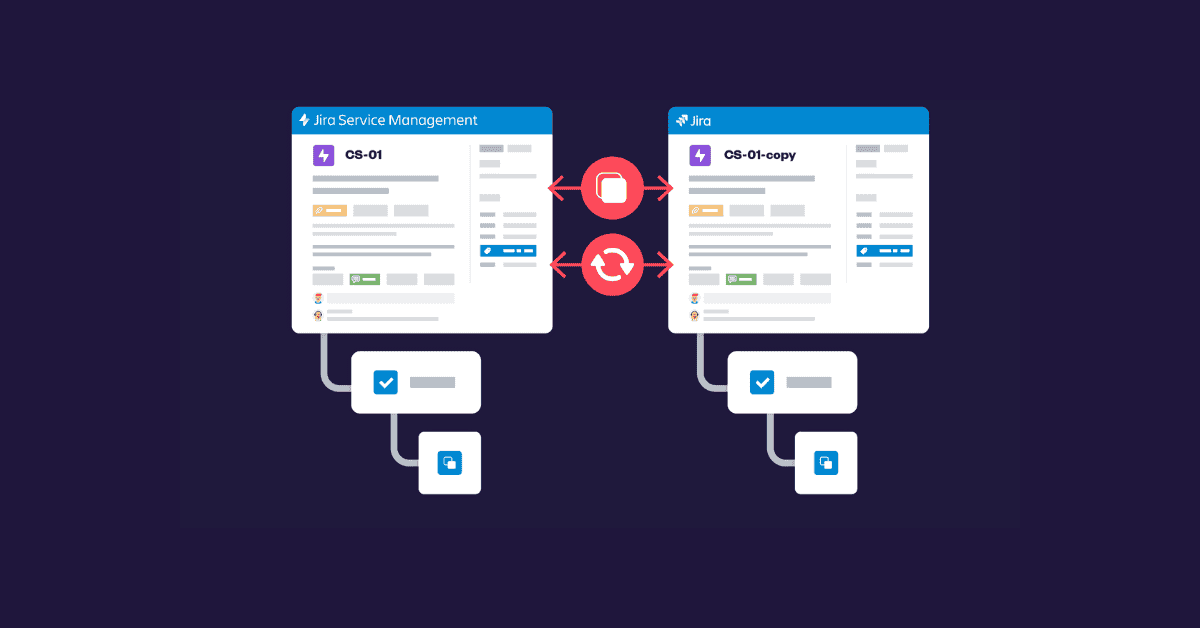
In Jira, cloning creates a duplicate of an existing work item, copying key details such as the summary, description, and attachments. Jira’s native clone is limited, though: it doesn’t copy custom information, links, or comments, and it can’t keep future updates in sync.
That’s where the app extends what a Jira clone can do. With Elements Copy & Sync you can:
- Clone work items across projects or work item types,
- Include comments, attachments, and links,
- Synchronise information in real time between source and target work items,
- Control what is cloned and what stays unique to each work item.
This flexibility lets you build a reliable duplication process. When something goes wrong, understanding the cause is what makes it quick to resolve. Some limitations may still apply depending on your project configuration or workflow design.
Watch a short overview of Elements Copy & Sync capabilities.
What causes a Jira clone issue to fail?
Here are the most frequent reasons duplication fails or behaves unexpectedly when using Elements Copy & Sync.
Why are field mappings missing or misconfigured?
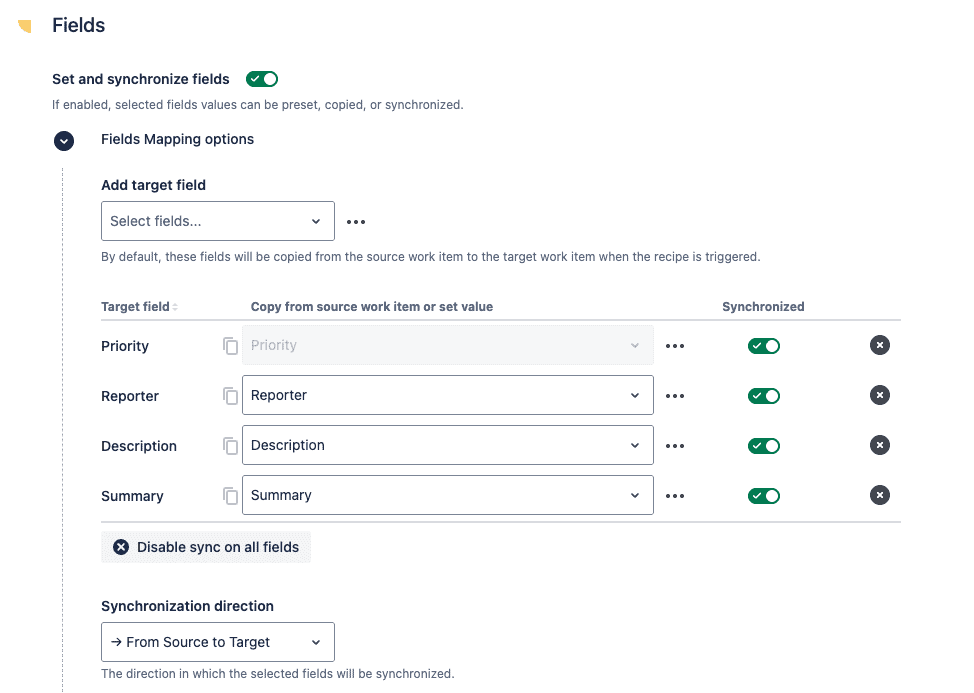
If required fields such as Summary, Work item type, or Reporter aren’t mapped in your recipe, Jira may reject the new work item or skip information.
Fix: Review the Fields section of your recipe and confirm every mandatory field is included. In larger projects, check that configurations match between source and destination so the two work items stay compatible.
Why do permissions block a clone?
A clone can fail if the user doesn’t have the right permissions to view or create work items in the target project.
Fix: Confirm the cloning user (or automation) has:
- Browse Projects and Create Issues permissions in both projects,
- Access to any restricted custom fields or components.
A user often has limited rights on one project but full rights on another, and that mismatch is enough to block a clone.
Why do incompatible work item types or workflows break cloning?
When the source and target projects use different workflows or work item type configurations, some values may not be valid in the destination.
Fix: Make sure the destination project supports the same work item type and required fields, or adjust your recipe mappings to match. These differences are one of the most common limitations when automating across multiple projects.
How do automation or webhook loops interfere?
Other automation rules can interfere with the process, creating loops or duplicate actions, for example, when a cloned work item triggers a rule that tries to clone it again.
Fix: Temporarily disable or adjust any rules that trigger on work item creation. Add conditions or checks that stop unnecessary duplication cycles in more complex projects.
Why are attachments or comments not being cloned?
If attachments or comments are missing from the cloned work item, synchronisation is probably turned off.
Fix: In your recipe, confirm the Copy attachments and Copy comments options are enabled so every cloned work item carries all relevant content.
You can also synchronise attachments continuously between connected projects. On Cloud, background synchronisation keeps attachments available across related work items.
How do you fix a Jira clone issue step by step?
To fix a Jira clone issue and if duplication doesn’t produce the expected result, work through these steps in order:
- Open the recipe used for cloning.
- Check the mappings to confirm required fields are configured correctly.
- Review user permissions for both the source and target projects.
- Enable synchronisation settings if you want attachments, comments, or links copied.
- Run a test clone to validate the configuration.
- Check the audit log or error messages in the dashboard for clues about missing fields or access problems.
How can the audit log help you troubleshoot recipes?
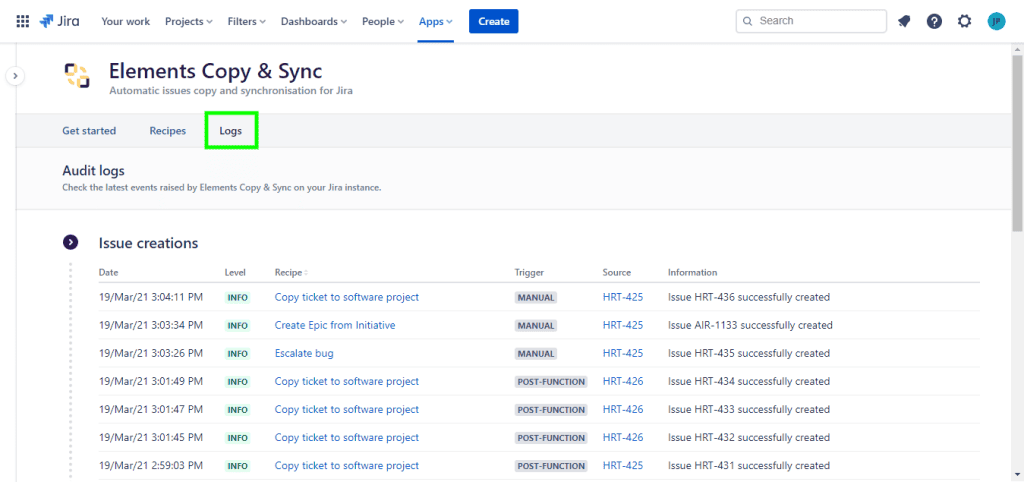
The audit log is one of the most useful tools for diagnosing cloning failures or synchronisation problems. It records a detailed history of every action performed by the app, each clone and sync event, with timestamps, status information, and error details.
Reviewing the audit log regularly also supports compliance and transparency, especially across multiple projects and teams using Jira Cloud.
How do you prevent future cloning errors in Jira?
To reduce the chance of running into another failed clone, follow these best practices:
- Keep configurations consistent across projects and work item types.
- Test recipes whenever you update workflows or custom fields.
- Limit conflicting automations that might interfere with the clone process.
- Use synchronisation features to keep cloned work items updated.
- Document your recipe setup so each teammate understands how duplication works and what limitations exist.
- Review configurations periodically for larger structures, so the cloning logic still matches your workflow goals.
When should you contact support?
If you’ve verified your configuration and duplication still fails, reach out to the Elements team. Before you do, prepare:
- The name of the recipe used,
- Relevant logs or screenshots showing the problem,
- The source and target work item keys.
Providing this helps support pinpoint the cause quickly. For cross-project permission questions, the Atlassian Community is also a good place to compare configurations with other admins.
Frequently asked questions about cloning issues in Jira
Why does my Jira clone fail to create a work item?
The most common cause is a required field that isn’t mapped in the recipe, or missing Create Issues permission in the target project. Check both, then run a test clone.
Why are comments and attachments missing from a cloned work item?
Comment and attachment copying is controlled per recipe. Enable Copy comments and Copy attachments, and turn on background synchronisation if you also want them to stay updated over time.
Can you keep a cloned work item in sync with the original?
Yes. Elements Copy & Sync can synchronise fields, comments, and attachments in real time between the source and target work items, so changes on one side are reflected on the other.
Does Jira’s native clone copy links and comments?
No. The built-in Jira clone copies basic fields like summary, description, and attachments, but it does not copy custom information, links, or comments, and it can’t keep work items in sync afterward.
Final thoughts
A failed clone is frustrating when automation is central to your workflow, but most problems come down to mappings, permissions, or synchronisation settings. Working through the checks above resolves the majority of cases and helps you keep a smooth, reliable process for duplicating and syncing work items in Jira.
eams, projects, or workflows, Elements Copy & Sync ensures your setup remains efficient and scalable, making the add-on a reliable companion for any Jira administrator working within the Atlassian cloud ecosystem.