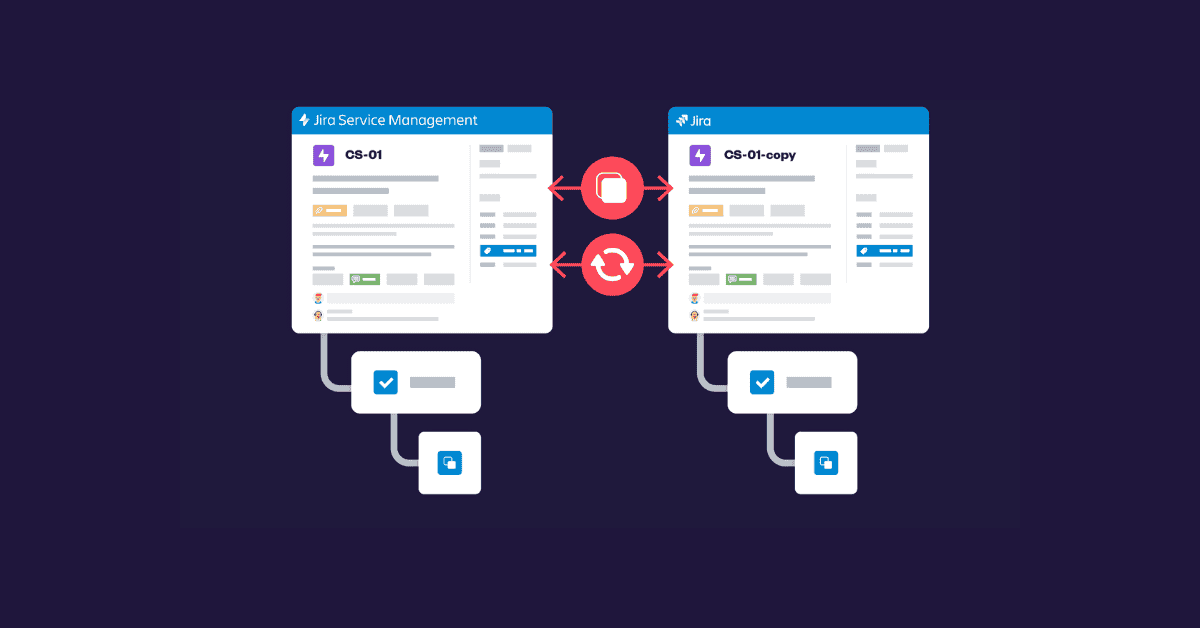








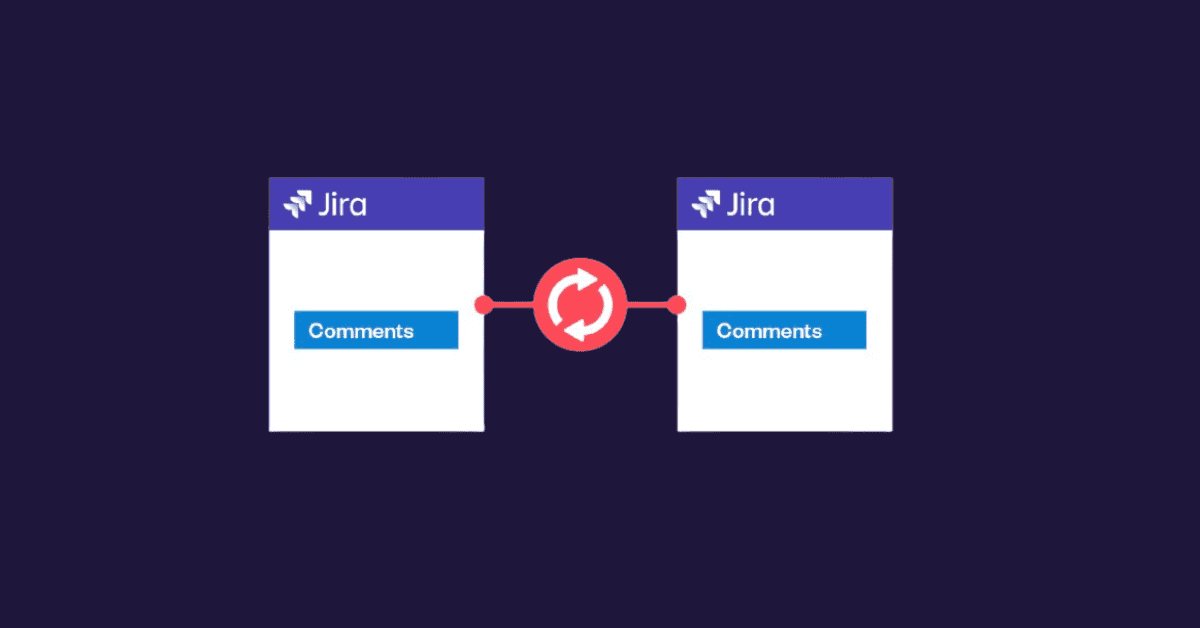

TL;DR
- Jira issue sync for comments: Jira has no built-in comment sync between linked issues; you need either an Automation rule or a synchronization app.
- Native option: Jira Automation can copy comments to linked issues using the “Work item commented” trigger, a “For linked work items” branch, and the {{triggerIssue.comment.body}} smart value.
- Native limits: Automation rules cannot filter which comments are copied, do not sync later edits, and count against your monthly automation usage limits.
- App option: Elements Copy & Sync synchronizes comments between linked work items automatically, with comment filters, edit sync, and cross-project or cross-instance support.
- Beyond comments: the same Jira sync recipes can keep attachments, fields, statuses, work item links, custom fields, and work logs aligned between linked work items.
Jira issue sync for comments works in two ways: a native Jira Automation rule, or a Marketplace app such as Elements Copy & Sync. With Automation, you use the “Work item commented” trigger, branch over linked work items, and add a comment containing the {{triggerIssue.comment.body}} smart value. This works for simple, one-way copying, but it cannot filter comments or synchronize later edits. Elements Copy & Sync adds real-time sync, comment filtering, and cross-project or cross-instance support. This guide walks through both methods step by step, so you can pick the Jira sync setup that fits your workflow.
Note: Atlassian renamed “issues” to “work items” in Jira Cloud. This guide uses the current terminology, except in established search phrases and legacy feature names.
Can you copy comments to linked issues natively in Jira?
Jira does not copy comments between linked work items out of the box: when someone comments on a work item, its linked work items are not updated. The only built-in workaround besides manual copy-paste is Jira Automation, which lets you replicate new comments to linked issues automatically once a rule is configured.
How do you set up a Jira Automation rule to copy comments?
Steps to set up an automation rule:
- Go to Jira Administration and navigate to
Project settings > Automation. - Click “Create rule” and select the “Issue commented” trigger.
- Set a condition to filter for the issues where you want comments copied.
- Add an “Action” step and select “Add comment to issue”.
- Configure the rule to clone the comment to linked issues using
{{triggerIssue.comment.body}}. - Save and enable the rule.
What are the limitations of Jira Automation for copying comments?
- No selective copying: every new comment is replicated; you cannot filter by comment type, author, or visibility.
- No edit synchronization: the rule copies a one-time snapshot, so later edits or deletions are not reflected on linked work items.
- Usage limits: each execution counts against your plan’s monthly automation limits (see how Atlassian calculates automation usage), which adds up quickly on busy projects.
- Loop risk: if both linked work items run a similar rule, comments can ping-pong between them unless you add guard conditions.
- Admin permissions required: only project or Jira admins can create and maintain the rule.
These constraints are manageable for a single project with light traffic, but they become blockers for teams handling escalations, cross-team dependencies, or multiple Jira instances.
How do you copy comments to linked issues with Elements Copy & Sync?
Elements Copy & Sync is an Atlassian Marketplace app that copies and synchronizes Jira issues, including comments on linked work items. Instead of building automation rules, you configure a reusable “recipe” that defines what gets synchronized and when.
- Install the app from the Atlassian Marketplace.
- Create a recipe: in the app settings, create a new “Synchronize linked issues” recipe.
- Define source and target: select which link types and work items should receive synchronized comments.
- Configure comment options: choose to sync all comments or only specific comment types, and enable synchronization of comment edits if needed. The comment synchronization documentation details every available option.
- Save and activate the recipe.
Once active, comments stay synchronized across linked work items without manual copying, and without consuming Jira Automation executions.
Jira Automation vs Elements Copy & Sync: which should you choose?
Use the comparison below to decide. As a rule of thumb: Jira Automation fits simple, single-project, one-way copying; Elements Copy & Sync fits filtered, bidirectional, or cross-project synchronization. For a deeper comparison, see Jira Automation vs Elements Copy & Sync: what to choose?
| Capability | Jira Automation | Elements Copy & Sync |
| Setup effort | Manual rule building, smart values required | Guided recipe configuration |
| Copies comments automatically | Yes, within usage limits | Yes, no rule-execution limits |
| Filters which comments are copied | No | Yes (comment type, visibility) |
| Syncs comment edits | No, copies a one-time snapshot | Yes, edits stay synchronized |
| Works across projects | Requires global/multi-project rules | Yes |
| Works across Jira instances | No | Yes |
| Counts against automation limits | Yes | No |
What else can you sync between linked Jira work items?
Comments are rarely the only information that needs to stay aligned. The same synchronization recipes can also keep the following in sync:
- Work item fields: summary, description, labels, priority, assignee, reporter, due dates, and resolution.
- Attachments: files and images transferred automatically between work items —> see how to copy attachments in Jira.
- Work item links: parent/child and related work item relationships preserved on cloned work items.
- Status updates: linked work items transitioned automatically when a status changes.
- Custom fields: workflow-specific fields cloned and kept aligned.
- Work log entries: time-tracking data synchronized between work items.
If you also need to clone Jira issues and keep them in sync over time, read how to clone Jira issues and keep them in sync in Jira Cloud.
FAQ: Jira issue sync for comments on linked issues
What is Jira issue sync?
Jira issue sync is the process of keeping information; comments, fields, attachments, statuses, identical across two or more related Jira work items. Jira does not offer it natively beyond basic Automation rules; synchronization apps handle it continuously and bidirectionally.
Does Jira copy comments to linked issues automatically?
No. By default, commenting on a Jira work item does not update its linked work items. You need either a Jira Automation rule (“Work item commented” trigger + “For linked work items” branch) or a synchronization app such as Elements Copy & Sync.
Can you choose which comments are copied between linked work items?
Not with Jira Automation: rules copy every new comment that matches the trigger. Elements Copy & Sync lets you filter which comments are synchronized, for example by comment type, which is useful when only some discussions should be shared between teams.
Do comment edits stay in sync between linked work items?
With Jira Automation, no: the rule copies a snapshot of the comment when it is created, and later edits are not propagated. Elements Copy & Sync can synchronize comment edits, so the text stays identical on both work items over time.
Can you copy comments between work items in different projects or Jira instances?
Jira Automation can copy comments across projects if you configure a global or multi-project rule, which requires Jira admin rights, and it cannot work across separate Jira instances. Elements Copy & Sync supports both cross-project and cross-instance comment synchronization.
Key takeaways
Copying comments to linked issues keeps conversations visible across dependencies, escalations, and team boundaries. Jira Automation covers the basic case: one-way copying of every new comment, within your plan’s automation limits. When you need to filter comments, synchronize edits, or work across projects and instances, a dedicated synchronization app is the more reliable option. You can try Elements Copy & Sync on the Atlassian Marketplace with a free 30-day evaluation and test a comment synchronization recipe on a sandbox project before rolling it out.