








TL;DR
- Manual rebuilding is the #1 sign: if your team recreates the same work item structure every recurring project or release by hand, that’s the clearest sign you need to clone Jira issues.
- Native Jira clone has real limits: Jira’s built-in Clone button works one work item at a time and doesn’t keep the original and the copy synced.
- Bulk need outgrows manual clicking fast: once you’re duplicating five, ten, or fifty work items at a time, that’s a sign you need Jira bulk clone tooling, not repeated manual clicks.
- Cross-project and cross-instance cloning exposes the gap fastest: teams copying work items between spaces, or between separate Jira instances, hit native feature limits first.
- A dedicated app adds what’s missing: bulk cloning, full hierarchy cloning (epic with child work items), and ongoing synchronization aren’t part of Jira’s native clone function.
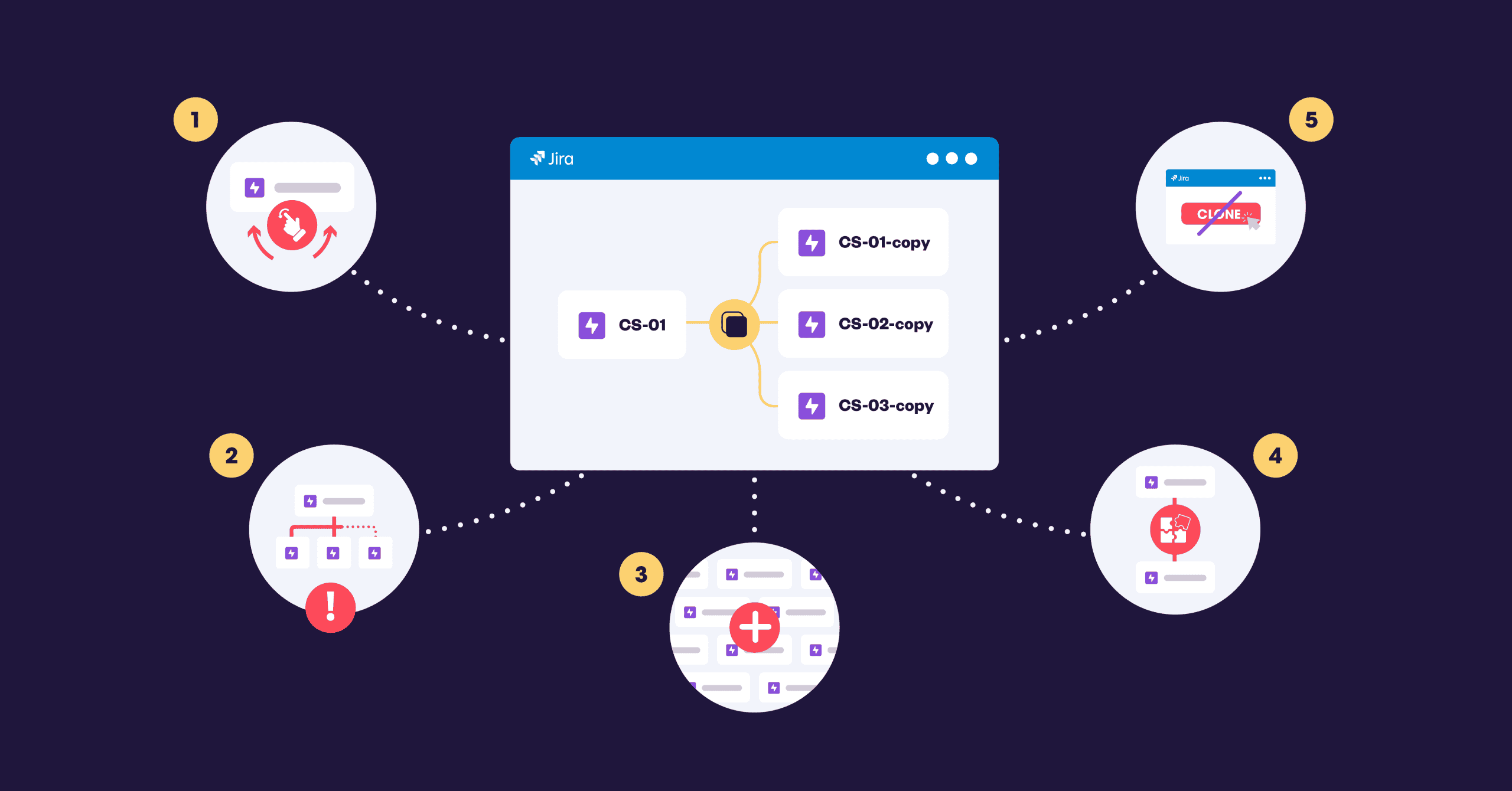
If your team keeps recreating the same set of work items by hand for every sprint, release, or client onboarding, that’s usually the clearest sign you need to clone Jira issues. The other four signs covered below: copying fields manually across projects, rebuilding epics with the same child work items for every new initiative, configuration mistakes that creep in after manual copies, and a project templating need that has outgrown Jira’s native Clone button. Jira’s built-in clone feature works on one work item at a time, doesn’t keep the original and the copy in sync, and offers no granularity over what gets cloned, you can’t choose which fields, attachments, or comments to include. That’s where most teams start running into friction.
What are the most common signs your team needs to clone Jira issues?
Here’s the short version before we go through each one in detail:
- You manually recreate the same work item structure every sprint or release.
- You copy fields by hand across multiple projects.
- You rebuild epics with the same child work items for every new initiative.
- Configuration mistakes show up after work items are copied manually.
- Your bulk cloning need has outgrown the native Clone button.
Sign 1: Do you manually recreate the same work item structure every sprint?
If every new recurring project, new sprint, release cycle, or client onboarding starts with someone manually rebuilding a checklist of work items that’s nearly identical to the last one, that’s a template problem disguised as routine work.
A common example: a QA team that recreates the same 12 test-case work items at the start of every release, copying summaries, descriptions, and custom field values by hand each time. The work itself isn’t hard, but it’s repetitive, and repetitive manual work is exactly where errors and inconsistency creep in over time.
Sign 2: Are you copying fields by hand across multiple projects?
When teams need to clone Jira issues across project boundaries, manually re-entering field values quickly becomes unsustainable, especially if the source and target projects don’t share the same custom fields or schema.
This is a known limitation: when cloning between a team-managed and a company-managed project in Jira Cloud, some custom fields won’t carry over automatically because team-managed projects don’t share fields with other projects. Teams hit this exact wall when escalating a support ticket from a service project into a development project and discovering that half the relevant fields didn’t make the trip.
Sign 3: Do you rebuild epics with the same child work items for every new initiative?
Cloning a single work item is one thing; recreating an entire epic with its child stories, tasks, and subtasks is a different scale of problem. If your PMOs or scrum masters spend hours at the start of each project rebuilding a near-identical hierarchy of work items, that’s a strong sign you need something closer to “clone epic with child issues” functionality rather than one-by-one duplication.
A common use case: a project template with an epic, ten stories, and matching subtasks that gets recreated from scratch for every new client engagement. You can follow our guide to clone an issue’s full hierarchy at once if this is the bottleneck you’re hitting.
Sign 4: Do configuration mistakes show up after work items are copied manually?
Manual copying introduces a predictable failure pattern: missing custom fields, broken issue links, attachments that didn’t transfer, or a work item landing in the wrong project with the wrong workflow. These aren’t edge cases, they’re the expected result of asking people to manually replicate dozens of fields and settings, sprint after sprint. If your team has a habit of double-checking “did everything copy correctly” after every clone, that double-checking is itself a sign the current process isn’t reliable enough.
Sign 5: Has your bulk cloning need outgrown the native Clone button?
Jira doesn’t offer bulk clone natively. The Bulk Change menu covers actions like edit, transition, move, and delete, but not clone. Even where teams work around this with Jira Automation rules, that approach typically lacks field-level control, hierarchy support, and the ability to keep the copies updated afterward.
You can learn more about Elements Copy & Sync to see how this gap gets handled. A team rolling out the same set of 50 onboarding work items to a new department, for example, usually ends up clicking Clone 50 times. This is the point where “jira bulk clone” stops being a nice-to-have and becomes the actual bottleneck.
How does native Jira clone compare to a dedicated cloning app?
| Capability | Native Jira clone | Elements Copy & Sync |
| Clone a single work item | Yes | Yes |
| Bulk clone in Jira (multiple work items at once) | No | Yes |
| Clone an epic with all child work items in one action | No | Yes, in a single recipe |
| Clone across projects with different schemas | Limited, some custom fields may not map | Yes, with field mapping |
| Clone across separate Jira instances | No | Yes, when the app is installed on both instances (when using a remote recipe) |
| Keep the clone synced with the original afterward | No | Yes, one-way or two-way sync |
| Copy comments along with the clone | Not by default in most versions. Verify on your instance | Yes, configurable |
Note: native Jira behavior for comments and attachments during clone has varied across versions and editions; confirm current behavior on your specific instance before relying on this table for a configuration decision.
How do you know if you need bulk cloning instead of one-by-one cloning?
Here are a few practical thresholds that show when you’ve outgrown occasional cloning and need real bulk clone in Jira tooling:
- You’re cloning the same structure more than once per sprint or release cycle.
- You regularly duplicate more than five to ten work items in a single batch.
- The work items you’re duplicating include a hierarchy (epic plus children), not just standalone tickets.
- The clone needs to land in a different project, or a different Jira instance, rather than the same project.
- You need the clone to stay updated when the original changes, not just exist as a one-time snapshot.
If two or more of these apply to your team, manual cloning is likely costing more time than it looks like on paper.
Frequently asked questions about cloning Jira issues
What happens when you clone an issue in Jira?
Cloning a Jira issue creates a new work item that duplicates the summary, description, and most fields from the original, along with a link back to it. It’s a one-time copy, once created, the clone does not automatically update if the original changes.
What’s the difference between cloning and duplicating a Jira issue?
Cloning creates an actual new work item, an exact copy of the original, automatically linked back to it through a “Clones” link. Duplicating is different: it’s a link type (“duplicates” / “is duplicated by”) used to connect two existing work items that describe the same problem, without creating anything new. If two people report the same bug, you’d mark one as a duplicate of the other rather than cloning either one.
Can you clone a Jira issue together with its subtasks?
Apps like Elements Copy & Sync are built to handle subtasks and full hierarchies as a standard part of the cloning process, not as something you have to redo by hand.
Can you clone a Jira issue into a different project or a different Jira instance?
Native Jira clone keeps the copy within the same project by default; moving it to another project afterward is a separate, manual step. Cloning into a completely different Jira instance isn’t supported natively at all. That requires either an export/import workaround or an app like Elements Copy & Sync to clone a Jira issue into a different project or instance.
What should you do next if these signs sound familiar?
If your team is recreating the same work item structures by hand, hitting field mismatches across projects, or clicking Clone dozens of times to handle a bulk rollout, those are reliable signs that native Jira cloning has reached its limit for your use case. The next step isn’t necessarily a new process. It’s usually a tool that handles bulk cloning, full hierarchy cloning, and cross-project or cross-instance copying as standard features rather than workarounds.
You can install Elements Copy & Sync on the Atlassian Marketplace to test this against your own workflow, watch how to bulk clone in Jira, or start by checking which of these signs applies most directly to your team:
- See our walkthrough of how to leverage bulk cloning in Jira if Sign 5 was the one that hit closest to home.
- Or, if your bottleneck is closer to whole-project duplication rather than individual work items, see how to clone a project in Jira.