








We’re excited to announce our collaboration with Alex Ortiz! In his latest video, which you can find at the end of this article, Alex shares expert tips on how to enhance your Jira Service Management with Elements Pulse, driving improvements that elevate the overall service experience.
Now, let’s dive into how Elements Pulse ensures a seamless and satisfying support experience.
Customer satisfaction in Jira: Elevate your service with Elements Pulse
In today’s competitive world, customer satisfaction is a crucial metric for businesses to monitor and improve. Jira Service Management (JSM) offers basic tools like Customer Satisfaction (CSAT) surveys and Service Level Agreements (SLAs) to track how customers perceive your service. But are these tools enough to give you a complete picture of your customer experience?
Enter Elements Pulse, a powerful add-on designed to take your Jira Service Management to the next level by introducing Experience Level Agreements (XLAs). XLAs go beyond the primitive metrics of CSAT surveys and SLAs to provide a comprehensive view of how well your team is delivering exceptional service.
In this article, we’ll explore how Elements Pulse can drastically improve your customer satisfaction in Jira and give you actionable insights to help your team perform better.
Why customer satisfaction matters
Every business knows that keeping customers happy is the key to long-term success. But in an environment where customer options are endless, customer loyalty depends on seamless experiences. Jira Service Management offers tools like SLAs to measure performance metrics like response and resolution times, but these alone can fall short of providing a complete understanding of customer satisfaction.
Elements Pulse changes the game by introducing Experience Level Agreements (XLAs), which focus on the overall experience rather than isolated data points. This shift in focus helps businesses better understand how their customers feel when interacting with the service team. Whether it’s ticket response time, communication quality, or issue resolution, Elements Pulse delivers deep insights to help you improve across the board.
How Elements Pulse improves customer satisfaction in Jira
Intuitive dashboard with real-time data
Once installed, Elements Pulse provides a dynamic and easy-to-use dashboard that gives you a real-time snapshot of all customer satisfaction-related metrics. The dashboard is highly customizable, allowing you to view data relevant to your specific JSM projects. You can analyze tickets by productivity, customer satisfaction, service quality, and SLA performance.
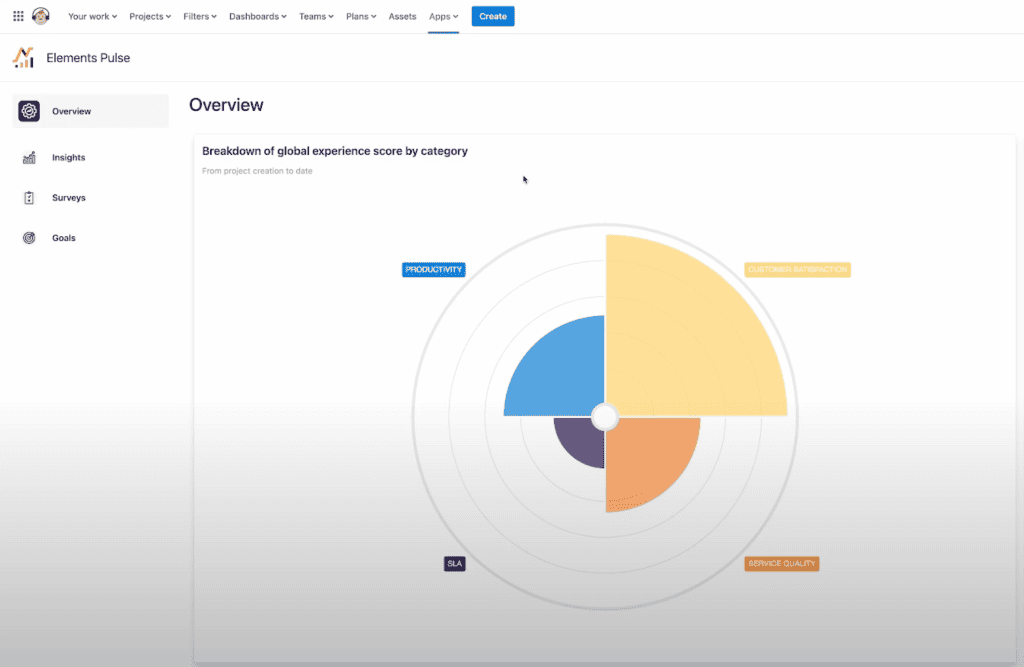
One of the most powerful features of the Pulse dashboard is its ability to track trends over time. You can see how your team’s customer satisfaction metrics have evolved, helping you to make more informed decisions and implement strategic changes when needed.
Experience level agreements (XLAs)
While traditional SLAs track operational performance like time to first response or resolution, XLAs focus on customer experience. They provide a broader view of how well your team is performing by factoring in elements like customer communication, issue resolution, and overall satisfaction.
Using XLAs, Elements Pulse allows you to move beyond simple metrics and get a more complete picture of your customer’s journey from the moment they submit a ticket until the issue is fully resolved.
This level of insight is crucial for improving customer satisfaction in Jira, as it helps you pinpoint exactly where your team can improve to provide a better experience.
Detailed insights and trends
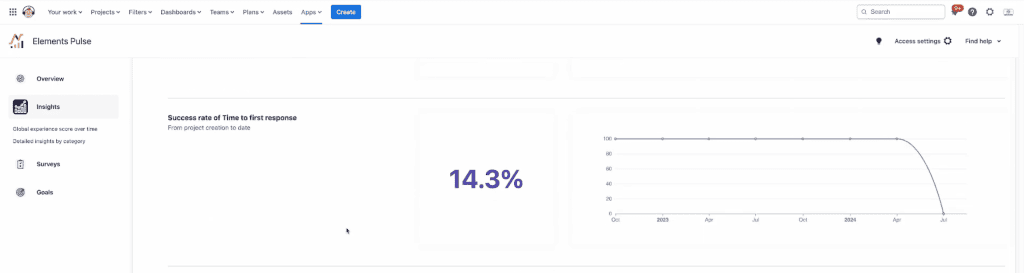
Elements Pulse offers a wide range of insights, breaking down your performance into key categories like productivity, customer satisfaction, service quality, and SLA adherence. For example, you can see how many tickets were resolved within SLA times, whether customer satisfaction scores are improving, and which areas are slowing down your team’s efficiency.
With Elements Pulse, you can also monitor trends, making it easy to spot issues early and address them before they affect customer relationships. Elements Pulse helps you identify what’s working, what needs improvement, and how to adjust your processes for maximum impact.

Customizable SLAs for a better customer experience
While traditional SLAs are essential for maintaining service quality, Elements Pulse allows you to get creative with your SLA configurations. You can set SLAs that challenge your agents to go above and beyond, incentivizing them to focus on delivering an outstanding customer experience.
By crafting more meaningful SLAs and closely monitoring their performance, you’ll not only ensure timely responses but also create a more satisfying experience for your customers. This is the key to boosting customer satisfaction in Jira.

Productivity and operational efficiency
Improving customer satisfaction in Jira isn’t just about speed. It’s about resolving issues effectively with minimal back-and-forth between your team and the customer. Elements Pulse tracks operational efficiency metrics like average time to resolution, time to first response, and recategorization rates, giving you a complete picture of how well your team is performing.
By focusing on operational efficiency, Elements Pulse helps you identify bottlenecks and areas for improvement, ensuring that your team is delivering fast and effective solutions while maintaining a positive customer experience.
Surveys and feedback collection
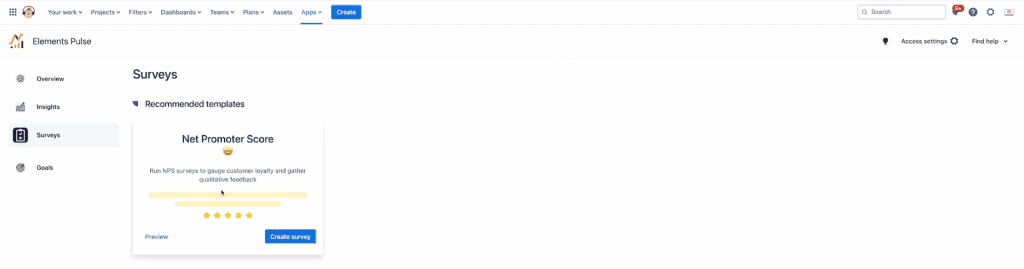
To understand the customer’s perspective even better, Pulse offers customizable surveys that allow you to gather direct feedback through Net Promoter Scores (NPS) and Customer Satisfaction (CSAT) scores. These surveys help you collect real-time feedback, allowing you to take proactive steps toward improving your service.
With this feedback integrated into your Elements Pulse dashboard, you’ll have a clear view of how customers feel about their interactions with your service team, which is essential for making informed decisions that drive customer satisfaction in Jira.
Why you need Elements Pulse to improve customer satisfaction in Jira
In today’s competitive market, businesses can’t afford to ignore customer satisfaction. Elements Pulse provides you with the tools and insights you need to understand the full customer experience, allowing you to make data-driven decisions that directly impact customer satisfaction.
From comprehensive dashboards and Experience Level Agreements to customizable surveys and productivity metrics, Elements Pulse ensures that you stay on top of your team’s performance and continuously improve the customer experience.
If you’re ready to take your Jira Service Management to the next level, it’s time to explore Elements Pulse. With real-time insights, customizable SLAs, and a focus on the overall customer experience, Elements Pulse will help you transform how you manage and improve customer satisfaction in Jira.
Start your 30-day free trial today and unlock the power of Elements Pulse for your JSM.
By leveraging these insights, you’ll be able to keep your customers happy, increase your team’s performance, and drive higher profits for your business. Don’t miss out on the chance to revolutionize your customer satisfaction in Jira—Watch Alex Ortiz’s video!
Overcoming common challenges for Project Managers using Jira
Jira, a powerful project management tool developed by Atlassian, has become a go-to solution for software development teams worldwide. It offers a wide range of functionalities, from bug tracking to agile project management. However, despite its extensive capabilities, project managers often face several challenges when using Jira. Understanding these challenges and learning how to overcome them can help teams better leverage Jira’s strengths and mitigate its weaknesses.
1. Complex configuration and customization
One of Jira’s greatest strengths is its flexibility. However, this flexibility can also be a significant challenge. The tool offers numerous customization options for workflows, issue types, screens, and fields. While this allows teams to tailor Jira to their specific needs, it also means that setting up and maintaining the system can be complex and time-consuming.
Solutions:
- Initial setup investment: Allocate sufficient time and resources for the initial configuration. Engage with Jira experts or consultants if necessary.
- Regular review and cleanup: Periodically review and streamline configurations to ensure they remain relevant and efficient.
- Standardized templates: Create templates for common workflows and issues to reduce complexity and ensure consistency across projects.
Discover the power of project templating with Elements Copy and Sync. Streamline your workflows and maintain consistency across all your projects. Learn more about how this app can enhance your Jira experience.
2. Difficult learning curve
Jira is feature-rich, which can make it daunting for new users. Project managers often find that onboarding team members and getting them up to speed with Jira can take considerable time and effort.
Solutions:
- Comprehensive training: Organize detailed training sessions for new users and provide ongoing learning opportunities. For those looking for certified expertise, leverage Atlassian University to offer structured, in-depth training sessions led by professionals.
- User documentation: Develop clear, accessible documentation tailored to your team’s specific processes and use cases. You can use Confluence to document all your processes.
- Utilize resources: Take advantage of Atlassian’s online resources, including tutorials, webinars, and community forums.
3. Performance issues with large data sets
As projects grow and the number of issues in Jira increases, performance can degrade. This is especially true for teams handling large, complex projects with thousands of issues.
Solutions:
- Archiving: Regularly archive old issues and projects that are no longer active to keep the system running smoothly.
- Maintenance tasks: Perform routine maintenance tasks such as re-indexing and upgrading Jira to the latest version.
4. Integration complexities
While Jira integrates well with many tools, managing these integrations can be complex. Ensuring that data flows correctly between Jira and other systems (like CI/CD pipelines, customer support tools, or business intelligence platforms) can be challenging.
Solutions:
- Marketplace apps: Use apps from the Atlassian Marketplace to streamline integrations.
- Clear documentation: Maintain detailed documentation for all integrated systems and their interaction points.
- Integration specialists: Consider hiring or consulting with integration specialists to manage complex setups.
5. Managing permissions and security
Jira’s detailed permission settings are essential for managing access and security, but they can be intricate and difficult to manage. Project managers must balance ease of access with security and compliance requirements. You can ask your IT manager to handle it.
Solutions:
- Regular audits: Conduct regular audits of permissions to ensure they are up-to-date and aligned with current roles and responsibilities.
- Role-based access: Use role-based access control (RBAC) to simplify permission management and enhance security.
- Best practices: Implement and adhere to best practices for user management and security protocols.
6. Reporting and dashboards
While Jira offers robust reporting features, creating meaningful and actionable reports can be complex. Project managers often struggle to configure dashboards that provide clear insights into project progress and team performance.
Solutions:
- Training on reporting tools: Provide training on how to use Jira’s reporting tools effectively.
- Customized dashboards: Customize dashboards to highlight key performance indicators relevant to your team.
Enhance your IT service performance and boost employee satisfaction with Elements Pulse.
- Add-ons for enhanced reporting: Utilize plugins and add-ons from the Atlassian Marketplace to enhance reporting capabilities.
7. Maintaining agile practices
For teams using agile methodologies, maintaining agile practices within Jira can be challenging. Ensuring that all team members adhere to agile principles and use Jira’s agile boards (like Scrum and Kanban boards) correctly is really important.
Solutions:
- Agile training: Conduct regular agile training sessions and workshops to reinforce agile principles.
- Proper setup: Ensure that sprints, backlog grooming sessions, and Kanban boards are properly set up and used effectively.
- Continuous feedback: Encourage continuous feedback and iteration on processes to improve agile practices.
8. User adoption and change management
Introducing Jira to a team that is used to another tool or process can be met with resistance. User adoption is often a significant hurdle for project managers.
Solutions:
- Clear communication: Communicate the benefits of using Jira clearly to the team, highlighting improvements and efficiencies.
- Continuous support: Provide continuous support and address any concerns or issues promptly.
- Iterative improvements: Encourage feedback and make iterative improvements based on user suggestions to enhance the user experience.
While Jira is a powerful tool for project management, it is not without its challenges. By recognizing these challenges and implementing effective strategies to address them, project managers can ensure that their teams utilize Jira to its full potential. Regular training, proper setup, maintenance, and leveraging Jira’s extensive customization and integration capabilities are key to overcoming these hurdles and achieving project success.
For additional resources and support, consider exploring Atlassian’s community forums and documentation, as well as engaging with Jira consultants when necessary.
SLA vs XLA: Boost customer experience with Elements Pulse in JSM.
In the modern service delivery landscape, businesses strive to meet and exceed customer expectations. Key metrics like Service Level Agreements (SLA) have been the standard for measuring service performance. However, with the growing emphasis on customer experience, Experience Level Agreements (XLA) are emerging as a complementary, if not superior, metric. This article delves into the differences between SLAs and XLAs, exploring how they can be used together to enhance service delivery, particularly through the innovative Elements Pulse app.
SLAs: The traditional metric
Service Level Agreements (SLAs) are formal commitments between service providers and customers, defining the expected level of service. These agreements typically include specific metrics such as:
- Response time: The time taken to acknowledge a customer’s issue.
- Resolution time: The time taken to resolve a customer’s issue.
- Uptime/downtime: The availability of the service over a specified period.
SLAs focus on quantifiable metrics that are relatively easy to measure and report. They are designed to ensure that service providers meet basic contractual obligations, providing a foundation of trust between the provider and the customer.
Advantages of SLAs
- Clarity and accountability: SLAs provide clear expectations and accountability for service providers, ensuring they meet minimum performance standards.
- Performance measurement: They offer a straightforward way to measure service performance through objective metrics.
- Contractual protection: SLAs protect both parties by clearly defining service expectations and consequences for non-compliance.
Despite their benefits, SLAs have limitations. They primarily measure technical and operational aspects of service delivery, often neglecting the end-user experience.
XLAs: The modern approach

Experience Level Agreements (XLAs) shift the focus from operational metrics to customer experience. XLAs measure how customers perceive the service and the overall experience they receive. Key components of XLAs include:
- Customer satisfaction (CSAT): A measure of how satisfied customers are with the service.
- Net promoter score (NPS): An index that measures the willingness of customers to recommend a company’s services to others.
XLAs prioritize the customer’s perspective, aiming to enhance the overall service experience rather than just meeting technical specifications.
Advantages of XLA
- Customer-centric focus: XLA prioritize customer satisfaction and experience, leading to higher customer loyalty and retention.
- Holistic measurement: They provide a comprehensive view of service performance, incorporating both technical and experiential aspects.
- Proactive improvement: By focusing on experience, service providers can proactively identify and address issues that impact customer satisfaction.
Comparing SLAs and XLAs
| Aspect | SLA | XLA |
|---|---|---|
| Focus | Operational Performance | Customer Experience |
| Metrics | Response Time, Resolution Time, Uptime | CSAT, NPS |
| Measurement Approach | Objective and Quantifiable | Subjective and Perception-Based |
| Primary Goal | Meeting Contractual Obligations | Enhancing Customer Satisfaction |
| Outcome | Technical Compliance | Improved Customer Loyalty |
SLA and XLA are not mutually exclusive. Instead, they complement each other, providing a balanced approach to service management that ensures both operational efficiency and exceptional customer experience.
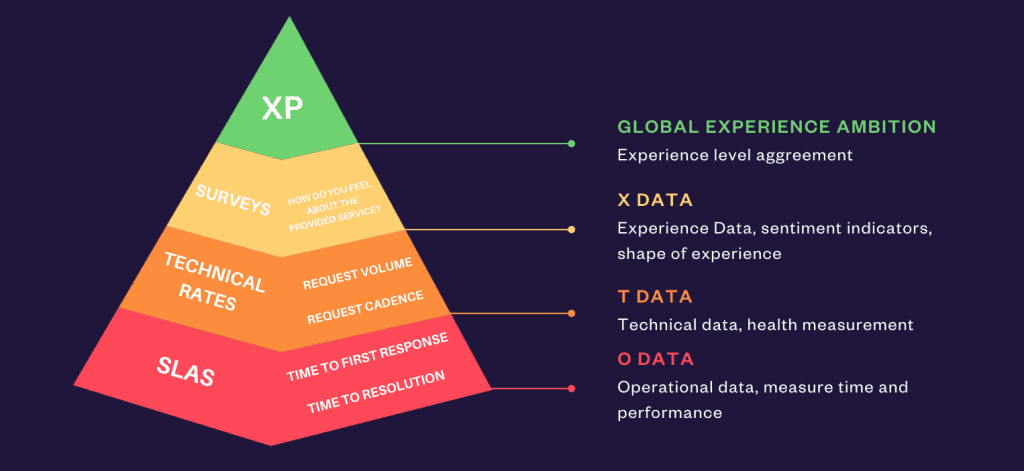
Why using experience metrics (XLA) on top of SLAs?
Using Experience Metrics (XLAs) on top of Service Level Agreements (SLAs) is beneficial for several reasons:
To enhance user satisfaction
SLAs focus on the operational aspects of a service, such as uptime, response times, and technical performance. However, they do not always capture the actual experience of the end-users. XLAs, on the other hand, measure the quality of the user experience, ensuring that services are not only operational but also meet the expectations and needs of the users. By incorporating XLA, organizations can gain insights into how users perceive the service, identify pain points, and take proactive steps to improve overall satisfaction.
To improve service quality
While SLAs provide a framework for maintaining a certain level of service quality, they can sometimes lead to a check-box approach where the goal is merely to meet the minimum required standards. XLAs encourage a more holistic view by emphasizing the end-user experience. This shift from a purely technical focus to one that prioritizes user outcomes can lead to higher quality services that better align with user expectations and requirements.
To drive operational excellence
Operational excellence involves going beyond basic service delivery to create value and optimize performance continuously. XLAs contribute to this by providing a more comprehensive understanding of service performance from the user’s perspective. By analyzing experience data, organizations can uncover trends, anticipate issues, and implement improvements that enhance both operational processes and user experience. This continuous feedback loop fosters a culture of excellence where services are consistently refined to deliver superior results.
In summary, integrating XLAs with SLAs helps organizations to ensure they are not just meeting contractual obligations but are also delivering a positive, valuable experience to users, which is crucial for long-term success and customer loyalty.
Introducing Elements Pulse
At Elements, our goal is to enable teams to connect with their customers, whether internal or external, in ways that exceed expectations and deliver exceptional value. To support IT departments in becoming more customer-centric, we developed Elements Pulse. This app serves as the central hub for monitoring and enhancing customer satisfaction within Jira Service Management.
The app features a visual dashboard that provides a clear and immediate overview of your IT performance. It analyzes your Jira data to offer valuable insights into various metric categories, includes an integrated survey tool for collecting direct user feedback, and has a module for setting and monitoring experience goals using XLAs.
Within minutes, you are equipped to deeply understand both the quantitative and qualitative aspects of your service delivery.
Elements Pulse is an innovative app designed to bridge the gap between SLAs and XLAs, offering a comprehensive solution for measuring and improving both service performance and customer experience.
Key features of Elements Pulse
- Unified dashboard: Elements Pulse provides a single platform where both SLA and XLA metrics can be monitored and managed.
- Real-time analytics: The product offers insights into service performance and customer experience, enabling proactive management.
- Integrations: The product seamlessly retrieves Jira Service Management (JSM) request history, enabling a comprehensive view of support team health and evolution over time. Additionally, it incorporates surveys to gather valuable feedback, enhancing the overall support experience and driving continuous improvement.
Key benefits of using Elements Pulse

- Align IT services with user needs
Elements Pulse enables you to align your IT services with the specific needs and expectations of your users. By providing a comprehensive overview of service performance, it helps you identify areas for improvement and prioritize actions that enhance user satisfaction. - Deliver deep insights into customer experience
The app delves into your Jira data to deliver profound insights into the customer experience. It goes beyond surface-level metrics to uncover the underlying factors affecting user satisfaction, allowing you to make informed decisions and take targeted actions to improve service quality. - Seamlessly integrate with Jira SLAs
Elements Pulse integrates seamlessly with Jira Service Level Agreements (SLAs), ensuring that your performance metrics are consistent and comprehensive. This integration allows you to monitor both operational performance and user experience in one unified platform, facilitating a holistic approach to service management.
For a deeper dive into how to balance SLAs and XLAs and boost customer satisfaction in Jira, read the article and watch this insightful video by Alex Ortiz. In the video, Alex breaks down practical steps and strategies to align service performance with customer experience using Jira and Elements Pulse. Read the article and Watch the video now.
In today’s competitive business environment, focusing solely on SLAs is no longer sufficient. While SLAs ensure that service providers meet basic performance standards, XLAs take a customer-centric approach, measuring the actual experience and satisfaction of customers. By leveraging both SLAs and XLAs, businesses can ensure operational efficiency and exceptional customer experiences.
Elements Pulse stands out as a powerful app that integrates these metrics, offering businesses the insights needed to excel in both areas. With its real-time analytics, customizable reports, Elements Pulse is the ideal solution for businesses aiming to enhance their service delivery and build lasting customer relationships.
By adopting a balanced approach that incorporates both SLAs and XLAs, and utilizing advanced apps like Elements Pulse, businesses can not only meet but exceed customer expectations, driving long-term success and growth.
What is data residency?
In today’s world, where data security and privacy are top priorities, it’s essential to know where your data is stored. Data residency refers to the practice of keeping data within a specific geographic location to meet local regulations and company policies. This means that your data is not just floating around in cyberspace; it is housed in a physical location that you can specify based on your needs and compliance requirements.
Data residency is particularly important for businesses that handle sensitive information or operate in industries with strict data protection regulations. By ensuring that your data is stored within certain geographical boundaries, you can better manage compliance with local laws and enhance your data protection measures.
Why is data residency important?
At Elements, we understand that your data’s safety and compliance are critical. With data residency, you can ensure that your data is stored in a location that meets your organization’s requirements and local laws. This means greater peace of mind and better control over your information.
One of the primary benefits of data residency is compliance with legal and regulatory requirements. Different countries and regions have varying laws concerning data storage and protection. For example, the European Union’s General Data Protection Regulation (GDPR) requires that personal data of EU citizens be stored and processed within the EU or in countries with equivalent data protection standards. By choosing where your data is stored, you can ensure compliance with such regulations and avoid potential legal issues.
Another significant advantage of data residency is enhanced security. Data stored in specific regions can be subject to local security measures and protocols, which can provide an additional layer of protection against cyber threats. This can be particularly important for businesses that handle sensitive or confidential information, such as financial institutions, healthcare providers, and government agencies.
At Elements, we are excited to announce that our apps Elements Copy and Sync and Elements Publish now support data residency, allowing you to choose the storage location of your information in full compliance with local regulations.
Where does Copy and Sync and Publish store your data?
Currently, they support data storage in the following regions:
- USA
- Germany (Frankfurt)
If you need your data stored in another region, don’t hesitate to reach out to our support team. We are here to help you meet your specific needs.
Storing data in these regions ensures that your information is subject to the respective local laws and regulations, providing you with the assurance that your data management practices are compliant and secure. Additionally, by having multiple storage options, you can choose the location that best aligns with your operational needs and customer base.
What data is covered?
With our data residency feature, several types of data are covered, ensuring comprehensive protection and compliance:
- Configuration settings: These include the various settings and preferences you configure within the app. Ensuring these are stored in a compliant region helps maintain the integrity and security of your application setup.
- Issue associations: This covers all data related to issue tracking, including links between different issues, ensuring that your tracking and management processes are compliant.
- Comments and user information: User-generated content and personal information are also covered under data residency, providing an additional layer of protection for sensitive data.
This broad coverage ensures that all critical aspects of your data are secure and compliant with your chosen region’s regulations.
How to get started with data residency in Copy and Sync and Publish?
Setting up data residency is simple and straightforward. Here’s how you can get started:
- For new users: When you install Copy and Sync, your data will automatically be stored in the Jira instance’s region, if supported. This automatic configuration makes it easy for new users to get started without worrying about manual setup.
- For existing users: If you are migrating your data, follow our straightforward process to move your data to your preferred region. The migration process is designed to be smooth and hassle-free, ensuring minimal disruption to your operations.
To request a data residency move, follow these steps:
- Go to admin.atlassian.com.
- Select your organization.
- Navigate to Security > Data residency.
- Select View details in the data residency table.
- Choose the Eligible tab and select Move apps.
- Follow the steps to review and submit your data residency move request.
It’s important to note that data residency moves must be requested at least three days in advance and can result in up to 24 hours of downtime. During this time, please notify your users and partners that the product will be temporarily out of service. This ensures a smooth transition and allows you to plan accordingly to minimize any impact on your operations.
If you need any assistance during this process, our support team is just a click away. We are committed to helping you ensure that your data is stored in the right place to meet your needs.
By choosing Copy and Sync or Publish with data residency, you are taking a significant step towards better data security and compliance. At Elements, we are committed to ensuring your data is protected and stored in the right place to meet your needs. Data residency not only helps you comply with local regulations but also provides peace of mind knowing that your data is secure.
In addition to these benefits, data residency can also enhance your customer trust. By being transparent about where and how their data is stored, you can build stronger relationships with your customers, showing them that you prioritize their data protection and privacy.
Ready to enhance your data security? Learn more about our apps and start today!
Efficiently managing and migrating data within Jira can significantly improve productivity and project management. Bulk cloning epics to populate a new project is one such task that, when done correctly, ensures consistency across projects. This article will explore the advantages of bulk cloning in Jira, how to do it using Jira automation, the limitations of Jira’s native capabilities, and how Elements Copy & Sync addresses these limitations.
Advantages of bulk cloning in Jira
Time efficiency: Bulk cloning allows you to duplicate multiple epics and their associated issues in one go, significantly reducing the effort compared to manual cloning. This can be especially beneficial for large-scale operations where setting up new workflows can be prone to errors if done manually. By automating this process, teams can focus on more critical tasks rather than repetitive administrative work.
Consistency: Ensuring that all necessary epics and issues are copied accurately maintains the integrity of data. Consistency is important for maintaining the quality of tracking and reporting. Inconsistent data can lead to misunderstandings, missed deadlines, and ultimately, failure.
Streamlined project templating: Quickly setting up new workspaces with pre-existing epics and tasks allows teams to hit the ground running, focusing on execution rather than setup. Project templating ensures that all teams start with the same structure, making it easier to manage and track progress.

How to bulk clone epics using Jira automation
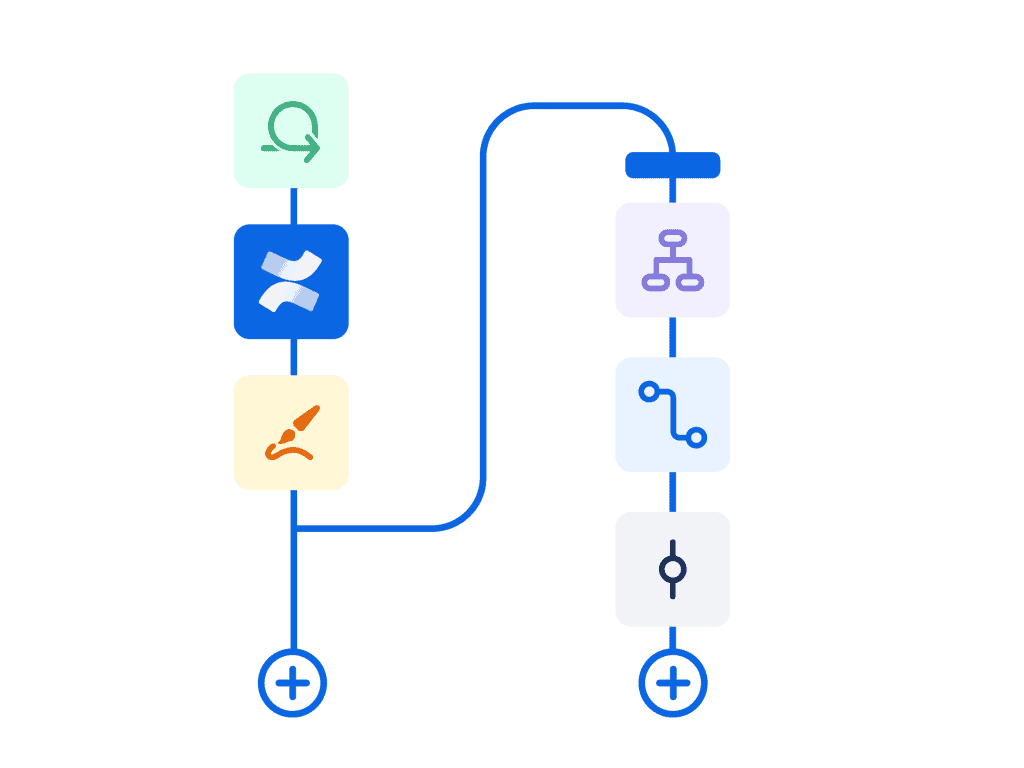
Jira’s automation capabilities allow for cloning issues and epics, though with some limitations. Here’s a step-by-step guide:
- Create an automation rule:
- Navigate to your settings and select “automation”.
- Click on “create rule”.
- Set the trigger:
- Choose a trigger that suits your needs, such as “issue created” or “scheduled”.
- Add a condition:
- Add a condition to ensure the rule applies only to epics. For example, use a JQL condition like
issuetype = epic.
- Add a condition to ensure the rule applies only to epics. For example, use a JQL condition like
- Clone the epic:
- Add the action “clone issue”.
- Configure the clone action to specify the target workspace and any fields that need to be copied.
- Clone related issues:
- Add additional actions to clone issues related to the epic. Unfortunately, Jira automation requires a separate rule for each issue type if you need to maintain the hierarchy.
- Run the rule:
- Save and enable your rule.
- Run the rule to see the epics and issues copied to the new workspace.
Limitations of Jira automation
While Jira automation is powerful, it has limitations:
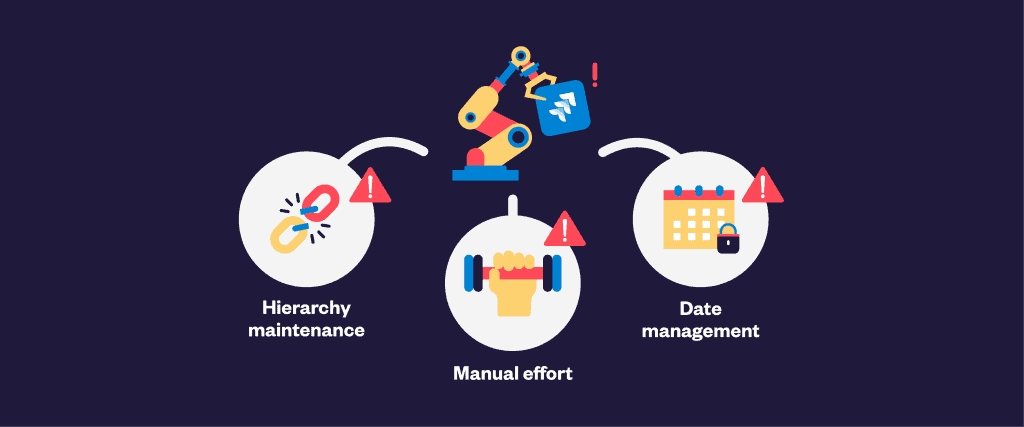
- Hierarchy maintenance: Jira’s native automation cannot bulk clone an entire epic hierarchy in one go. You have to create separate rules for each level of the hierarchy, making the process cumbersome.
- Manual effort: Setting up multiple rules and conditions can be time-consuming and prone to errors. This manual setup can become tedious, especially for large-scale operations with complex structures.
- Date management: Jira does not allow bulk editing of dates during cloning, which can be crucial for timelines. Proper date management is essential for ensuring that schedules remain accurate and tasks are completed on time.
Overcoming limitations with Elements Copy & Sync
Elements Copy & Sync is a Jira cloud app designed to address the limitations of Jira’s native automation. Here’s how it can help:
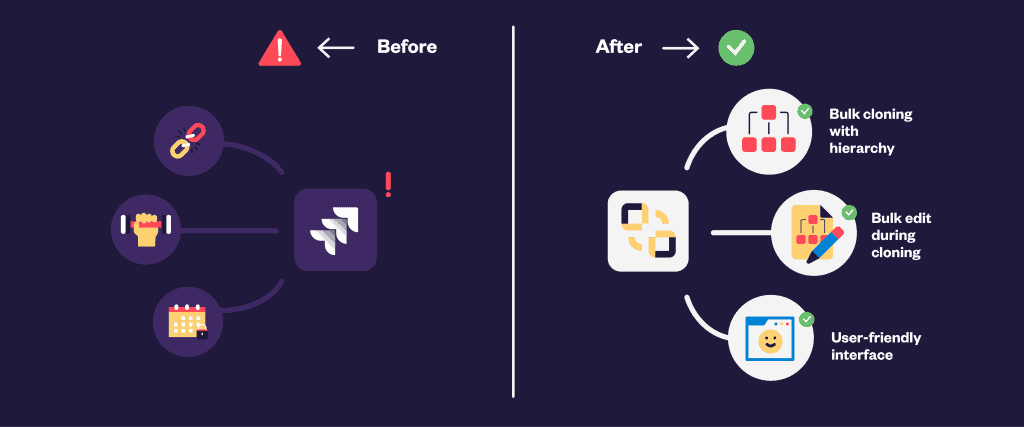
- Bulk cloning with hierarchy: Elements Copy & Sync allows you to clone an entire epic hierarchy in one go. This ensures that all dependencies and relationships are preserved, maintaining the structure and flow of your workflows.
- Bulk cloning all the elements of an issue: The app allows you to clone all the elements of the issue, including the description, labels, attachments, comments, and other relevant details. This comprehensive cloning ensures that no critical information is left behind.
- User-friendly interface: The intuitive interface simplifies the process of setting up bulk clones, reducing the chances of errors and making the process more efficient. A user-friendly interface can save time and reduce the learning curve for new users.
With Elements Copy & Sync, you can also sync cloned issues to keep teams aligned and updated and improve support and development collaboration with efficient comment sync.
Read more about how to bulk clone Jira issues with Elements Copy & Sync
Implementing bulk cloning for different scenarios
When implementing bulk cloning, it’s essential to consider the specific requirements and scenarios of your operations. Here are a few common scenarios and how to address them:
- Creating templates:
- Use Elements Copy & Sync to clone and sync your templates with predefined epics and issues.
- Ensure that all necessary fields and dependencies are included in the template.
- Migrating workspaces:
- When migrating from one Jira instance to another, bulk cloning can help maintain the structure and data integrity.
- Elements Copy & Sync can clone the entire workspace, including all epics, issues, and their relationships.
- Setting up parallel workspaces:
- For organizations running parallel workspaces, bulk cloning can help replicate the setup quickly.
- This ensures that all teams follow the same structure and standards, making it easier to manage and track them.
Best practices for bulk cloning in Jira
To ensure the best results when bulk cloning in Jira, follow these best practices:
Monitor and review: After cloning, monitor to ensure everything was copied correctly. Review the setup and make any necessary adjustments to align with the project’s requirements.
Plan ahead: Before starting the cloning process, plan the structure and requirements of the new project. Identify the epics and issues that need to be cloned and any specific configurations required.
Test before cloning: If using Jira automation or a tierce app such as Elements Copy & Sync, test the rules on a smaller set of data to ensure they work as expected. This can help identify any issues before applying the rules to the entire project.
Regularly update templates: Keep your project templates updated with the latest best practices and standards. This ensures that new ones are set up with the most current information and configurations.
Bulk cloning epics in Jira is a powerful method for enhancing management efficiency. By leveraging tools like Elements Copy & Sync, organizations can overcome the limitations of Jira’s native capabilities and ensure consistent, accurate setups. Implementing bulk cloning can save effort, reduce manual work, and improve overall productivity, making it an essential practice for modern management.
Effective pre-sales management is crucial for closing deals and maintaining customer satisfaction. Integrating your CRM system with Jira Service Management (JSM) can significantly streamline your processes, improve data accuracy, and enhance collaboration among team members.
The challenge: streamlining RFP management
Pre-sales engineer often juggle multiple tasks, from managing Requests for Proposals (RFPs) to ensuring all necessary information is captured accurately. This process becomes cumbersome without a seamless integration between the CRM and JSM. Manually transferring data between systems can lead to errors, missed details, and inefficiencies that delay the RFP process.
The solution: Integrating your CRM with JSM
Integrating your CRM system with JSM can revolutionize your pre-sales process by ensuring that all critical information is centralized and easily accessible.
Benefits of integrating your CRM to Jira Service Management:
- Automated data syncing: Automatically synchronize data from your CRM to JSM. This ensures that all relevant customer information, such as contact details and communication history, is readily available in JSM without manual input.
- Enhanced collaboration: Facilitate better collaboration among team members by providing a unified view of customer interactions and RFP statuses. This can lead to more informed decision-making and a more cohesive approach to proposal management.
- Improved accuracy: Reduce the risk of errors by eliminating manual data entry. Automated data syncing ensures that the information in JSM is always up-to-date and accurate, which is crucial for creating effective and timely proposals.
- Time efficiency: Save valuable time that would otherwise be spent on manually transferring data. This allows pre-sales representatives to focus on more strategic tasks, such as crafting compelling proposals and engaging with potential customers.
Unlock seamless CRM integration with Elements Connect!
Streamline your pre-sales operations by integrating your CRM data directly into Jira Service Management withElements Connect.
Save time, reduce errors, and ensure all critical information is centralized and accessible. Empower your pre-sales team to focus on crafting winning proposals rather than searching for data. Learn more and optimize your workflow!
Integrating your CRM with Jira Service Management can transform your pre-sales management process. By automating data synchronization, enhancing collaboration, and improving data accuracy, this integration enables your team to work more efficiently and effectively. Invest in a seamless CRM-JSM integration to elevate your pre-sales operations and drive business success.
Elements Connect is a powerful app for Jira that enables seamless integration between your CRM and JSM. Here’s how Elements Connect can enhance your pre-sales management:
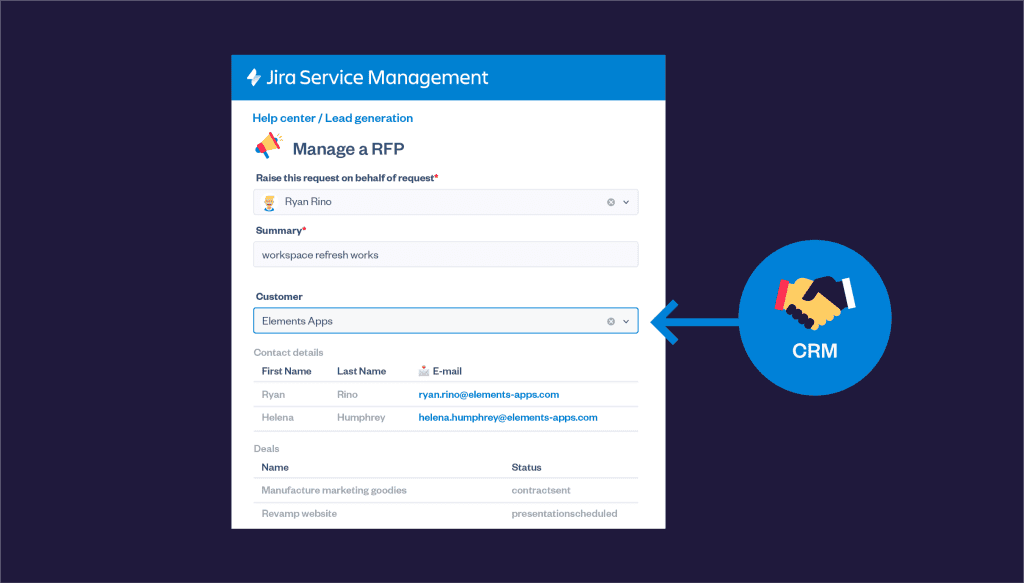
- Direct access to CRM data: Elements Connect allows pre-sales teams to access CRM data directly from within their Jira Service Management tickets. This includes customer contact information, communication history, and associated deals.
- Auto-populated fields: With Elements Connect, you can configure fields in your JSM request forms to be auto-populated with data from your CRM. This ensures that all necessary information is included in the RFP without manual input.
- Customizable integration: The app provides flexibility in retrieving and displaying data, allowing you to tailor the integration to meet your specific needs. This can include setting up custom queries to pull the most relevant data from your CRM.
Practical steps to integrate your CRM with JSM
- Install Elements Connect: Begin by installing the Elements Connect app in your Jira instance.

2. Configure data sources: Set up Elements Connect to link to your CRM. This involves configuring the data sources and specifying which fields should be retrieved in Jira.

3. Customize request forms: Modify your JSM request forms to include Elements Connect fields. These fields will pull data directly from your CRM, ensuring that all necessary information is available.

4. Train your team: Ensure that your pre-sales team is trained on how to use the integrated system. Provide guidelines on how to access and utilize CRM data within JSM to maximize efficiency.
5. Monitor and optimize: Regularly monitor the integration to ensure it is functioning as expected. Gather feedback from your team and make adjustments as necessary to improve the workflow.
Discover how Elements Connect can revolutionize your pre-sales management. Learn More.
By leveraging the full capabilities of Elements Connect, your pre-sales team can operate more efficiently, focus on building strong customer relationships, and ultimately drive more sales. Start optimizing your CRM and JSM integration today with Elements Connect and see the difference it makes in your business operations.
Jira automation lets teams replace repetitive manual work with no-code rules made of three parts: a trigger, conditions, and actions. It runs natively in Jira Cloud and can update work items, send notifications, or create subtasks on its own. Native automation handles single-project tasks well, but it has limits with advanced copying and cross-project jira sync. To keep work items aligned across projects or instances, teams pair automation with Elements Copy & Sync, which adds field-level copying and two-way synchronization. This guide explains how Jira automation works, where it stops, and how to extend it.
TL;DR
- Jira automation explained: Jira automation runs no-code rules built from triggers, conditions, and actions to handle repetitive work items in Jira Cloud.
- Three building blocks: Every rule combines a trigger (what starts it), conditions (what must be true), and actions (what it does).
- Where native automation stops: Jira automation struggles with advanced copying, cross-project syncing, and complex work item relationships.
- Jira sync with Copy & Sync: Elements Copy & Sync adds two-way jira issue sync so field changes stay aligned across projects and instances automatically.
- Creating subtasks: Automation actions can create a subtask in Jira automatically when a new work item is created.
What is Jira Automation and how does it work?
Jira Automation is a no-code feature that runs rules to perform repetitive tasks and complex workflows for you. Instead of updating work items by hand, you define a rule once and Jira applies it automatically whenever the conditions are met. Rules are built in a visual editor, require no scripting, and are available in Jira Cloud.
Used well, automation lets teams focus on meaningful work while routine steps, such as assigning, transitioning, or notifying, happen on their own. This improves both speed and consistency across a project.
What are triggers, conditions, and actions in Jira automation?
Every Jira automation rule is built from three components that run in sequence:
- Triggers start the rule. A trigger can fire on events inside Jira, such as a work item being created or a field value changing, or on external events from connected services like GitHub.

Conditions refine the rule by setting criteria that must be true for it to continue. If a condition is not met, the rule stops.

Actions are the tasks the rule performs, such as editing a work item, sending a notification, or creating a subtask.

Together, these three components automate multi-step workflows and keep task management consistent across the team.
What advanced Jira automation features should you know?
Beyond basic rules, Jira automation includes a few advanced capabilities that make rules more flexible:
- Branching: lets a rule act on both the work item that triggered it and related work items, such as subtasks or linked work items. For example, when a parent is marked Done, the rule can run separate actions on each of its subtasks.

- Smart Values: allow dynamic access to data inside work items. For example, you can add days to the current date or pull a work item summary into a notification.
- Rule Actor: the user or system that runs the rule must hold the permissions needed for the actions it performs.

How do you create a subtask in Jira automatically?
You create a subtask in Jira automatically by adding a “Create subtask” action to an automation rule. When the trigger fires, for example when a new work item is created or moved to a given status, the rule generates the subtask without any manual step. This is one of the most common ways teams use Jira automation to enforce a standard checklist on every new work item.
For repeatable structures across whole projects, branching can create or update several subtasks at once. When you need to replicate full hierarchies, including custom fields, native automation reaches its limit, which is where a dedicated copy-and-sync tool helps.
What are the limitations of Jira automation?
Jira automation is strong for single-project workflows, but it has limitations with advanced copying and complex work item relationships. Native rules offer limited control when you need to duplicate work items with all of their custom fields, replicate a full project structure, or keep data synchronized across separate projects and instances.
In practice, three gaps come up most often: precise field-level copying, cross-project and cross-instance synchronization, and ongoing two-way updates once items are linked. These are exactly the scenarios a dedicated app is built to cover.
How do you set up Jira sync across projects with Elements Copy & Sync?
You set up Jira sync with Elements Copy & Sync, an app that extends native automation with field-level copying and automatic synchronization. You choose which fields and data to copy, link the work items, and changes then propagate automatically so both sides stay aligned. The app handles configurations that built-in automation does not, including custom fields and complex relationships.
Two capabilities make this practical for teams:
- Advanced work item copying: define precise rules for duplicating work items, including custom fields and configurations that native automation usually skips.
- Greater control over syncing: pick exactly which data to sync; when a change is made, synchronization happens automatically, keeping projects up to date.
Can Jira automation sync issues between projects or instances?
Native Jira automation can copy some values between work items, but it is not designed for reliable, ongoing jira issue sync across projects or separate instances. For continuous two-way synchronization, including across Jira instances, a dedicated app such as Elements Copy & Sync maintains the link and updates both sides whenever data changes.
To see this in action, watch how to create a new project from a template using the app:
After watching, you can explore the app on the Atlassian Marketplace or go straight to the Elements Copy & Sync documentation to set up your first sync rule.
FAQ — Jira automation and Jira sync
Is Jira automation available in Jira Software and Jira Service Management?
Yes. Jira automation is available natively in both Jira Software and Jira Service Management on Jira Cloud. The rule builder and available triggers differ slightly between the two products, but the core trigger–condition–action structure is the same in both.
How many automation rules can you create in Jira?
The number of automation rules and monthly executions depends on your Jira Cloud plan. Free plans include a limited number of rule runs per month per site, while Standard, Premium, and Enterprise plans offer higher or unlimited executions. Check the Atlassian pricing page for the current limits tied to your plan.
What is the difference between Jira automation and a Jira sync tool?
Jira automation handles event-driven actions within a project: it reacts to changes and performs tasks like transitioning work items or sending notifications. A Jira sync tool such as Elements Copy & Sync goes further. It creates a persistent link between work items across projects or instances and keeps selected fields continuously updated in both directions, even after the initial copy.
Can you use Jira automation to copy custom fields between work items?
Native Jira automation can copy standard fields between work items using Smart Values, but support for custom fields is limited and depends on the field type. For precise, reliable copying of custom fields — including complex field types — a dedicated app like Elements Copy & Sync gives you full control over which fields are copied and how they are mapped.
How do you trigger a Jira sync when a field changes?
With Elements Copy & Sync, synchronization is automatic: once a sync rule is configured, any change to a mapped field on the source work item is pushed to the linked work item without manual intervention. You define which fields to watch and which direction changes flow, one-way or two-way.
What to take away from this guide
Jira automation covers the vast majority of routine workflow needs: transitioning work items, notifying teams, creating subtasks, and enforcing field rules. It is a solid foundation for any Jira project management setup.
Where it stops is equally clear: advanced field-level copying, cross-project structures, and reliable ongoing jira issue sync require a dedicated tool. Combining both gives teams a complete automation stack, one that handles daily tasks natively and complex synchronization with precision.
TL;DR
- Definition: Jira project templates are pre-configured project setups (work item types, workflows, board, fields) you select when creating a new project.
- Coverage: Jira Cloud ships with 30+ templates for software, service management, work management, and product discovery, the foundation of project management in Jira.
- Custom templates: saving your own Jira project management template is only available on Premium and Enterprise plans.
- Main limitation: templates apply structure at creation time only; no content, no updates, no Jira sync between projects afterwards.
- Workaround: Elements Copy & Sync lets you clone a Jira project (structure + content) and bulk clone work items across projects, turning any project into a reusable template on any plan.
Jira project templates are ready-made project configurations, work item types, workflows, fields, and board setup, that you choose when creating a new project. They remove the need to configure each project from scratch: pick the template that matches your way of working (Scrum, Kanban, ITSM…) and Jira applies the structure automatically. Templates are a fast starting point for project management in Jira, but they have real limits: they only act at creation, custom templates require a Premium plan, and they can’t keep related projects in sync. This guide covers how they work and how to scale beyond them.
What are project templates in Jira?
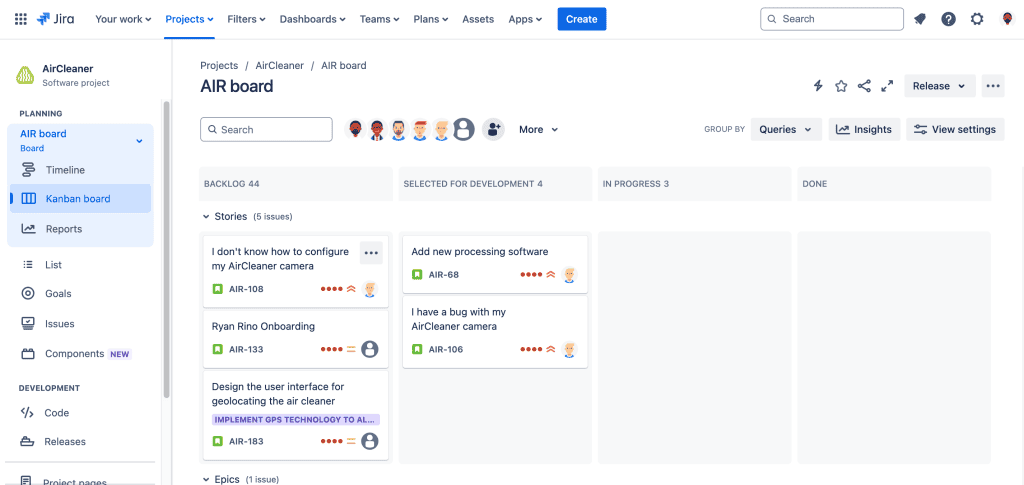
A project template is a predefined blueprint Jira applies when you create a new project. It determines:
- the work item types available (epic, story, task, bug, request types…),
- the workflows those work items follow,
- the board type (Scrum or Kanban) and default views,
- preset fields and screens appropriate to the use case.
Templates exist for both team-managed and company-managed projects. Team-managed templates give project admins autonomy; company-managed templates rely on shared, centrally administered schemes, the better fit when many projects must stay consistent.
Which Jira project templates are available?
Jira’s template library is organized by use case:
| Category | Example templates | Typical users |
| Software development | Scrum, Kanban, Bug tracking | Dev & DevOps teams |
| Service management | ITSM, Customer service, HR, Facilities | IT & support teams |
| Work management | Project management, Task tracking, Marketing | Business teams |
| Product & design | Product discovery, Design | Product teams |
In total, Jira Cloud offers more than 30 templates. Each one shows a preview of its workflow and work item types before you commit. For business teams, the “Project management” template under Work management is the most common Jira project management template.
How do you create a project from a template in Jira?
- Go to Projects → Create project.
- Browse the template library by category, or search by name.
- Select a template and review its work item types and workflow.
- Choose team-managed or company-managed (when both are available).
- Name the project, set the project key, and click Create.
Setup takes under a minute, which is exactly why templates are the default starting point for new projects.
Why use Jira’s native project templates?
Native templates cut project setup from hours to minutes. They encode Atlassian’s defaults for common methodologies, so teams start with a sensible workflow instead of an empty shell. For organizations spinning up many similar projects, one per client, per release, or per service, templates also enforce a baseline of consistency, which simplifies reporting and cross-project searching later on.
What are the limitations of Jira project templates?
Native Jira project templates have four practical limits worth knowing before you standardize on them:
- They act only at creation time: A template stamps the initial structure. If your standard evolves, existing projects don’t update, you reconfigure each one manually. For recurring configuration changes, consider automating repetitive setup with Jira automation.
- They copy structure, not content: Templates don’t include pre-filled work items, checklists, components, versions, or attachments. A “project starter kit” with recurring tasks isn’t possible natively.
- Custom templates are gated by plan: Saving a reusable custom template is a Jira Cloud Premium/Enterprise feature. On Free and Standard, the closest native option is copying an existing project’s schemes (company-managed). A partial, admin-heavy workaround.
- No cross-project sharing or Jira issue sync: Teams handling similar work items across multiple projects (e.g., a customer escalation tracked by support and engineering) get no native mechanism to share or synchronize them.
Can you create a custom project template in Jira?
Yes, with conditions. On Jira Cloud Premium and Enterprise, admins can save a configured project as a custom template and surface it in the project creation flow. On other plans, the practical alternatives are reusing shared schemes in company-managed projects, or cloning a “model project”, content included, with a third-party app whenever a new project is needed.
How do you clone a Jira project to go beyond template limits?
This is where cloning and synchronization apps fill the gap. Elements Copy & Sync extends Jira’s templating model in three ways:
- Clone a Jira project entirely, including its work items, hierarchies, attachments, and comments, effectively turning any well-configured project into a living template, with content included, on any Jira plan. See how to clone an entire project in Jira and how to configure project cloning recipes.
- Bulk clone work items across projects, so recurring task sets (onboarding checklists, release runbooks, client kick-off packages) can be stamped into new projects in one operation.
- Keep cloned work items in sync: when the source changes (status, fields, comments), linked copies update automatically, solving the cross-project consistency problem templates can’t address.
This approach is particularly useful for teams running a scaled agile framework, service teams escalating requests to delivery teams (see our Jira change management workflow examples), and PMOs that copy a Jira project structure several times per quarter. To evaluate it on your instance, try Elements Copy & Sync on the Atlassian Marketplace.
FAQ
Are Jira project templates free?
Yes. all native templates in the library are included on every Jira Cloud plan. Only custom (saveable) Jira project templates require Premium or Enterprise.
Can I change a project’s template after creation?
No. A template is applied once, at creation. You can modify the resulting configuration (workflows, work item types), but you can’t swap templates. To change approach, create a new project and move work items into it.
Can a Jira project template include pre-filled tasks or work items?
Not natively, templates define structure only. To start projects with recurring content (checklists, standard epics), clone a model project or bulk clone work items with an app such as Elements Copy & Sync.
What’s the difference between cloning a Jira project and using a template?
A template applies a structural blueprint maintained by Atlassian (or your admins on Premium). Cloning duplicates a real, existing project, structure and content, and, with a sync-capable app, keeps the copies aligned afterwards.
To go further, start from your best-configured existing project, clone it as your internal standard, and document which fields and workflows are mandatory. That single “model project” approach scales better than template documentation that drifts out of date.