




When managing a project in Jira, keeping work structured and visible is key. Jira subtask play a crucial role in that effort, they allow teams to break complex work into smaller units, distribute responsibilities, and track progress at a more detailed level.
In this article, we explain the fundamentals of Jira subtasks, what they are, how they relate to parent issues, how they differ from standard Jira issues, and when to use them across projects. You will also learn best practices to manage subtasks efficiently without adding unnecessary complexity.
Whether you are new to Jira or looking to improve how your team structures work, this guide will help you understand how subtasks fit into your project management strategy.
What is a Jira subtask?
In Jira, a subtask is a smaller unit of work that belongs to a parent issue, usually a story, task, or bug. Subtasks inherit key attributes from their parent while remaining manageable on their own.
Each subtask exists at a lower level of the issue hierarchy. It can be assigned to a team member, moved through a workflow, tracked, and resolved independently, while still contributing to the completion of the parent issue.
Think of a subtask as a concrete action required to complete a larger task. For example:
- Parent task: Implement login functionality
- Subtask: Design login UI
- Subtask: Build authentication API
- Subtask: Test login flow
Each subtask represents a specific piece of work, often handled by different people within the same team.
Why use subtasks in Jira?
Subtasks help teams work more clearly and efficiently by breaking work down to the right level of detail. Used correctly, they improve visibility and execution across a project.
Better work breakdown
Large tasks can feel overwhelming and difficult to estimate. Subtasks make work more manageable by splitting it into logical steps that are easier to plan and complete.
Improved delegation
Subtasks allow teams to assign different parts of a parent issue to different team members. This supports better workload distribution and avoids bottlenecks.
More precise tracking
Each subtask has its own status and workflow. This gives teams better insight into progress at a granular level, especially during development or testing phases.
Clear accountability
Assigning subtasks to individuals makes ownership explicit. Everyone knows which part of the work they are responsible for, even when working under the same parent issue.
Increased transparency across projects
Subtasks nested under a parent issue make it easier for stakeholders to understand the real scope of work involved in delivering a feature or completing a task.
When should you use Jira subtasks?
Subtasks are powerful, but they are not always the right choice. The key is knowing when work should live at the subtask level and when it should exist as a standalone issue.
Use subtasks when:
- A parent issue contains multiple clearly defined steps
- Different parts of the work can be assigned to different team members
- The work is closely tied to a single parent issue
- The subtask does not need independent tracking across projects
Avoid subtasks when:
- The work requires its own reporting, visibility, or prioritization
- The issue is large enough to stand alone as a task or story
- The work spans multiple projects or teams
- You need more than one hierarchy level
In those cases, creating a standard Jira issue is usually a better option.
Subtasks vs standard issues in Jira
Understanding the difference between subtasks and standard issues helps teams choose the right structure.
- Subtasks always have a parent issue
- Standard issues can exist independently
- Subtasks cannot have their own subtasks
- Both support assignees, workflows, and due dates
Subtasks are tightly linked to their parent. If the parent issue is deleted, all its subtasks are deleted as well. This dependency makes subtasks ideal for execution-level work, but less suitable for tracking work that must survive independently.
Common use cases for Jira subtasks
Teams across different disciplines use subtasks in consistent ways.
QA and testing
Testing work is often broken down into subtasks such as test case design, execution, and regression verification, all grouped under a single parent issue.
Software development
Development teams commonly split work into frontend, backend, and integration subtasks. Each subtask represents a different technical responsibility at the same hierarchy level.
Onboarding workflows
HR and IT teams often create onboarding projects where each new employee has a parent issue with standard subtasks for access, equipment, and training.
Recurring processes
For recurring projects such as releases, audits, or incident response, teams use templates and automation to create the same subtasks every time, ensuring consistency.
Limitations of Jira subtasks
Despite their usefulness, subtasks come with important constraints.
Same project limitation
A subtask must belong to the same project as its parent issue. You cannot create subtasks across different projects.
Single hierarchy level
Jira only supports one subtask level. You cannot create subtasks of subtasks, which limits how deeply you can break down work.
Reporting complexity
Subtasks may not appear in filters, dashboards, or boards unless explicitly included. This can make reporting more complex in large projects.
Permission inheritance
Access to subtasks depends on permissions set at the parent issue level. This can be restrictive in environments with complex permission schemes.
Best practices for managing Jira subtasks
To get real value from subtasks, teams should follow clear guidelines.
Define a subtask strategy
Agree as a team on when to use subtasks and when to create standard issues. Overusing subtasks can clutter projects and reduce clarity.
Write clear, actionable summaries
Each subtask summary should describe a concrete action so there is no ambiguity about what needs to be done.
Use consistent naming conventions
Consistent naming helps subtasks remain readable when viewed outside the context of the parent issue.
Assign owners deliberately
Every subtask should have a clear owner. Unassigned subtasks reduce accountability and slow progress.
Use automation where possible
Automation helps teams create and manage subtasks efficiently, especially in projects with recurring workflows.
Subtasks and automation at scale
If your team repeatedly creates the same subtasks, automation becomes essential to avoid manual errors and missed steps.
Elements Copy & Sync, enables teams to instantly create structured subtasks using reusable templates. Choose exactly which data should be inherited from the parent work item – such as description, priority, assignee, and other fields (including custom fields) – and optionally include comments and attachments. With Elements Copy & Sync, every task is created consistently and ready to work on from the start.
Subtask creation can be triggered through workflows or transitions, allowing teams to adapt automation rules to different issue types and use cases. Elements Copy & Sync also keeps comments, statuses, and selected fields aligned between parent issues and subtasks, so everyone stays in sync as work progresses.
This approach helps teams reduce manual effort, improve consistency, and scale recurring processes reliably across multiple Jira projects.
Learn how to define substask templates with Elements Copy & Sync
Jira subtasks in agile boards
Subtasks behave differently depending on board configuration.
In Scrum boards, subtasks usually do not contribute to story points unless additional configuration or apps are used.
In Kanban boards, too many visible subtasks can clutter the board and reduce readability. Filtering and swimlane configuration help maintain clarity.
Make sure your board setup matches how your team wants to visualize progress at both the issue and subtask level.
Final thoughts on Jira subtask
Jira subtasks help teams structure work, improve collaboration, and track execution at the right level of detail. When used intentionally, they bring clarity to a complex project.
Before creating a subtask, ask whether the work truly belongs under a parent issue or whether it should exist as a standalone task. Consistency across projects is key to long-term success.
Ready to create Jira subtasks faster, with consistency and control built in?
Explore how Elements Copy & Sync can help you streamline task management on the Atlassian Marketplace.
Service teams running a Jira Service Management project often need to have data that has been accurately collected upon receipt: customer IDs, asset tags, office locations, contracts, catalog items. Default Jira fields (Summary, Description) don’t enforce structure, so admins create a custom field for each requirement and hope requesters type the right thing.
In practice, free text leads to mismatches, clean-up work, and an issue history that’s hard to query. Elements Connect addresses this by letting you integrate external data in custom fields and place it directly on Jira Service Management request forms. A requester selects live values from your data while creating the ticket, and the created issue stores those selections, so agents see the same, reliable data.
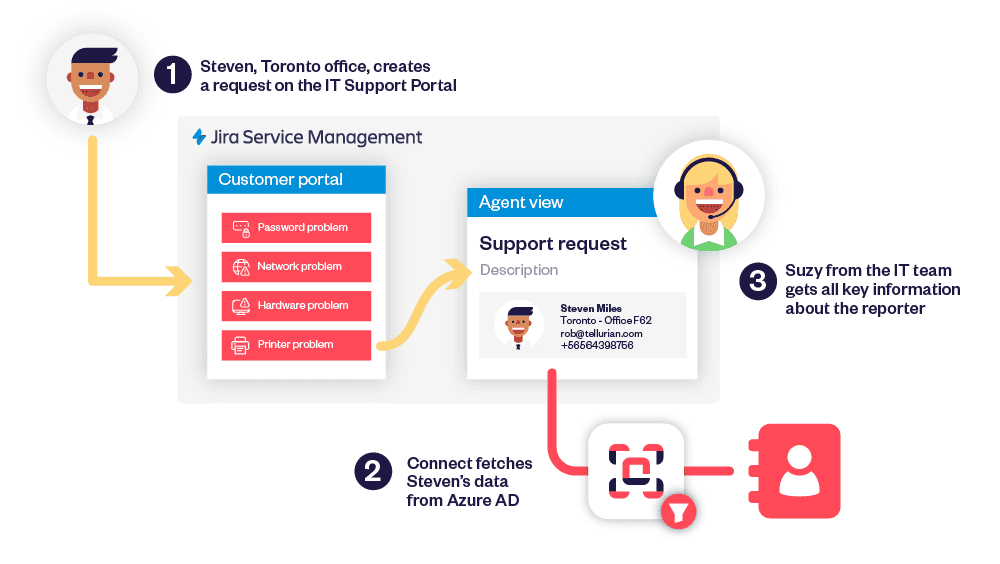
Why Jira Service Management benefits from connected custom fields
Each project tends to have its own taxonomy (customers, offices, products) living outside Jira. If a field relies on a static list or manual entry, values drift. By contrast, a custom field retrieves options dynamically from the system that owns the data (REST API & database). That means one place to create and curate the list, and one place, the work item, to store the selected value. The result in Jira is simpler queues, accurate routing, and reports that reflect reality across projects and issues.
What’s new in JSM
Elements Connect’s connected custom fields have been available on Jira issues for a while. The change is that they’re now portal-ready in JSM projects. You can create a single-select & multi-select (with text search allowed), backed by an external source, and add that field to any request type. Options are retrieved when the form loads or as the user types, so the fields always mirror the current dataset, no nightly syncs and no duplicated tables inside Jira.
Cascading dependencies are supported as well. If aparent field (Offices) changes, thechild field (Printer) filters its options immediately, helping the requester create a correct, well-scoped issue.
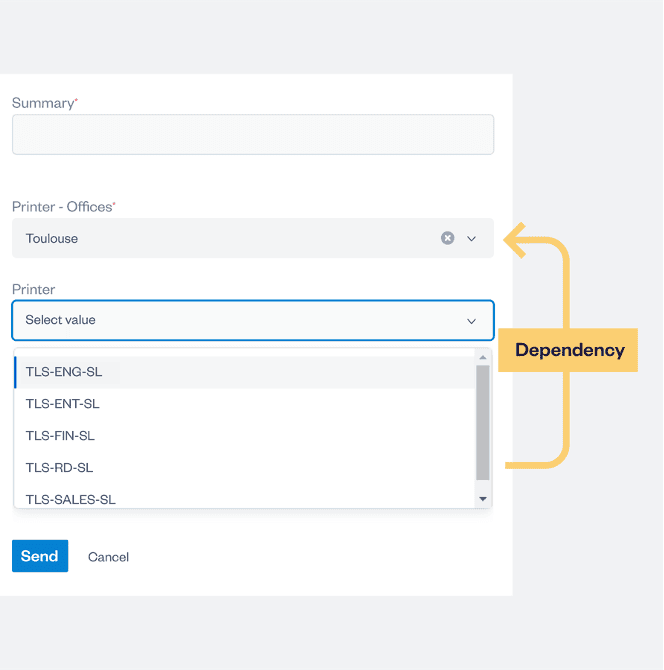
For the complete matrix of supported variables and behaviors on the portal versus the agent view, see Using connected custom fields on JSM projects.
How to add your first connected custom field (step-by-step)
- Create a custom field in Elements Connect. Select the data source (REST API or database) and write the query that returns the column you want to display.
- Click Add field to portal. Choose the target JSM project and the request type that needs the field.
- Place the field in the form layout. Save and preview the portal to confirm the options load. Once you had your custom field on customer portal, then it will automatically be added to the agent’s view.
- (Optional) Create a child field and made it dependent to have his options according to the values selected on the parent field. Make sure both fields are present on the same form/screen.
- Submit a test request. Verify that the created issue stores the selected values in the mapped custom fields, and that agents can view or edit it on the issue screen.
From there, reuse the same field configuration across additional request types without duplicating setup. Because the field reads from your data, updates to the external list are reflected the next time someone creates a request.
You can try it for free here.
Supported today on the portal and agent views
- Portal forms and agent view. The same connected field appears for customers and agents.
- Dependencies between fields. Parent/child fields filter instantly when both are present on the form or screen.
- Dependencies with the requester. Element Connect’s connected custom fields can be configured to display only the external data linked to your requester.
- Field types. Single-select & multi-select (with text search allowed) are common choices for custom fields on a JSM project. But all fields like Read only and User can be add. You can even create one field on the request form with single select and read only information attached to it.
Practical example: from request to issue (select → store → report)
Imagine a hardware request for a printer problem. On JSM, the requester selects a portal from the relevant project to create his request. The Elements Connect’s connected custom field Office, in this portal, is already filled according to the requester informations (example: Toulouse because it’s his workplace). He can now fill the custom field Printer , which is filtered according to the location of Toulouse.
On the agents side, they see the same field values on their screens, can adjust if stock changes, and automation can route the issue to the right queue. Because the fields hold structured values, you can filter, report, and measure SLAs reliably across projects.
Tips for clean configuration in JSM projects
- Prefer searchable mode for large datasets; it’s faster than loading thousands of options and reduces scrolling.
- Name fields clearly (e.g., “Customer — from CRM”) and add concise help text to reduce questions.
- Limit column to what the form must show; keep sensitive attributes out of Jira.
- Test dependencies with real data. Place parent and child fields together to ensure the child field filters.
- Report on the stored values. Because selections land in custom fields on the issue, dashboards and queues can use them directly.
Short FAQ
Will the same custom field work across multiple request types and projects?
Yes. Add the field wherever it’s needed; configuration stays central and reusable.
Are values live or cached?
Connected data are retrieved cached and you can configure the cache duration for balance between freshness and performance.
Can agents see and edit the field on work items?
Yes. The Elements Connect’s connected custom fields is available in the work item view, matching what customers selected on the portal, but the agent can edit the field directly on the work item in case this is needed.
Can users select multiple values in one field?
Yes, use the multi-select picker field type. Users can select multiple values; each is saved in the custom field on the created issue and works with JQL, queues, and dashboards. Prefer searchable mode for long lists to keep performance high.
How do I migrate a free-text field to a connected custom field without breaking issues?
Create a new connected custom field, add it to the project screens, then copy data from the old text field with Jira automation (rule: when edited → set new field to old value). Keep the old field for history/labels, and report on the new field going forward.
Streamlined connected fields for JSM
Jira covers the basics for managing field configs, but Elements Connect bridges the external-data gap: you can create custom fields, surface live options on portal forms, and have each issue consistent across each project, without maintaining parallel lists or scripts.
Dive deeper in the guide: Connected custom fields on JSM projects.
Try it in your site via the Elements Connect listing on the Atlassian Marketplace, and watch quick walkthroughs onElements YouTube.
If you often roll out similar request types or onboard new teams, adopting a dedicated connected-fields setup pays off: you’ll standardize capture at create time, keep Jira issues reliable, and scale patterns cleanly across environments.
Jira is great at tracking tasks, but what if your team needs to follow things?
We’re talking about laptops, software licenses, ID badges, access cards, vendor contracts, the everyday items and moving parts that keep your organization running, but don’t fit neatly into a to-do list.
That’s where Assets, a feature of Jira Service Management, enters the picture.
If you’ve never heard of it, you’re not alone. Many departments that use Jira daily have no idea this module exists, or that it could solve a silent struggle they’ve simply learned to live with. In this guide, we’ll explain what Assets is, how it works, common ways companies use it, and where it shows its limits. At the end, we’ll also suggest an alternative for teams who need more flexibility with external data.
Get more info on Assets in JSM
What is Jira Assets?
Assets is a native feature in Jira Service Management (JSM) Premium and Enterprise editions that allows departments to follow and manage more than just issues. It introduces a structured way to work with data that isn’t task-based, like hardware, locations, contracts, vendors, and people.

The tool originally started as a Marketplace app called Insight, which Atlassian acquired and integrated into JSM to strengthen its IT service management (ITSM) offering. Today, Assets allows teams to visualize and connect “objects” (i.e., assets) to requests, incidents, and other records inside the platform.
With Assets, you can track practically anything:
- Workflows (like onboarding checklists)
- Licenses and renewals
- Vendor agreements
- Customer accounts
- Internal services
- Team members and roles
The module brings structure to otherwise scattered data, making it searchable, referenceable, and linkable to service desk tickets. It’s Jira’s way of saying, “This isn’t just a task tracker anymore.”
What is Assets used for? (with real-life examples)
While Assets was originally built for IT asset management, its flexible configuration options mean it can serve teams across many functions, from HR and facilities to procurement and finance.
Let’s walk through a few practical use cases.
1. IT teams
IT departments use Assets to track equipment, laptops, monitors, phones, access points, and more. When an employee raises a support request, agents can quickly view which device is involved and pull up its specs and history.
Example:
“Tom’s computer is having Wi-Fi issues.”
→ The agent checks the ticket, sees the device is a 2022 MacBook Pro issued last June, and realizes three other users with the same model reported similar problems.
This speeds up diagnostics, avoids back-and-forth, and helps standardize service.

2. HR teams
HR professionals use Assets to track people, roles, onboarding checklists, and even access credentials.
Example:
When a new employee is onboarded, the HR service request automatically links to objects like:
- Assigned laptop
- Available software licenses
- Employment contract templates
- Manager or team lead object
This centralized data view ensures everything needed for a smooth onboarding is visible and connected.
3. Facilities and operations
Facilities teams manage internal resources such as meeting rooms, parking spots, vehicles, or security equipment.
Example:
When an employee requests to book a meeting room, Assets can cross-reference availability and auto-assign an available room object to the request.
This helps reduce double-bookings and ensures better use of shared spaces.
4. Procurement and finance
Teams responsible for purchasing and vendor management use Assets to monitor contracts, renewals, and spending.
Example:
Finance might analyze:
- Software licenses and their expiration dates
- Vendor support agreements
- Purchase orders and status
- SLA compliance metrics
These are all organized as objects within the Assets schema, giving teams a single place to review and act on critical business information.
The keyword here is flexibility, Assets allows you to model almost any type of information, as long as you’re willing to invest time in setup.
Core features of Jira Assets
Assets is powerful, but it’s not plug-and-play.

Let’s take a closer look at its main features:
| Feature | What it means |
|---|---|
| Object schema | A custom database for the type of items you want to track (like “Laptops” or “Licenses”) |
| Object types & attributes | Define the properties of each asset, e.g. serial number, location, purchase date |
| Object relationships | Link items to other objects (e.g. employee owns laptop) or to Jira issues |
| Data import | Bring in data via CSV, JSON, REST API, or Discovery integrations |
| Automation rules | Trigger actions (like sending alerts) when asset fields change |
| Permissions & roles | Define who can view or edit each schema or field |
If that sounds technical, that’s because it is. Assets is essentially a no-code database layered onto Jira. It’s incredibly customizable, but that also means there’s a learning curve.
Limitations of Jira Assets
While Assets is packed with features, it’s not perfect. Based on feedback from users across IT, HR, and operations, here are some practical limitations to consider.
1. Steep learning curve for setup
Assets uses a schema-based structure that takes time to model and configure. It often requires Jira admin skills, especially when defining object relationships or designing automations.
If you’re not comfortable with abstract data models, setup can be overwhelming.
2. No real-time sync with external systems
Assets allows you to import data, but syncing external data sources in real time requires custom scripting or third-party tools.
Example:
Let’s say your asset inventory lives in a CMDB or SQL database. You can import that data into Assets, but it won’t automatically update unless you set up a sync via REST API or automation.
3. Performance can lag at scale
Managing thousands (or hundreds of thousands) of assets? You’ll need to monitor performance closely and optimize your schemas. For very large datasets, Assets can become sluggish.
4. Not designed for external, volatile, or live data
Need to display data from an external CRM, directory, or cloud system without storing it in Jira? That’s outside Assets’ native capabilities.
What if you need external, live data?
Here’s where Elements Connect comes in.
Many internal services discover that while Assets is helpful for internal asset tracking, it falls short when it comes to integrating live external information. That’s exactly the gap Elements Connect fills.
Elements Connect allows you to display real-time external data inside Jira issues, without importing it.

Whether your data lives in:
- SQL databases
- REST APIs
- LDAP directories
- CRMs like Salesforce or HubSpot
- CMDB tools
You can fetch and show it in context, directly on your issues.
No data duplication, no syncing hassles, and no storage limits. The information is pulled live from the source and shown exactly where your agents or users need it.
You can also combine Elements Connect with Assets. For example, store internal asset IDs in Assets, and use Elements Connect to fetch real-time availability or warranty details from your backend systems.
Is Jira Assets right for you?
Assets is a powerful addition to Jira Service Management, especially for ITSM departments needing to follow internal assets and connect them to service tickets.
Its flexible structure means you can model nearly any type of information, but that same flexibility comes with a price, complexity, limited availability, and challenges around syncing external data.
If your team works mainly with internal data and you’re already on JSM Premium, Assets might be a great fit.
But suppose you need to bring in live data from other tools, sync directories, or connect to multiple external systems. In that case, Elements Connect might just be the smarter solution, helping you extend Jira without overloading it.
Curious how Elements Connect brings your external data inside Jira Cloud?
👉 Learn more here
Jira administrators often consider automation the key to streamlining repetitive tasks and complex workflows such as cloning tickets, synchronizing projects, or replicating issue data across multiple teams. With Jira automation’s native capabilities, administrators believe they’ve found the ideal tool to replicate information, maintain cross-project consistency, and reduce manual labor.
However, when tasked with copy and synchronization operations, such as cloning entire issues or synchronizing data fields across boards, the limitations of Jira automation quickly become apparent. Lengthy rule configurations, debugging nightmares, and maintenance complexity often overshadow the expected efficiency gains.
This article dives deep into the common pitfalls Jira admins encounter when using Jira automation for cloning and synchronization, explaining how these errors slow down projects and frustrate users.
1. Overcomplicated cloning with fragmented automation rules
Jira automation rules often need to be configured piecemeal for copy and synchronization tasks: one rule clones the issue, another copies comments, a third synchronizes custom fields, and even more handle links and subtasks. Each additional detail requires a new automation, multiplying complexity exponentially.
For administrators, this can feel empowering initially, but the reality is far more challenging:
- The sheer number of rules grows quickly, making the whole system fragile.
- Overlapping responsibilities among automations cause inconsistent data replication.
- Debugging failures involves navigating numerous interdependent automations.
- Every configuration tweak or new sync requirement leads to extensive rule adjustments.
This fragmentation increases the cognitive burden on admins and slows down overall Jira administration. As teams grow and projects multiply, managing dozens of overlapping automations becomes a full-time job instead of a time-saving strategy.
Best practice:
Focus on minimizing the number of automations by combining related functions and relying on solutions designed for holistic copying and synchronization. Reducing manual setup and coordination issues leads to fewer surprises, faster delivery, and more resilient workflow automation.
2. Trigger overlaps and recursive loops create unreliable synchronizations
A critical but hard-to-detect problem in cloning automations is trigger overlap. For example, a field copied from an original issue to its clone can itself trigger a reverse update, creating an infinite loop updating each other repeatedly.
Such recursive behavior not only wastes resources but also introduces unpredictability, where some data updates may be lost or conflict with others.
One large development team recently shared how a “simple” copy rule for bug tickets resulted in more than 1,000 redundant updates overnight. Jira’s performance tanked, and the admin team had to disable all automation for a day just to clean the mess.
Common consequences include:
- Silent failure of automation rules that are difficult to trace.
- Unexpected issue status changes or data overwrites.
- Exceeding Jira’s automation limits, causing delays or dropped executions.
How to combat loops:
- Restrict triggers with precise conditions to avoid unnecessary firing.
- Add conditional logic in automation rules to prevent reverse-trigger updates.
- Monitor automation audit logs regularly to spot problematic sequences early.
Still, at larger scale, these strategies require intricate rule design and constant vigilance, a heavy cognitive load for any Jira admin juggling multiple projects.
3. Insufficient testing dramatically increases risk of failures
Given the multi-step nature of synchronization involving cloning, field updates, comments, subtasks, and status transitions, testing cannot be underestimated.
Despite this, many Jira admins apply cloning automations directly to live projects without robust testing, exposing all users to potential data inconsistencies or incomplete synchronization. One wrong condition can cause a cascade of broken links and duplicated issues across entire projects.
Effective testing includes:
- Using sandbox environments or dedicated pilot projects.
- Simulating real-world and edge cases comprehensively.
- Validating impact on workflows and linked projects.
- Collecting feedback from users on synced data accuracy and timeliness.
When administrators verify Jira automation behavior before scaling it, they ensure their users trust the results. In many cases, investing one extra day in validation prevents weeks of firefighting later.
4. Maintenance complexity scales with every new sync requirement
Copy and synchronization automation requires continuous updates as Jira environments evolve, whether through workflow changes, custom field adjustments, or project restructures.
Each tweak can cascade into multiple rule updates, particularly problematic when dozens of automations share dependencies. Without clear documentation, it becomes nearly impossible to identify what each automation does or who’s responsible for it.
Without dedicated ownership and documentation, this results in:
- Broken automations cascading unnoticed.
- Confusing behaviors undermine user trust.
- Time-consuming firefighting replaces strategic Jira management.
Each new business requirement triggers a chain reaction that must be manually tracked and tested. What was supposed to be a productivity enhancer turns into maintenance overhead.
5. Performance and quota limits create scalability barriers
Jira automation respects execution quotas designed to protect system resources. Large-scale cloning and synchronization efforts risk hitting these limits quickly, resulting in delayed or failed automations.
These limits manifest as:
- Execution queues causing automation lag.
- Automated actions not completing near real time.
- Frustrated end-users experiencing data inconsistencies.
At enterprise scale, even small inefficiencies multiply. Hundreds of projects with complex automations can generate thousands of rule executions per hour, often exceeding platform limits. As a result, data synchronization becomes unreliable and user trust declines.
Scaling Jira automation in complex environments becomes a balancing act between rule granularity and acceptable system performance. Admins need to decide what to automate and when to rely on more specialized solutions.
Why is it so challenging to clone with Jira automation?
While Jira automation offers a wide range of powerful features and flexibility, many administrators find that cloning issues or replicating data across projects quickly becomes a challenging task. This is because native Jira automation requires building multiple interconnected rules to cover various aspects of cloning: duplicating the issue itself, copying comments, synchronizing fields, handling attachments, and managing linked subtasks or dependencies. As a result, what seems like a simple operation turns into a fragile and labor-intensive setup prone to errors, hidden limitations, and maintenance headaches.

The complexity increases dramatically as teams scale or require cloning across multiple projects or Jira instances. Administrators often face unexpected obstacles, such as:
- Execution quotas that limit how many operations can run simultaneously,
- Difficulties cloning hierarchical data such as epics and subtasks,
- Troubleshooting interactions between numerous overlapping automation rules.
These conditions frequently lead to unpredictable results, delayed processes, or even failed cloning attempts that can disrupt workflows and damage user trust.
Is there a better solution to overcome the limitations and complexities of cloning with Jira automation?
To tackle these persistent challenges, several specialized apps have been developed. These applications are designed from the ground up to facilitate cloning and synchronization operations within Jira, providing a dedicated, streamlined interface that significantly reduces the need for writing and managing complex automation rules. By centralizing cloning functionality, such apps allow administrators to configure bulk cloning and synchronization with a single, unified setup rather than dozens of separate and fragile automation rules.
In addition to simplifying configuration, these apps enhance reliability by handling complex Jira data structures natively, including:
- custom fields,
- comments,
- attachments,
- hierarchical links,
without the need for workarounds or precarious scripting. They also support robust multi-project and cross-instance cloning capabilities, helping organizations maintain data consistency across distributed environments without overwhelming Jira’s native automation limits.

Another key benefit is the reduced administrative overhead. With centralized logging, audit trails, and easy-to-use interfaces, administrators spend far less time troubleshooting rule failures or updating numerous automations in response to changing requirements. This allows teams to focus more on optimizing their processes and delivering project value rather than wrestling with brittle automation layers.
Moreover, these apps are designed for scalability. They can handle cloning large volumes of issues or entire project structures quickly and efficiently, something Jira automation struggles with due to platform-imposed rate limits and quotas. As a result, enterprise teams gain enhanced performance, stability, and predictability when managing replication tasks.
In summary, while Jira automation provides useful basic tools for cloning and synchronization, it is often an inefficient and unreliable choice for complex or large-scale scenarios. Specialized cloning apps such as Elements Copy & Sync offer a more effective, manageable, and scalable alternative, transforming a once complicated and error-prone endeavor into a smooth, consistent process that administrators and users can trust.

Conclusion
While Jira automation can be an appealing first option to handle cloning and syncing tickets or projects, its native capabilities often fall short when workflows become complex. Common mistakes, such as fragmented automations, unintended loops, insufficient testing, and heavy maintenance loads, turn what should be a time-saving tool into an administrative burden.
For teams that heavily rely on copy-and-sync functionality, specialized tools like Elements Copy & Sync provide a much-needed alternative, delivering simplicity, reliability, and scale without the typical Jira automation drawbacks.
Smart automation isn’t about having more rules, it’s about having the right system: one your admins can maintain easily, your teams can trust, and your organization can scale with confidence.
If you’re using Jira Service Management (JSM), you’ve likely embraced Jira Forms to simplify request intake and collect structured data. They help guide users, avoid unnecessary custom fields, and ensure agents have what they need to move quickly.
But there’s one big limitation that has long been overlooked: you can’t measure how well Jira Forms are working.
Until now.
With the introduction of Jira Forms analysis in Elements Catalyst, service owners, IT teams, and support managers can finally evaluate how forms are used, field by field, and how they contribute to (or slow down) request resolution. It’s a game changer for those looking to move from traditional SLA-focused to customer-centric service management and continuous service improvement..
Why Jira Forms are a critical (and underutilized) part of your JSM strategy
Jira Forms are a powerful feature of Jira Service Management, enabling teams to:
- Collect structured information using form-specific fields that don’t clutter Jira’s custom field configuration
- Use conditional logic to guide users through complex scenarios
- Design forms once and reuse them across teams or request types
- Enable agents to add forms on-the-fly to issues when additional info is needed
- Give end users the flexibility to save information as it becomes available without submitting the form right away.
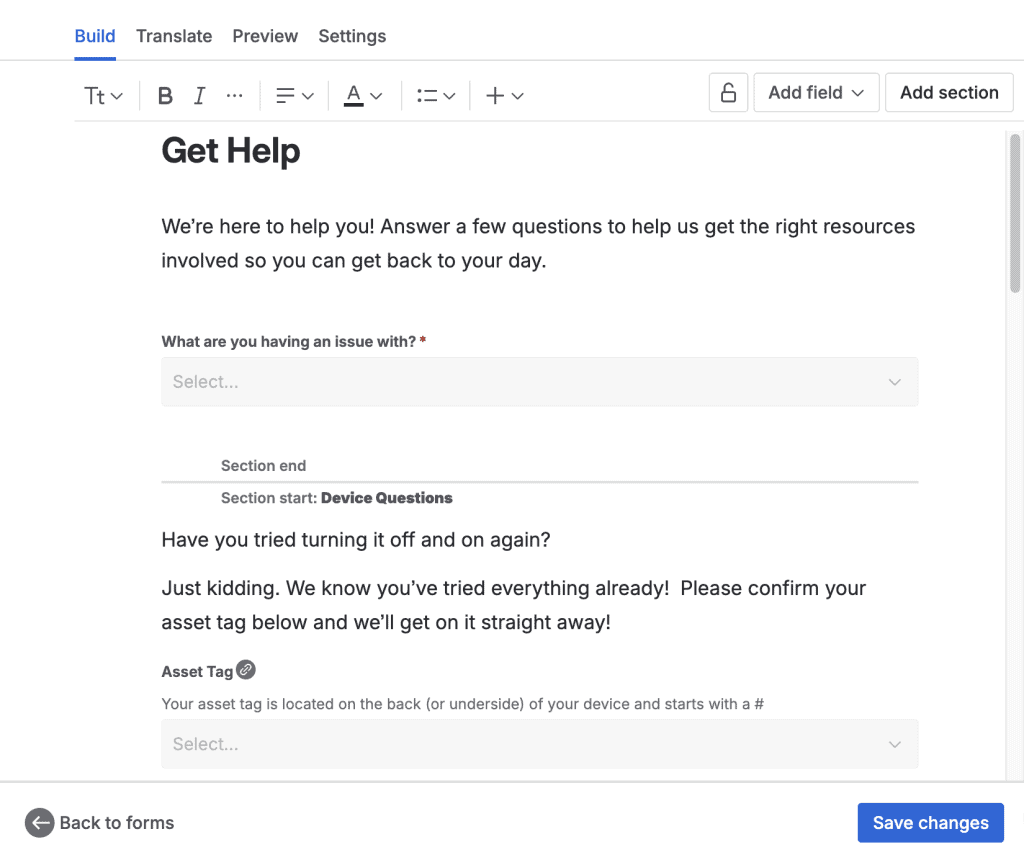
They’re especially valuable for IT service desks, HR, or facilities teams dealing with a variety of service requests.
Example: An IT support team might offer a single laptop request form with conditional questions. If the user selects “MacBook,” they see one set of fields. If they select “Windows,” they see another. It’s clean, scalable, and keeps the experience simple for the requester.
But here’s the problem: forms are successfully submitted by customers but, it doesn’t necessarily submit correct and complete information. How can customer support teams measure the customer experience and satisfaction at the moment of intake?
- Are some fields being left blank?
- Are agents recategorizing requests due to incomplete or unclear submissions?
- Are certain forms more prone to confusion or back-and-forth follow-ups?
These are not hypothetical concerns; they impact service efficiency and customer satisfaction every day.
And until now, Jira Forms have been a blind spot in your service performance data.
Introducing: Jira Forms field analytics in Elements Catalyst
Elements Catalyst is a cloud app designed to give teams complete visibility into their JSM service catalog: request types, portal groups, workflows, usage patterns, and now, Jira Forms.

With this new feature, Catalyst users can:
- Analyze form structure as part of their catalog: see where forms are used and how they align with your services
- Track field usage and completion: understand which questions are essential, which are ignored, and which might be causing friction
- Monitor form lifecycle: see when forms are created, updated, and deprecated
- Detect usability issues: identify patterns in form drop-offs, abandoned requests, or frequent agent interventions
In other words, Catalyst opens the black box of Jira Forms and turns it into measurable, actionable data.
Read more about what is an IT Service Catalog
Real-world impacts: Why this analysis matters
Whether you manage a service desk or oversee a broader ITSM strategy, the ability to track Jira Forms performance provides immediate benefits:
1. Improve form design and usability
By identifying which fields are skipped or misunderstood, you can:
- Remove irrelevant or redundant questions
- Rephrase unclear field labels
- Replace manual input with the automatic capture of certain data from a CMDB
- Streamline conditional logic flows
- Reduce cognitive load for users
Result: shorter, more efficient forms and better-quality data.
2. Reduce ticket rework and reclassification
If agents are regularly editing form data because the form didn’t capture the right information, it’s a sign of a deeper issue.
Now, you can:
- See which request types are most affected
- Understand why categorization is failing
- Adjust forms to capture key decision-making inputs upfront
Result: less back-and-forth, fewer reopened issues, and improved SLA compliance.
3. Back your decisions with data
Form redesign and request flow changes are often met with resistance or lengthy approval chains. With field-level analytics in Catalyst, you can justify changes with evidence.
- “This field is left blank in 40% of submissions.”
- “The form for X is causing 3× more agent recategorization.”
- “Usage of this form has dropped 30% since the last update.”
Result: more persuasive arguments, faster iterations, and more confident decision-making.
How form analytics connects to your service catalog strategy
What makes this update truly powerful is its integration with the broader service catalog view in Catalyst.
You’re not just analyzing forms in isolation, you’re evaluating them in context:
- How does a form contribute to a service’s overall performance?
- Are request types using outdated forms or overlapping with others?
- Are form-driven services aligned with actual business value?
By connecting form data with usage trends, lifecycle changes, and portal structure, Catalyst enables true service catalog optimization.
And that’s where teams can shift from reactive to proactive.

Compliance, consistency, and ROI
Visibility into Jira Forms also helps organizations meet goals beyond day-to-day efficiency.
1) Audit & compliance
- Track who created or modified a form
- Monitor field changes over time
- Ensure sensitive data collection is reviewed and compliant
2) Standardization
- Identify duplicate or inconsistent fields across forms
- Establish templates for commonly used request types
- Maintain a consistent user experience across departments
3) ROI tracking
- Understand which request types (and forms) drive the most value
- Prune unused or underperforming forms
- Align form-based services with organizational goals
From insight to action: What you can do today
If you’re managing a growing JSM portal with multiple teams, services, and request types, now is the time to:
- Audit your existing forms and use Catalyst to identify friction
– How many are actively used?
– Are they aligned with the services you offer?
– Are key fields consistently filled? - Identify quick wins
– Remove low-value fields
– Automatically capture data where possible
– Add tooltips or descriptions to improve clarity
– Standardize form structures where possible - Use Catalyst to monitor changes
– Track improvements over time
– See if fewer tickets are misclassified
– Measure reduction in field completion issues
This is continuous improvement in practice.
Who benefits from this new visibility?
IT managers and service owners
You finally get an answer to the question: Are our request forms working?
Catalyst provides the insights you need to refine your catalog, support change initiatives, and demonstrate impact.
Support and operations teams
Fewer misunderstandings at intake means:
- Smoother workflows
- Better data
- Less manual correction
End users
Simpler forms mean:
- Less time spent on requests
- Fewer follow-ups
- More trust in the support experience
What makes this unique?
Other reporting tools focus on SLAs, resolution times, or customer satisfaction. Important, yes, but none give you field-level visibility into Jira Forms.
By adding this capability to Catalyst, Elements closes a crucial feedback loop.
You’re no longer guessing how your request types perform, you’re measuring it.
This is especially important in enterprise environments where:
- Forms are shared across departments
- Request types multiply over time
- Service catalog complexity increases
Catalyst provides the clarity needed to keep your JSM portal healthy and sustainable.
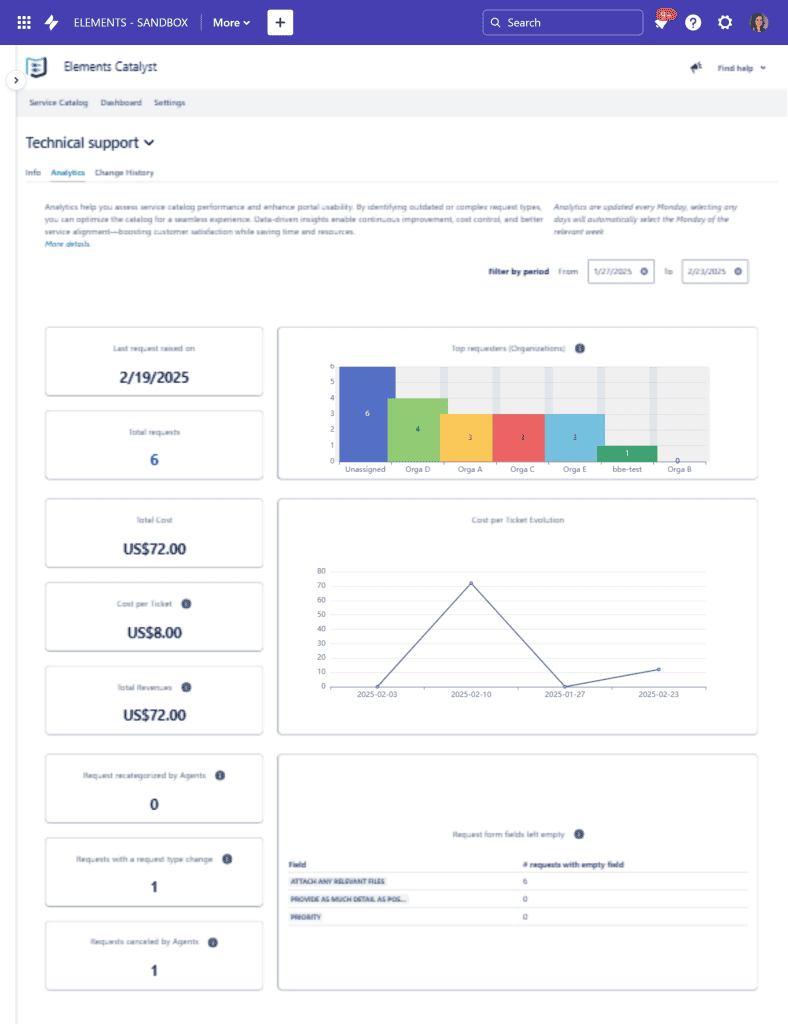
Ready to unlock hidden insights in your Jira Forms?
Jira Forms have made request intake easier. Now, with Elements Catalyst, they become measurable and improvable.
If your team is committed to improving customer experience, increasing service quality, and getting real value from Jira Service Management, start with your forms.
👉 Get started with Elements Catalyst and bring visibility to where it matters most.
You deal with big backlogs, repeat projects, and sprints that look the same. Each time, you end up creating the same issues again. If you searched for bulk cloning in Jira, hoping for a native button, you found there is no built-in bulk cloning in Jira. The result: manual copy-paste, missed details, and differences between projects.
This article explains why mass-clone in Jira is not native, the usual workarounds (and their limits), and simple ways to duplicate issues faster without slowing your teams.
Why is the feature “bulk clone” in Jira not native?
Jira gives you Clone for one issue, and mass change (Transition, Edit, Move, Delete) for many issues. But bulk clone is not in that list. Atlassian prioritizes data quality and traceability. A mass clone without checks can copy wrong fields, invalid statuses, or break links between issues.
For admins, this shows up as:
- Large groups of issues to rebuild every iteration (stories, recurring tasks).
- Home-made templates that slowly move away from reality.
- Higher error risk when different people duplicate the same pattern in different ways.
Bulk clone in Jira: common workarounds
1) CSV export → CSV import (semi-bulk)
When it helps: you know which issues you want to copy, and you can map fields with confidence.
Pros
- Create many issues at once.
- Prepare offline in Excel/Sheets and review with your team.
Cons
- Fragile: one missing field, a date format problem, or a component that does not exist in the target project → import fails.
- Issue links and sub-tasks need manual rebuild (new IDs).
- Not real-time: good for a batch, not great for frequent repeats.
2) Automation for Jira
When it helps: you have repeatable patterns (for example, when an epic is created, generate N stories and sub-tasks).
Pros
- Powerful for stable structures.
- Works on events (create, transition, schedule).
Cons
- Maintenance: more rules → more testing and documentation.
- Execution limits: Jira Automation has rule and action limits; large or frequent clones can hit those limits.
- Complex mapping: custom fields, watchers, attachments, and links get heavy.
- Not a generic bulk clone: you automate a specific scenario, not a free clone of any set.

3) Template projects + manual cloning
When it helps: your product practice is stable, with little change between iterations.
Pros
- Easy to explain.
- Gives a common starting point.
Cons
- Template drift: templates age and become wrong.
- Manual work: clone issue by issue, then adjust.
- Cross-project misalignment when teams evolve their own models.
What admins usually mean by bulk clone in Jira
From many conversations, bulk clone in Jira often means:
- Copy a structure (Epic → Stories → Sub-tasks) with the right fields (custom fields, components, labels, priorities).
- Keep and rewire links (blocks, relates to, duplicates, parent/child).
- Copy attachments, checklists, and key comments when useful.
- Duplicate across multiple projects with different field schemes.
- Build trust: avoid duplicates, keep a clear source, respect permissions and workflows.
So “bulk clone” is not only a missing button. It is a controlled process that must be safe, traceable, and predictable.

A simple strategy to replace the bulk cloning in Jira
Step 1: Map what to clone (and what not to clone)
- Structure: Epic/Story/Sub-task, links, dependencies.
- Required fields: which fields must be copied every time? Which fields must stay empty?
- Content: descriptions, checklists, acceptance criteria templates.
- Security: sensitive fields, visibility, comment restrictions.
This map helps you avoid copying “everything” blindly. It reduces noise and clean-up later.
Step 2: Pick the right tool for volume and frequency
- Occasional large batches: CSV import with a clean file and a shared mapping guide.
- Repeatable patterns: Automation that generates the structure on events (with variables/keys).
- Many projects or different field schemes: use a controlled copy (e.g., Elements Copy & Sync) that can align fields, keep relationships, and if needed, keep projects in sync.
Step 3: Standardize and document
- Stable names (labels, components, versions).
- Consistent descriptions (standard sections: context, scope, Definition of Done).
- Admin checklist before duplication (permissions, screens, validators, automation limits).
- Duplication log to track what you copied, when, and from where.
Everyday patterns that work better than bulk cloning in Jira
Pattern A: A reusable “epic kit”
- Create a reference epic with the ideal structure (stories and sub-tasks), prefilled fields, labels, and components.
- Add an automation rule: when an epic of type “X” is created, automatically create its children from a parameter list (names, default estimates).
- Add an admin checklist of fields to reset (versions, dates, assignees).
Why it works: you get the bulk cloning in Jira time savings with better quality and lower risk.
Pattern B: Copy an existing set, almost as-is
- Select the source set (with JQL).
- Export a clean CSV (only the columns you will import).
- Normalize values that should not follow (dates, assignees, invalid statuses).
- Import into the target project, then rebuild links with a second pass (ID mapping) if needed.
Pro tip: keep a reusable CSV template and a short playbook your teams can follow.
Pattern C: Copy and keep projects in sync
When several teams work on the same functional backlog, cloning one time is not enough. You need to copy and synchronize a selected set of issues and fields across projects (or instances) while keeping traceability. This avoids drift and reduces manual updates later.
When bulk cloning in Jira hits limits, how to go further
Even with CSV and Automation, you will still miss:
- Selective copying of advanced fields (complex custom fields, attachments, checklists).
- Keeping relationships (links, parent/child) without manual steps.
- Cross-project consistency when field schemes differ.
- Ongoing sync if the source changes after the first copy.
At this stage, many admins look for special apps that provide controlled copying and, if needed, synchronization across projects, plus a clear audit trail. If these limits sound familiar, consider tools that copy (and optionally sync) issues with fine control: choose which fields to copy, keep links, manage field mappings across projects, and update when the source changes. You stay in control of scope, permissions, and reliability.
Pre-flight checklist before any large clone
- Define scope: which issue types, which fields, which links?
- Validate schemas: check screens and required fields in source and target.
- Decide what not to copy: dates, assignees, statuses.
- Prepare mappings: components, versions, labels.
- Test on a small sample first.
- Track the run: who cloned what, when, and how.
How to bulk clone in Jira without wasting hours?
Searching to bulk clone in Jira shows a real need: scale duplication without wasting hours. Out of the box, Jira offers building blocks (Clone for one issue, Bulk change, Automation, CSV) but not a ready bulk clone.
The best path is to:
- Model what you need to duplicate (structure, fields, links).
- Choose the right lever: CSV for occasional batches, Automation for repeating patterns, and—when needed—a controlled copy for reliable cross-project work.
- Standardize and document so the process stays safe and repeatable.
If your week looks like “I often copy the same set of issues across projects and must stay aligned,” try Elements Copy & Sync. It lets you copy selected issues (with the fields and links you choose) and keep them in sync across projects, delivering what people expect when they want to bulk clone in Jira, with less friction and more control.
During the keynote of Team ’25 Europe, Atlassian co-founder Mike Cannon-Brookes laid out a bold vision for the company’s future: building a unified, intelligent cloud platform that connects strategy, collaboration, and automation. It’s a clear signal: the future of work, powered by Atlassian, is already here.
Cloud, at enterprise scale
Atlassian’s commitment to Cloud is stronger than ever. Jira supports 100,000 users and Confluence Cloud now support up to 250,000 users, proving that the platform is ready for even the largest enterprises. And the shift is well underway: 98% of European customers are either already on Cloud or in the process of migrating.
New hosting options include:
- Commercial Cloud
- Government Cloud (FedRAMP Moderate certified)
- Isolated Cloud (coming in 2026)
Also launching in early 2026: Units, which will give customers the ability to segment their environment with isolated directories, data boundaries, and even AI contexts. This option is ideal for managing compliance and large-scale collaboration.
The admin experience is also evolving with improved navigation, unified search, and a consistent UI across all products.
At Elements, we’ve been preparing for this shift for years, and our apps are ready. To have more information read our latest blog article: Migrate your Elements Apps to Cloud with confidence
Teamwork Graph: shared context becomes a platform asset
The Teamwork Graph, Atlassian’s central data laye, now holds over 100 billion objects and is expanding through integrations with Databricks, HubSpot, GitBook, Basecamp, and others.
With new Graph APIs available in Forge, developers can build custom logic and automation that works across all Atlassian tools. Assets, previously limited to JSM, becomes a global platform app, allowing teams to leverage them across the product suite via search, automation, and AI reasoning.
Rovo, everywhere
Atlassian’s AI assistant Rovo is now deeply embedded across almost every product. Rovo is now available in Standard plans. A standalone Rovo app is also coming soon.
Rovo gains a personal memory to deliver more relevant answers, works with Canvas, reads local files, and can create Jira work items from spreadsheets. It’s quickly becoming the AI fabric of Atlassian’s ecosystem.
Teamwork Collection: content, meetings, and async collaboration
Several updates are rolling out under the new Teamwork Collection banner:
- Confluence is now 2x faster
- “Create with Rovo” adds AI-assisted content generation
- Personalized audio briefings help teams stay aligned
- A new Loom desktop app enables quick async video updates
- Rovo agents in Jira automate repetitive tasks (already used by Canva)
Open image-20251008-191739.png

Software Collection: a smarter dev stack
The Atlassian Software Collection now brings together Bitbucket, Pipelines, Compass, DX, and Rovo Dev.
Rovo Dev, now generally available, embeds AI directly into pull requests and CI/CD workflows to improve developer productivity and speed up incident response.

Service Collection: beyond JSM
The Service Collection connects support, IT ops, and development in one seamless experience, combining JSM, a new Customer Service Management (CSM) app, Assets, and Rovo AI agents.
Notable additions include:
- Rovo Ops for AI-powered root cause analysis, with integrations for Dynatrace, New Relic, BigPanda
- Rovo Service to automate onboarding and access management across IT, HR, and Facilities
A new AI-powered CSM agent can handle pre-filled handoffs, work across systems, and improve over time through coaching and evaluation data.
And with Atlassian Beacon (currently in alpha), extended detection and response (XDR) is coming to Atlassian Cloud, adding a critical layer of security for enterprise customers.
Strategy Collection: from planning to action
Atlassian is turning strategy into a live, connected system with the new Strategy Collection:
- Focus helps teams build OKRs and hierarchy-based plans, connected to spend and budgets (via Funds)
- Talent provides real-time visibility into staffing, allocation, and work
- Align connects strategy, people, and execution across the organization
- Rovo brings predictive insights, automatic summaries, and risk detection into the mix

Dia: a browser built for modern work
Atlassian is also entering the browser space. The company announced the acquisition of The Browser Company, makers of Dia, an AI-native browser that reimagines how users work on the web.
Dia can:
- Summarize YouTube videos with time-coded insights
- Let users “chat with their tabs”
- Compare multiple pages in real time
Deep integration with Atlassian tools is already in the works (pending regulatory approval). The app is available on macOS today.
A vision aligned with Elements Apps’ Cloud strategy
This keynote confirms what we at Elements have been anticipating for years: Atlassian is going all-in on Cloud and Forge. And so have we.
All four of our flagship apps: Elements Connect, Elements Copy & Sync, Elements Publish, and Elements Spreadsheet are fully available on Jira Cloud, rebuilt with scalability, security, and flexibility in mind.
We know migrating isn’t just about moving data. That’s why we’ve built dedicated documentation, migration guides, and personalized support to help teams preserve workflows, configurations, and custom integrations during the move.
We’re also migrating our apps to Forge, Atlassian’s next-generation development platform, to deliver even more secure, scalable, and intelligent apps faster.
All our Cloud apps are Cloud Fortified and SOC2 Type 2 certified, ensuring enterprise-grade compliance for your most critical workflows.
Cloud at Elements isn’t an afterthought, it’s a strategic foundation we’ve built and invested in from the start.
To get more details about how to move your Elements apps to Cloud, and what to expect along the way:
Check out our dedicated blog article on how to migrate Elements Apps from Data Center to Cloud Open Comments PanelOpen Details PanelListenRecord a Loom videoGive feedback on our new layoutRovo Button
XLA in Jira Service Management: Beyond SLA Success
Your dashboards look great. Tickets are resolved on time, agents are hitting every target, and your SLA reports are glowing green. On paper, IT support is a success.
But when you talk to the people on the other side of the portal, the story often sounds very different. Employees still complain about slow service, managers see productivity lost to avoidable delays, and consultants hear clients describe IT as a blocker rather than a partner.
This contradiction is so common it has a name: the watermelon effect. Everything looks green on the surface, yet when you cut it open, you discover that users’ experiences are still painfully red.
During a recent Atlassian Community Event, Charlotte from Elements and Dean Shaffer from Adaptavist explored how to move beyond this trap. Their session introduced a concept that is gaining momentum in IT service management: Experience Level Agreements, or XLAs. In addition to SLAs, which measure process efficiency, XLAs measure how support is actually experienced by the people who rely on it every day.
Why SLAs aren’t enough without XLA
Service Level Agreements are essential. They keep teams accountable and provide clear benchmarks for performance. Operational metrics matter, but they only tell half the story.
The problem is that SLAs are blind to context. Imagine an employee whose laptop fails first thing in the morning. IT responds within 15 minutes, and by early afternoon, the device is repaired. Every SLA target is met. Yet the employee still lost an entire morning of work, missed important meetings, and ended the day frustrated. According to the SLA, this was a success. From the employee’s perspective, it was a failure.
That gap between operational success and human experience is exactly what XLAs aim to close. Instead of focusing solely on speed and efficiency, XLAs ask a different set of questions: Did the employee feel supported? Did they remain productive? Did the interaction build trust rather than frustration?
The watermelon effect
The watermelon metaphor illustrates this perfectly. When you look at SLA dashboards, everything appears green on the outside. But if you take the time to ask users how they felt, the picture inside often turns out to be bright red.
Charlotte shared a simple example that resonates with anyone who has ever worked in IT. Picture the same laptop failure scenario, but this time approached with an XLA mindset. Instead of passively waiting for the employee to report the issue, IT detects the failure and proactively notifies them that a replacement is already on its way. While they wait, the employee is given access to a virtual desktop so they can continue working. Later, the IT team checks in to ensure that no critical meetings were missed and in the early afternoon, the device is repaired.
The SLA clock might still show a four-hour resolution, but the lived experience is completely different. The employee remained productive, felt reassured, and trusted IT to have their back. This is the value of XLAs: they capture outcomes that SLAs cannot.
From coffee beans to Starbucks: The experience economy
To explain this shift, Charlotte used the analogy of the coffee economy. At its simplest, coffee is a commodity, sold by weight and measured by cost per kilo. Add packaging and distribution, and it becomes a product, evaluated on efficiency and ROI. When you order coffee in a café, you are buying a service, measured by speed, quality, and price.
But when you walk into a Starbucks, you are paying for something beyond the beverage itself. You are buying the ambiance, the personalization of your order, the reliability of the brand, and the feeling of being part of a consistent experience. The value no longer lies in the coffee alone but in the experience that surrounds it.
The same applies to IT services. Counting tickets is like counting beans. Tracking SLA resolution times is like measuring the speed of service. But to deliver real value, IT must move into the experience economy: building trust, reducing friction, and creating the conditions for employees to be productive and satisfied. That is what XLAs measure.
A framework for XLAs
So how can IT teams bring this idea to life in Jira Service Management? Charlotte introduced a four-layer framework that combines technical data with human feedback.
At the base are operational metrics, the classic SLAs such as response and resolution times. On top of this sits technical data: system health, ticket flow, and first-contact resolution rates. Together, these two layers describe how the service operates.
But that is not enough. To understand the human impact, you need experience data such as customer satisfaction scores (CSAT), net promoter scores (NPS), or even sentiment analysis of user feedback. Finally, at the top of the pyramid are XLA goals, the outcomes you intentionally want to create, such as frictionless collaboration, higher trust in IT, or uninterrupted productivity.
Only when you combine these four layers do you see the full picture of how service is both delivered and experienced.
The maturity journey: from SLA to XLA
Shifting from SLAs to XLAs is not something that happens overnight. It is a journey of maturity, with several stages along the way.
At level zero, there is no measurement of experience at all,just raw ticket counts and basic operational metrics. Many organizations still find themselves here, operating blind to how their services are perceived.
Level one introduces reactive measurement. Teams may track CSAT ans basic SLAs through surveys sent at ticket closure, but feedback is minimal and only captured after the fact.
At level two, organizations begin to engage proactively with users. They look for patterns in the data, correlate experience with productivity, and act on the insights to improve workflows.
Finally, level three represents a fully integrated XLA strategy. At this stage, experience metrics are aligned with business outcomes, and IT no longer operates as a support provider but as a strategic partner in the organization.
Most companies will not reach level three immediately, and that is not the point. The goal is to identify where you are today and take the next step forward.
How Elements support the journey?
Charlotte illustrated how Elements apps for Jira Service Management help teams progress through these stages in practical ways.
With Elements Pulse, IT teams can track not just SLA compliance but also CSAT, NPS and service quality. The app brings operational, technical, and experience data together into clear dashboards, giving leaders the visibility they need to act.
Elements Connect enriches request forms by pulling information from external systems like CRM, HR tools or CMDBs. This reduces back-and-forth and provides both users and agents with the context they need to move quickly.
Elements Overview displays hidden information to the customer on the portal view to improve support transparency. The requester has more information on what’s happening on his/her request.
And with Elements Catalyst, portal structure and request type performances are available for the service owner to spot areas of improvement and optimization.
Taken together, these apps provide practical ways for JSM admins, consultants, and partners to make the leap from measuring efficiency to measuring experience.
Why XLAs Matter Now
The shift toward XLAs is not just a trend, it is a response to real changes in workplace expectations. Employees today are used to seamless, consumer-grade experiences in their personal lives. They order groceries online, get real-time delivery updates, and expect instant recommendations. When they face clunky, fragmented IT processes at work, the frustration is even sharper.
The cost of this frustration is significant. Time is lost. Teams become disengaged. Trust in IT erodes. And ultimately, the business suffers.
By adopting XLAs, organizations can turn IT from a reactive cost center into a proactive driver of productivity and satisfaction. Instead of simply meeting targets, IT begins to deliver outcomes that employees actually value.
Start your XLA journey
Moving from SLAs to XLAs is not about discarding operational metrics. It is about complementing them with measures that reflect the real employee experience. And it is not about reaching perfection overnight, it is about taking the next step forward, building maturity gradually, and proving value at every stage.
At Elements, our mission is to help teams make this transition. Through apps like Elements Pulse, Elements Connect, Elements Overview, and Elements Catalyst, we support JSM admins and partners in creating service experiences that feel human, not just efficient.
Whether you’re an IT leader aiming to improve employee experience, or a Solution Partner guiding clients to get more from Jira Service Management, XLAs can help you shift from efficiency to real impact.
Our team is here to help you take the first step and map out what your own XLA journey could look like.
Curious to see how this plays out in practice? Watch the full Atlassian Community Event replay with Charlotte and Dean to discover the demos and examples they shared. 👉 Watch the video here
After all, as Maya Angelou once said, people will forget what you said or did, but they’ll never forget how you made them feel. The same is true for IT services.
With Atlassian announcing the end of support for Data Center in March 2029, organizations using Elements Connect, Elements Copy & Sync and Elements Spreadsheet on DC need to start planning their next move. At Elements, we’ve been preparing for this shift for years, and our apps are ready.
Migrating to Cloud isn’t just a technical shift, it’s a strategic one. These three apps are often central to issue management, process automation, and data organization across Jira and Confluence. That’s why we’ve made it our priority to ensure that each of our Cloud versions delivers not only continuity, but added value. Whether your teams rely on external data, issue synchronization, or spreadsheet-style documentation, you can count on Elements to support a secure, smooth, and future-ready migration.
Atlassian Data Center migration: We’ve anticipated the move to Cloud
This announcement didn’t catch us off guard. We’ve been actively investing in our Cloud roadmap, and all three of our flagship apps Elements Connect, Elements Copy & Sync and Elements Spreadsheet are now fully available on Jira Cloud, with robust features built for scale, security, and flexibility.
Migrating these apps goes far beyond copying and pasting configurations. We know your setups, data sources, and workflows are deeply embedded into your processes. That’s why our team has created dedicated resources and personalized support to help you every step of the way.
At Elements, Cloud has been a main focus for many years. It’s something we’ve planned and invested in from the very beginning. We’ve rebuilt our apps to faithfully support existing use cases while embracing the full potential of the Cloud: seamless updates, improved user experience, smarter integrations, and faster delivery of new features.
As part of our long-term commitment to Cloud, we’re also investing in the future of our apps by migrating them from the Atlassian Connect framework to the Forge platform. This move allows us to offer a higher level of security, and to fully leverage the latest technological capabilities Forge enables, for the benefit of both our teams and our customers.
Our goal is to ensure that migrating your Elements apps to Cloud is a real upgrade. We want you to have apps that are faster to deploy, easier to maintain, and packed with Cloud-native improvements designed to help your teams work smarter.
Why migrate your Elements apps to Cloud now?
Migrating Elements Connect, Elements Copy & Sync, Elements Publish and Elements Spreadsheet to Cloud offers more than just future-proofing:
- New Cloud-native features released regularly
- No server maintenance or upgrades to manage
- Seamless integrations with APIs, databases, and other Jira apps
- Improved scalability to meet your evolving business needs
On top of that, all our Cloud apps are Cloud Fortified and SOC2 Type 2 certified, ensuring enterprise-grade security and compliance for your most critical workflows.
Whether you’re looking to bring external data into Jira issues with Elements Connect, synchronize content and comments with Elements Copy & Sync, or manage Excel-style tables directly in Confluence with Elements Spreadsheet, our Cloud apps are ready, and so are we.
Migration support tailored to your setup
We understand that no two configurations are alike. That’s why we’ve built a structured, step-by-step migration framework designed to:
- Audit your current setup
- Validate compatibility, ensure feature alignment between DC and Cloud versions
- Recreate configurations, rebuild fields, templates, and rules with Cloud-native tools
Our support team or your Solution Partner will work directly with you to define a realistic migration timeline, minimize disruption, and ensure nothing is lost in translation.
Explore our dedicated resources
We’ve created documentation and guides to help your team prepare and migrate at your own pace:
- For Elements Copy & Sync:
- Migration Hub → your central place for all migration resources
- Check out our FAQs for answers to the most common migration topics
- For Elements Connect: Planning your migration to Cloud → step-by-step guidance to get started
- For Elements Publish: Migration Hub → steps to follow to migrate your app
- For Elements Spreadsheet: Spreadsheet Cloud Migration Guide → migration path for Elements Spreadsheet
Need help? Contact our support team. They’ll walk you through the process and provide hands-on assistance.
A proven approach, trusted by enterprise customers
A major European energy provider recently migrated over 5,000 users and 800+ Jira projects to Cloud, with Elements Connect Cloud as a core component of their new infrastructure. Working with an Atlassian Solution Partner and the Elements team, they:
- Consolidated 32 apps into just 9
- Maintained live database connectivity through Connect Cloud
- Centralized and simplified admin tasks via APIs
- Improved compliance and scalability
👉 Read the full story to learn how Elements Connect Cloud supported one of the largest Atlassian migrations in the energy sector.
Don’t wait until 2029
Migrating apps like Elements Connect, Elements Copy & Sync, Elements Publish and Elements Spreadsheet isn’t something to leave until the last minute. These apps often power critical workflows, live data connections, and structured documentation that teams rely on daily, which means their migration requires time, testing, and collaboration.
Planning now means you can:
- Run pilot tests
- Map custom configurations
- Prepare your teams
- Avoid end-of-life pressure
The earlier you begin, the more flexibility and control you’ll have. Turning your Cloud migration into a strategic advantage rather than a reactive necessity.
📩 Ready to migrate Elements Connect, Elements Copy & Sync, Elements Publish or Elements Spreadsheet to Cloud?
We’re here to make it simple!
👉 Contact our team to get personalized guidance and start planning your Elements app migration today.
What’s next?
The end of Atlassian Data Center in 2029 is more than a deadline, it’s an opportunity to modernize how your teams work. With Elements Connect, Elements Copy & Sync, Elements Publish and Elements Spreadsheet Cloud-ready, you can begin preparing your migration with confidence. By starting early, you’ll reduce risk, avoid pressure, and ensure your apps continue to deliver value in a future-proof Cloud environment. We’re here to help make that transition clear, supported, and successful.