








TL;DR
- No native feature: Jira has no built-in bulk clone — only single-work-item Clone, Bulk change, Automation and CSV building blocks.
- Common workarounds: CSV import, Automation for Jira, and template projects each help but carry real limits.
- What admins really mean: “bulk clone” usually means copying a whole structure (Epic → Stories → subtasks) with the right fields, links and attachments.
- A process, not a button: treat bulk cloning in Jira as a controlled, traceable, repeatable process.
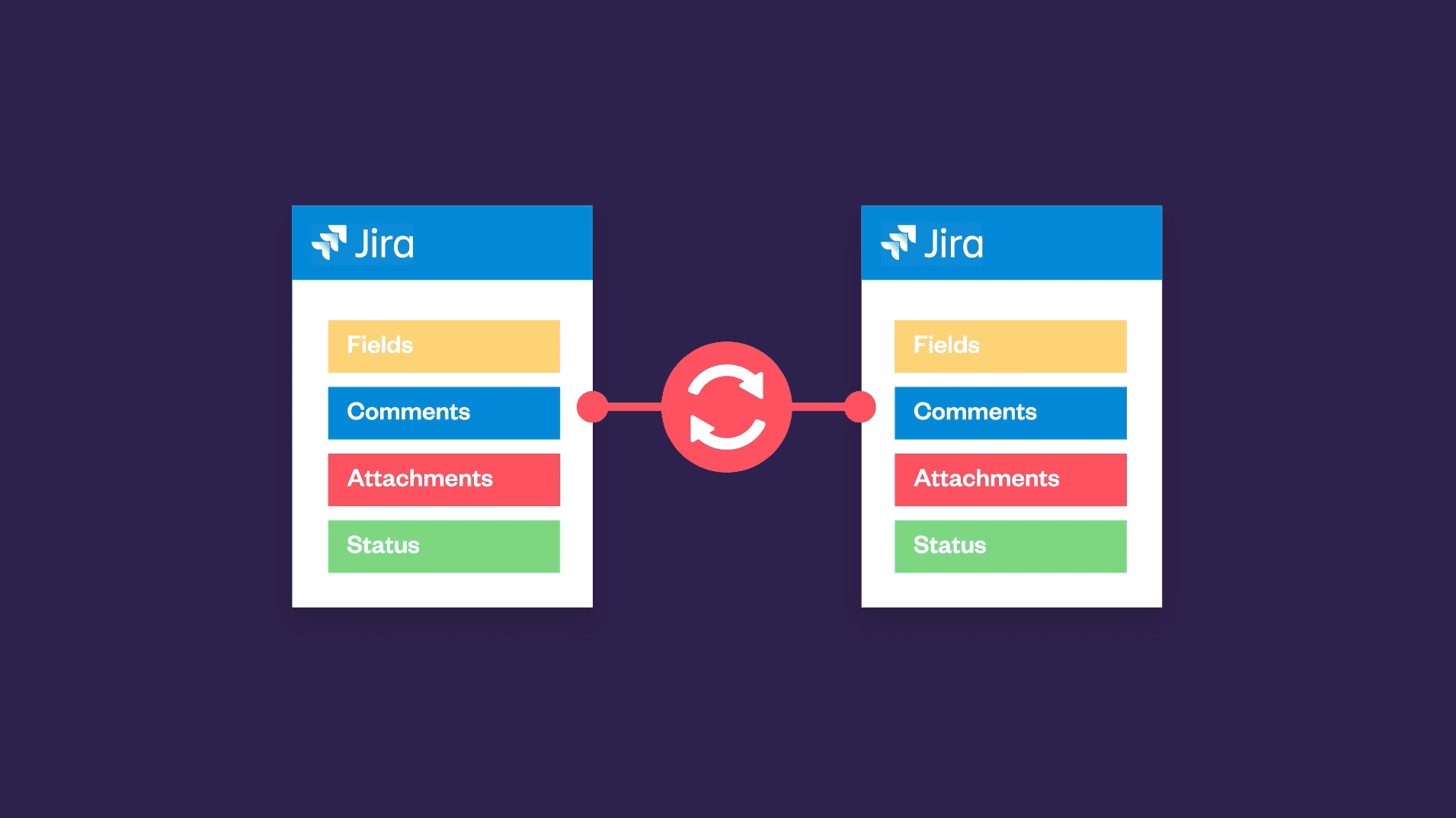
- Cross-project sync: for recurring cross-project work, a controlled copy tool such as Elements Copy & Sync can copy selected work items and keep them in sync.
Jira has no native bulk clone feature. To bulk clone in Jira today, you combine its building blocks, the single-work-item Clone action, Bulk change, Automation for Jira, and CSV import/export, or use a dedicated copy app. Each native route has limits: CSV import is fragile, Automation needs maintenance, and templates drift over time. This article explains why bulk clone in Jira isn’t native, the usual workarounds and where they break, and a safe, repeatable process to duplicate work items, including full epic structures across projects without hours of manual copy-paste.
If you searched for bulk cloning in Jira hoping for a native button, you already know it doesn’t exist. The result is usually manual copy-paste, missed details, and differences between projects. Below is why that’s the case and what to do instead.
Why is the feature “bulk clone” in Jira not native?
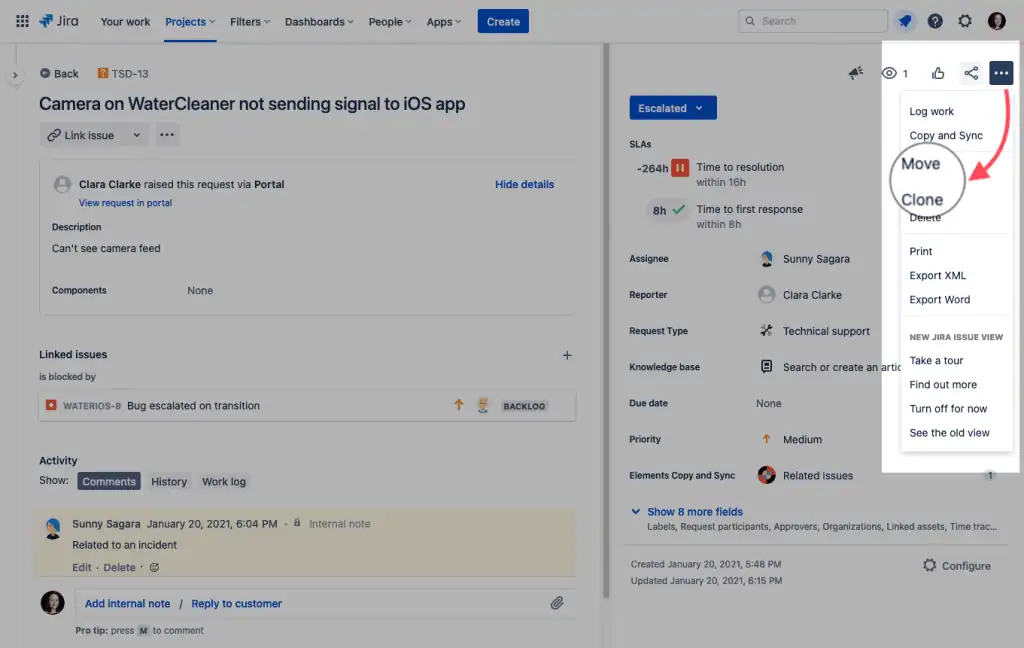
Jira gives you Clone for one issue, and mass change (Transition, Edit, Move, Delete) for many issues. But bulk clone is not in that list. Atlassian prioritizes data quality and traceability. A mass clone without checks can copy wrong fields, invalid statuses, or break links between issues.
For admins, this shows up as:
- Large groups of issues to rebuild every iteration (stories, recurring tasks).
- Home-made templates that slowly move away from reality.
- Higher error risk when different people duplicate the same pattern in different ways.
Bulk clone in Jira: common workarounds
What are the common workarounds to bulk clone in Jira?
1) CSV export → CSV import (semi-bulk)
When it helps: you know which issues you want to copy, and you can map fields with confidence.
Pros
- Create many issues at once.
- Prepare offline in Excel/Sheets and review with your team.
Cons
- Fragile: one missing field, a date format problem, or a component that does not exist in the target project → import fails.
- Issue links and sub-tasks need manual rebuild (new IDs).
- Not real-time: good for a batch, not great for frequent repeats.
2) Can Automation for Jira bulk clone work items?
When it helps: you have repeatable patterns (for example, when an epic is created, generate N stories and sub-tasks).
Pros
- Powerful for stable structures.
- Works on events (create, transition, schedule).
Cons
- Maintenance: more rules → more testing and documentation.
- Execution limits: Jira Automation has rule and action limits; large or frequent clones can hit those limits.
- Complex mapping: custom fields, watchers, attachments, and links get heavy.
- Not a generic bulk clone: you automate a specific scenario, not a free clone of any set.

3) Do template projects and manual cloning scale?
When it helps: your product practice is stable, with little change between iterations.
Pros
- Easy to explain.
- Gives a common starting point.
Cons
- Template drift: templates age and become wrong.
- Manual work: clone issue by issue, then adjust.
- Cross-project misalignment when teams evolve their own models.
What do admins really mean by bulk clone in Jira?
From many conversations, bulk clone in Jira often means:
- Copy a structure (Epic → Stories → Sub-tasks) with the right fields (custom fields, components, labels, priorities).
- Keep and rewire links (blocks, relates to, duplicates, parent/child).
- Copy attachments, checklists, and key comments when useful.
- Duplicate across multiple projects with different field schemes.
- Build trust: avoid duplicates, keep a clear source, respect permissions and workflows.
So “bulk clone” is not only a missing button. It is a controlled process that must be safe, traceable, and predictable.
What’s a simple strategy to replace bulk cloning in Jira?
Step 1: Map what to clone (and what not to clone)
- Structure: Epic/Story/Sub-task, links, dependencies.
- Required fields: which fields must be copied every time? Which fields must stay empty?
- Content: descriptions, checklists, acceptance criteria templates.
- Security: sensitive fields, visibility, comment restrictions.
This map helps you avoid copying “everything” blindly. It reduces noise and clean-up later.
Step 2: Pick the right tool for volume and frequency
- Occasional large batches: CSV import with a clean file and a shared mapping guide.
- Repeatable patterns: Automation that generates the structure on events (with variables/keys).
- Many projects or different field schemes: use a controlled copy (e.g., Elements Copy & Sync) that can align fields, keep relationships, and if needed, keep projects in sync.
Step 3: Standardize and document
- Stable names (labels, components, versions).
- Consistent descriptions (standard sections: context, scope, Definition of Done).
- Admin checklist before duplication (permissions, screens, validators, automation limits).
- Duplication log to track what you copied, when, and from where.
Which everyday patterns work better than bulk cloning in Jira?
Pattern A: A reusable “epic kit”
- Create a reference epic with the ideal structure (stories and sub-tasks), prefilled fields, labels, and components.
- Add an automation rule: when an epic of type “X” is created, automatically create its children from a parameter list (names, default estimates).
- Add an admin checklist of fields to reset (versions, dates, assignees).
Why it works: you get the bulk cloning in Jira time savings with better quality and lower risk.
Pattern B: Copy an existing set, almost as-is
- Select the source set (with JQL).
- Export a clean CSV (only the columns you will import).
- Normalize values that should not follow (dates, assignees, invalid statuses).
- Import into the target project, then rebuild links with a second pass (ID mapping) if needed.
Pro tip: keep a reusable CSV template and a short playbook your teams can follow.
Pattern C: Copy and keep projects in sync
When several teams work on the same functional backlog, cloning one time is not enough. You need to copy and synchronize a selected set of issues and fields across projects (or instances) while keeping traceability. This avoids drift and reduces manual updates later.
When does bulk cloning in Jira hit its limits?
Even with CSV and Automation, you will still miss:
- Selective copying of advanced fields (complex custom fields, attachments, checklists).
- Keeping relationships (links, parent/child) without manual steps.
- Cross-project consistency when field schemes differ.
- Ongoing sync if the source changes after the first copy.
At this stage, many admins look for special apps that provide controlled copying and, if needed, synchronization across projects, plus a clear audit trail. If these limits sound familiar, consider tools that copy (and optionally sync) issues with fine control: choose which fields to copy, keep links, manage field mappings across projects, and update when the source changes. You stay in control of scope, permissions, and reliability.
What should you check before any large clone?
- Define scope: which issue types, which fields, which links?
- Validate schemas: check screens and required fields in source and target.
- Decide what not to copy: dates, assignees, statuses.
- Prepare mappings: components, versions, labels.
- Test on a small sample first.
- Track the run: who cloned what, when, and how.
How to bulk clone in Jira without wasting hours?
Searching to bulk clone in Jira shows a real need: scale duplication without wasting hours. Out of the box, Jira offers building blocks (Clone for one issue, Bulk change, Automation, CSV) but not a ready bulk clone.
The best path is to:
- Model what you need to duplicate (structure, fields, links).
- Choose the right lever: CSV for occasional batches, Automation for repeating patterns, and, when needed, a controlled copy for reliable cross-project work.
- Standardize and document so the process stays safe and repeatable.
If your week looks like “I often copy the same set of issues across projects and must stay aligned,” try Elements Copy & Sync. It lets you copy selected issues (with the fields and links you choose) and keep them in sync across projects, delivering what people expect when they want to bulk clone in Jira, with less friction and more control.
Frequently asked questions
Can you bulk clone issues in Jira natively?
No. Jira has no native bulk clone. It provides Clone for a single work item and Bulk change (Transition, Edit, Move, Delete) for many work items, but not a one-click bulk clone. To clone many work items at once you combine CSV import/export, Automation for Jira, or a dedicated Marketplace app.
What’s the difference between clone and bulk change in Jira?
Clone duplicates one work item into the same project. Bulk change applies an action (transition, edit, move, delete) to many work items at once, but it does not duplicate them. Neither creates copies of many work items in one step, which is why teams reach for CSV, Automation, or an app.
How do you bulk clone an epic with its stories and subtasks in Jira?
Natively, you either rebuild the hierarchy with a CSV import (then rewire links by ID) or set up an Automation rule that recreates children when an epic is created. For a repeatable copy that keeps the Epic → Story → subtask structure, fields, and links intact, a controlled copy app is more reliable than manual cloning.
Can you bulk clone work items across multiple Jira projects?
Not with native tooling in a controlled way. CSV import can move data between projects but breaks links and struggles with differing field schemes. A copy-and-sync app maps fields across projects, preserves relationships, and can keep the copies synchronized when the source changes.
Does bulk cloning keep work item links and attachments?
CSV and Automation typically lose links and require extra steps for attachments. If preserving links, parent/child relationships, and attachments matters, use a method built for selective copying rather than a CSV round-trip.