








TL;DR
- Clone Jira issues: Jira Cloud’s native clone duplicates one work item at a time, in the same project, with no link back to the source.
- Bulk clone: A Jira bulk clone, copying many work items at once, needs an app such as Elements Copy & Sync.
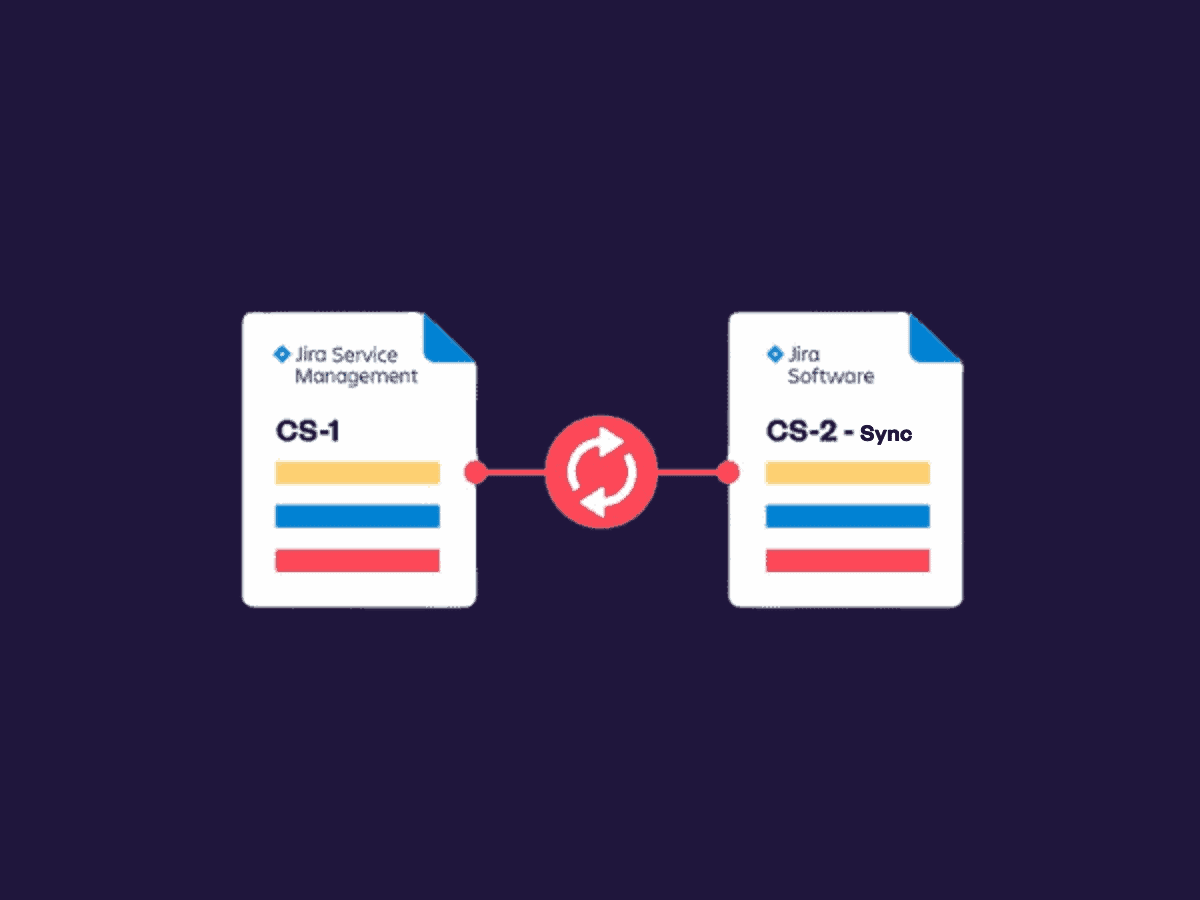
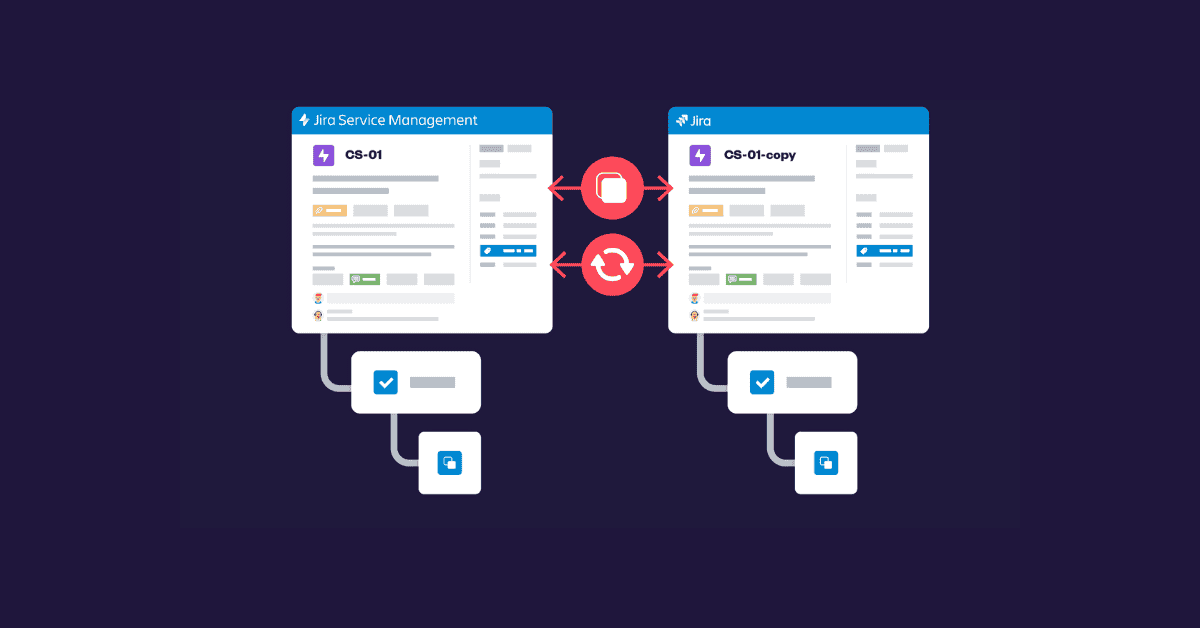
- Clone + sync together: One recipe both clones and keeps a two-way, real-time synchronization, so duplicates stay current automatically.
- Clone epic with child work items: Replicate a full hierarchy (epic, stories, sub-tasks) in a single action, which native Jira can’t mirror cleanly.
- Native limits: Jira Automation can imitate clone+sync but needs multiple fragile rules, across projects, instances, or Jira Cloud and Data Center.
To clone a Jira issue and keep it in sync, you need two things working together: a clone operation that duplicates the work item, and a synchronization link that keeps the clone updated when the source changes. Jira’s native clone function only handles the first part. It copies a single work item within the same project and breaks the connection to the original. Keeping clones in sync, especially in bulk or across projects and instances, requires either multiple Jira Automation rules or a dedicated app such as Elements Copy & Sync, which combines cloning and two-way synchronization in a single recipe.
Why does cloning and syncing matter in Jira?
Efficient issue management is critical for teams working on projects that span different departments or geographies. Here’s how you can empower your business operations:
- It eliminates manual work
Cloning a Jira issue reduces manual work, which saves time and minimizes the potential for errors. When work items are consistently cloned and synchronized across projects, team members avoid redundant steps and can concentrate on their primary objectives. For Atlassian users, minimizing manual steps matters most when managing complex project structures across departments or business units.
- It supports cross-functional collaboration
Often, different teams work on various parts of the same project across multiple Jira instances or projects. By utilizing copying and syncing capabilities, teams can ensure that tickets in different projects stay aligned, making it easier to track updates, share progress, and address dependencies. This leads to better collaboration between teams handling similar tickets, ensuring they work cohesively towards common goals.
This is particularly valuable in Atlassian environments where projects often extend across distributed teams using multiple configurations or custom workflows.
- It standardizes and structures tickets
Cloning from existing templates or structured tickets allows for a standardized approach to task management. This consistency in structure can be especially valuable for repetitive tasks with defined procedures, such as onboarding new employees or recurring project setups. Cloning Jira issues ensures the right format and information structure is available, enabling teams to proceed without spending extra efforts on setup.
Standardization is often a key goal in enterprise Atlassian implementations, especially when compliance, auditing, or large-scale rollouts are involved.
👉 Read more about how to create Jira project templates
- It facilitates communication with stakeholders
Effective cloning and syncing not only aid teams working directly within Jira but also improve communication with stakeholders. Synchronized updates ensure that stakeholders receive real-time insights into project progress and potential blockers. This transparency results in more efficient workflows and smoother collaboration between all parties involved.
Many customers in regulated industries also value synced updates for providing clear audit trails and compliance visibility.
What are the most common use cases for cloning and syncing in Jira?
For many teams, the ability to bulk clone and sync issues automatically is essential to keep up with the demands of modern project management. Here are some practical examples:
- 👉 Escalating issues from Jira Service Management to Jira
When customer-facing issues require development intervention, issue syncing and copying capabilities allow service teams to escalate an issue seamlessly. This provides developers immediate access to necessary details and keeps both teams in the loop with live updates.
These types of cases benefit greatly from syncing, ensuring nothing is lost between service and development teams.
- 👉 Project templating
Standardized templates of issues can be cloned across multiple projects, ensuring that all essential elements are maintained. This approach is helpful for companies managing numerous similar projects, enabling them to maintain consistency and efficiency by cloning the template structure and syncing necessary fields.
This is one of the more common cases where repeatability and consistency lead to long-term efficiency gains.
- 👉 Employee onboarding processes
Managing employee onboarding often involves multiple tasks across HR, IT, and department-specific roles. Copying templates for each onboarding process and syncing updates across teams helps to ensure no tasks are missed and provides a smooth onboarding experience.
- 👉 International collaboration or working with contractors
When collaborating with teams across countries or with external contractors, it’s essential to have clear visibility into project tasks. Cloning and syncing capabilities facilitate live updates, allowing all teams to stay informed and aligned on the project status, regardless of their Jira instance or geographical location.
What are the limitations of Jira’s native clone and sync features?
Jira Automation offers some cloning and syncing capabilities, but combining both reliably often requires creating multiple rules. A setup that becomes more complex when cloning a hierarchy of work items, a common need for structured projects and templates. Managing these rules adds overhead that can offset the time savings cloning and syncing are meant to deliver.
| Where native Jira Automation breaks down | Why it’s a problem |
| Managing clone + sync for a full issue hierarchy | Each level (epic, story, sub-task) needs its own linked automation rule. |
| Multiple workflows needing continuous synchronization | Every workflow requires separate logic, which multiplies maintenance. |
| Automating both manual and scheduled sync triggers | No single native rule set cleanly handles both trigger types together. |
How Does Elements Copy & Sync solve these limitations?
Elements Copy & Sync is built specifically for Jira and lets users manage cloning and synchronization within a single solution, simplifying both setup and execution.
What are the key features of Elements Copy & Sync?
- Clone and synchronize with the same recipe: configure settings to clone Jira issues in bulk with the desired fields and keep them synced, without building multiple automation rules. Each recipe supports two-way synchronization.
- Flexible automation options: the app is compatible with Jira Automation, workflow post-functions, and manual triggers, so clone + sync can run on a specific action or as part of a routine process.
- Workflow synchronization: updates made to the source issue’s status or fields are automatically reflected in the cloned work items, which supports consistency across instances or regions.
Should you rely on native automation or an app to clone and sync Jira issues?
For businesses aiming to strengthen project management in Jira Cloud, the ability to clone a Jira issue in bulk and keep it synchronized can make a substantial difference to communication, cross-project collaboration, and consistency across teams. Relying solely on Jira’s native features can work for simple, single-project clones, but becomes complex once a layered hierarchy or cross-functional requirement is involved. An app such as Elements Copy & Sync removes that complexity by handling both automated and manual clone + sync workflows in one place.
Frequently Asked Questions
Can you clone a Jira issue and keep it synced automatically?
Not natively. Jira Cloud’s built-in clone function creates a one-time copy with no ongoing link to the source. Keeping a cloned issue in sync automatically requires Jira Automation rules or an app such as Elements Copy & Sync, which maintains a two-way sync between the original and the clone.
What’s the difference between cloning and syncing a Jira issue?
Cloning creates a duplicate of a work item at a single point in time. Syncing keeps that duplicate updated whenever the source issue changes, so status, fields, and comments stay aligned automatically instead of drifting apart.
Can you clone a Jira issue across projects or instances?
Native Jira clone only duplicates issues within the same project. Cloning across projects, or across separate Jira Cloud and Data Center instances, requires Jira Automation with multiple rules, or a dedicated app such as Elements Copy & Sync.
Can you clone an epic with all its child issues in Jira?
Not with native Jira clone, which only duplicates a single work item at a time. Elements Copy & Sync can replicate a full hierarchy — epic, stories, and sub-tasks — in one action.
Does Jira Automation support clone and sync together?
Jira Automation can approximate both operations, but it typically needs several separate, fragile rules to keep cloning and syncing working together, especially across projects or instances.