🚀 With Atlassian Data Center end of life, your Elements apps are now Cloud-ready! 👉 Discover how to migrate with confidence!.

  • Atlassian Apps
  • Solutions
  • Become a partner
  • Resources
  • About
Menu
Elements Copy & Sync
  • #Jira

Easily clone and sync Jira work items and spaces.

Keep teams aligned with flexible copy and synchronization recipes. Streamline key workflows like project cloning, issue escalation, or epic copy.

Delighted organizations in 45 different countries

Common challenges Jira teams face

Cloning work items, managing different instances, and escalating issues manually creates friction and wastes tim


Tired of duplicating Jira spaces and fixing inconsistencies?


Managing Jira at scale often means duplicating spaces, hierarchy, and work items across teams or organizations.
Manual setups lead to inconsistencies, configuration drift, and lost time.
Elements Copy & Sync lets you reliably copy and synchronize Jira spaces and work items to keep everything aligned.


Still copying Jira work items manually?


Reusing data from previous projects requires manually copying work items, attachments, and comments.
This process is time-consuming and error-prone.
With Elements Copy & Sync, work items and their full hierarchy are copied or synchronized automatically, ensuring nothing gets lost.


Support and development teams working in silos?


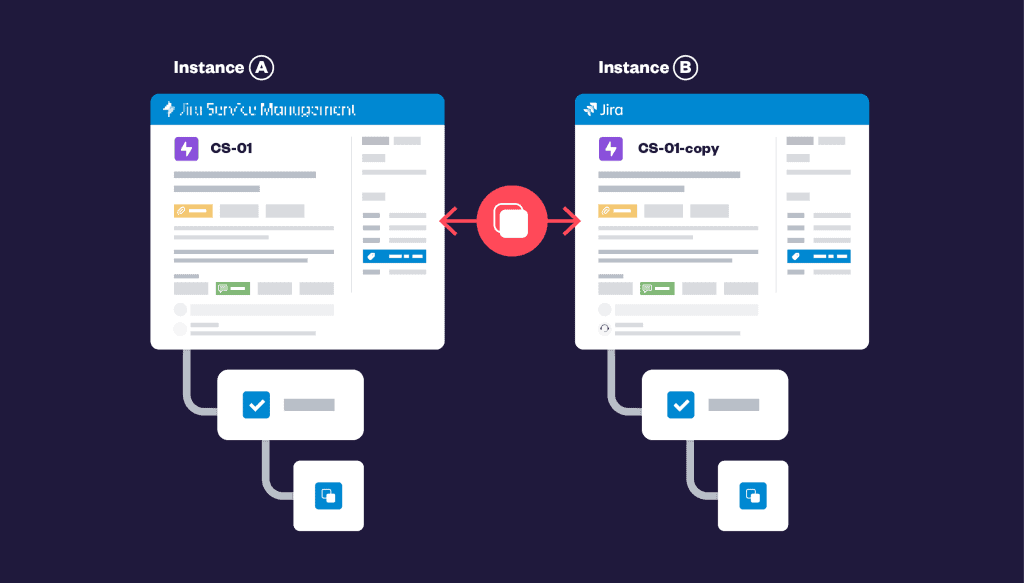
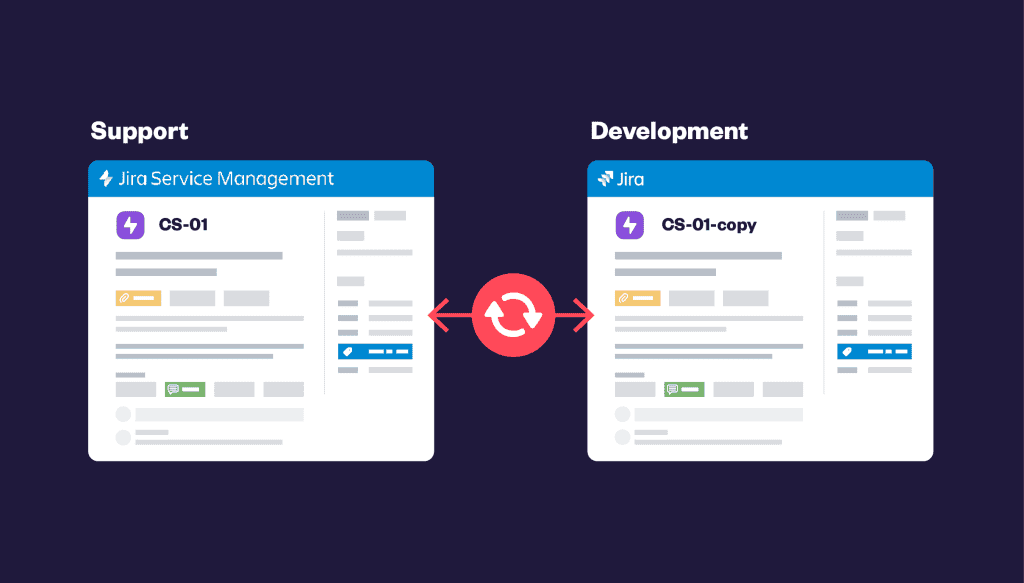
Escalating support work items to development teams often requires manually recreating or updating them across Jira Service Management and Jira. Elements Copy & Sync automatically copies and synchronizes work items between team spaces ensuring faster resolution.

Easily clone work items and spaces in Jira.

Stop wasting time on manual cloning: automatically clone Jira issues and spaces with Automation or post-functions.

Clone entire hierarchy of issues and copy their attachments, comments, labels, custom fields and more.

Copy & synchronize work items between different spaces and instances.

Seamless Jira work item syncing across spaces.

Improve cross-team collaboration by syncing cloned issues to keep teams aligned and up to date.
Define which fields should be synchronized and how (one way or bi-directional sync).
Synchronize Jira issues

Go further Jira native cloning features

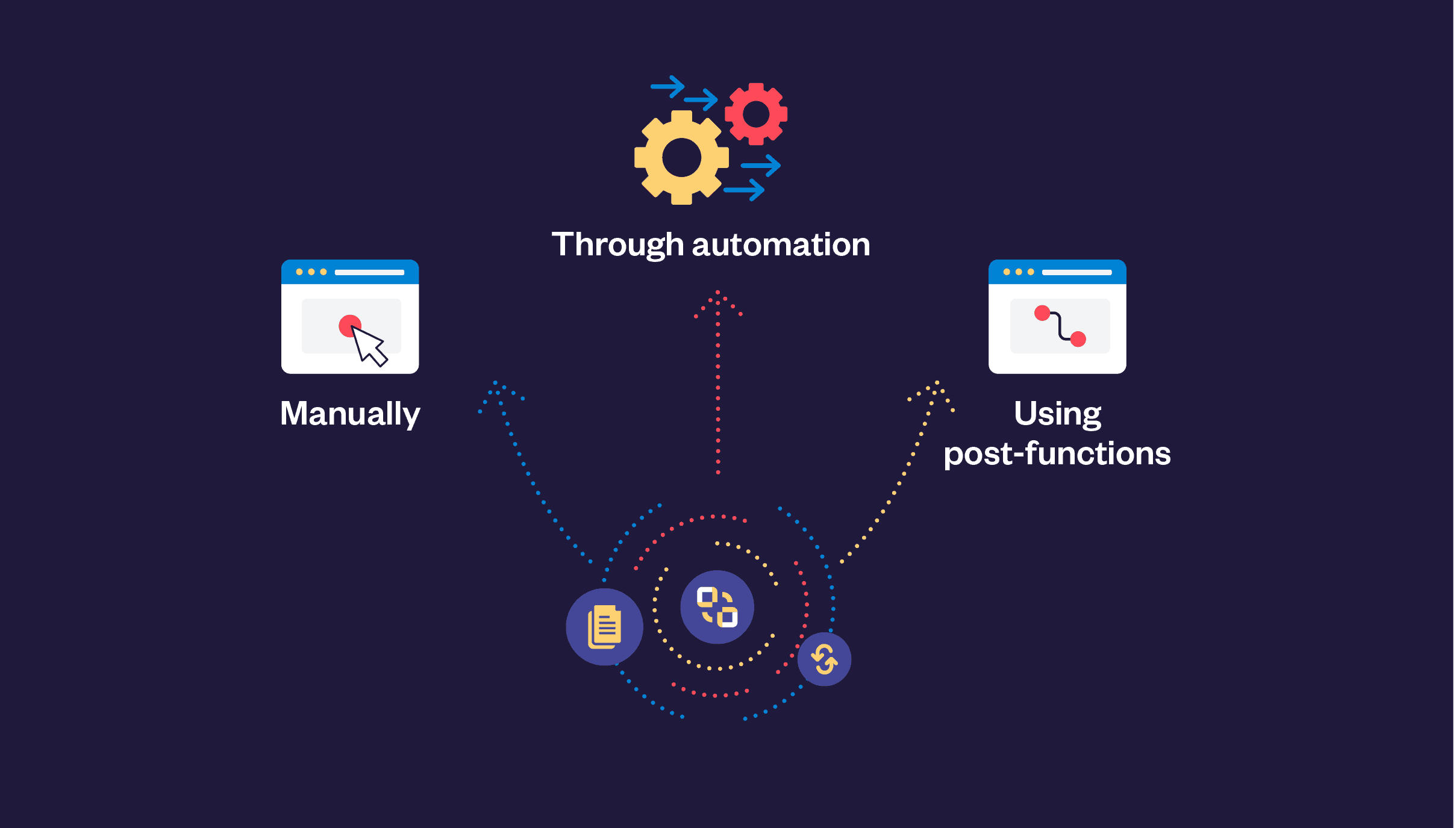
Design custom copy and sync recipes and trigger them automatically in a few clicks:

•Manually

•Through automation

•Using post-functions

Pick which work item field should be copied and/or synchronized, and configure your recipe.

Hear it from our users themselves 

This app is incredibly useful for us.

I like that it is not overloaded or overcomplicated. It simply does what its name suggests by letting you define rules that COPY and SYNC Jira issues as you want. It’s very easy to configure, too. We have been using it for a couple of years and created over 25.000 work items effortlessly with the help of Elements Copy & Sync.

Need to know if your use case is possible?

FAQ

Can you clone Epics or projects with Elements Copy & Sync?

Yes, you can clone Epics or all the issues in a project with Elements Copy & Sync. You can copy these issues either in bulk from the Search or Filter view, or individually (for an Epic) or using Automation for all the issues in a project. Follow this tutorial for how to clone an Epic, or watch this video on bulk cloning.

How can you trigger Elements Copy & Sync recipes?

Recipes to copy or synchronize issues can be triggered manually, on transition by adding them to a post-function, or by using the public REST API with Automation for Jira. Learn more about all the ways to trigger Elements Copy & Sync on the documentation.

What kind of security does Elements provide for Copy & Sync? Do you offer end to end encrypted security?

Security is a priority at Elements. That’s why Elements Copy & Sync is Cloud Fortified, which means we participate in Atlassian’s bug bounty, ensure performance at scale by automated infrastructure deployment and load testing, and respond within 1 day (24 hours) to critical customer support issues, 5 days a week. Cloud Fortified is the highest level of security recognized by Atlassian for Marketplace Partners. For more information, see our privacy policy on our documentation.

What kind of information in an issue can be copied?

You can copy fields, Forms, checklists, comments, attachments, and even statuses with Elements Copy & Sync. See the full list of content that can be copied on our documentation.

Is the migration fully automated or do I have to migrate things manually?

Elements Copy & Sync is compatible with Atlassian’s Jira Cloud Migration Assistant (JCMA). With JCMA you can:
Automatically migrate most of your OperationsSynchronizations, and Fields Mapping.
Cloud-side, these become Elements Copy & Sync recipes with mappings embedded in each recipe.
Key points:
JCMA will adapt your configuration “as close as possible” to Cloud concepts.
After migration, you should review and adjust recipes in Cloud to match your exact needs.
Certain features (Data Panels, Copy to Confluence, Copy to remote instance with old link model, Velocity) are not or not fully migrated and need manual handling.
More info about your migration from Data Center to Cloud

Explore our APPs

External data fields for Jira

Harness the potential of Jira by seamlessly connecting it to external data sources.

Confluence pages created from Jira work items

Build your customized Confluence pages instantly and integrate real-time Jira data.

Display related work items in custom views

Display snippets of related Jira tickets in relevant issue views

Customer experience insight for JSM

Boost IT service on Jira Service Management with integrated Experience Level Agreements metrics (XLAs) and user insights

Service catalog optimization for JSM


Deliver user-centric, cost-effective services with smart service catalog insights