







How to clone a Jira ticket automatically or on demand with Elements Copy & Sync
8 min read

TL;DR
- Three trigger modes: You can clone a Jira ticket manually from the issue view, automatically via Jira Automation rules, or through a workflow post-function on status transition.
- Recipe-based system: Elements Copy & Sync uses reusable “recipes” that define exactly what gets copied (fields, comments, attachments, subtasks) and how synchronization works between issues.
- Automatic cloning: Set a Jira Automation rule to call a recipe when conditions are met. For example, when a ticket transitions to “Ready for Development.”
- Workflow post-function cloning: Attach a recipe to a Jira workflow transition so the clone fires the moment an issue changes status, no manual action required.
- Why not native Jira clone: Jira’s built-in clone doesn’t sync fields after duplication, hits execution limits at scale, and requires complex rule maintenance. Elements Copy & Sync centralizes all of that in one recipe.
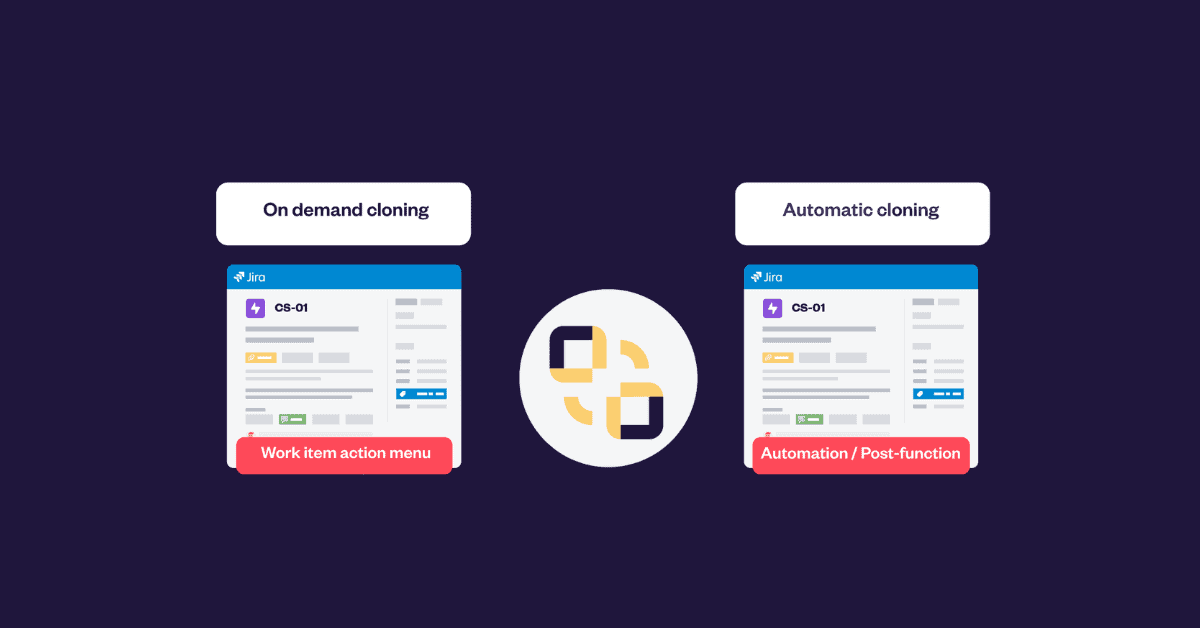
Cloning a Jira ticket in Jira can be done in three ways: manually from the issue view, automatically through a Jira Automation rule, or via a workflow post-function triggered on status change. Each method serves a different use case. This guide explains how to set up each one using Elements Copy & Sync, and when to choose one over another.
What is the difference between cloning a Jira ticket manually vs automatically?
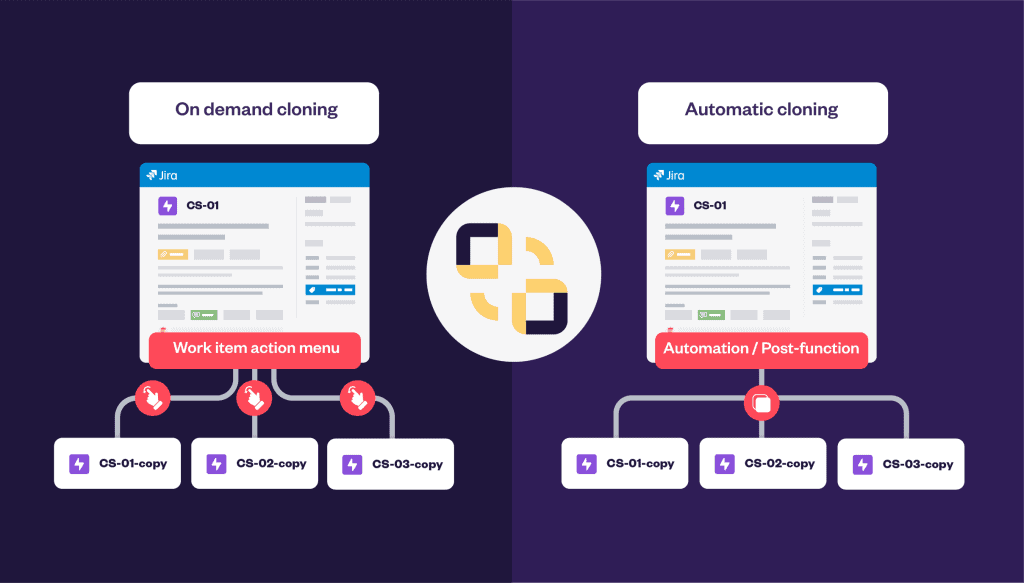
Manual cloning puts the decision in the user’s hands. A support agent or project manager triggers the clone from inside the issue when they judge it necessary, for example, to escalate a customer request to a development team.
Automatic cloning removes that decision entirely. A Jira Automation rule watches for a condition (a field change, a status transition, a scheduled date) and calls a recipe to clone the issue without any human intervention.
Workflow post-function cloning is a tighter form of automation: the clone fires as part of a Jira status transition, making it inseparable from the workflow itself.
All three methods rely on the same building block: a recipe configured in Elements Copy & Sync.
What is Elements Copy & Sync and how does it work for cloning?
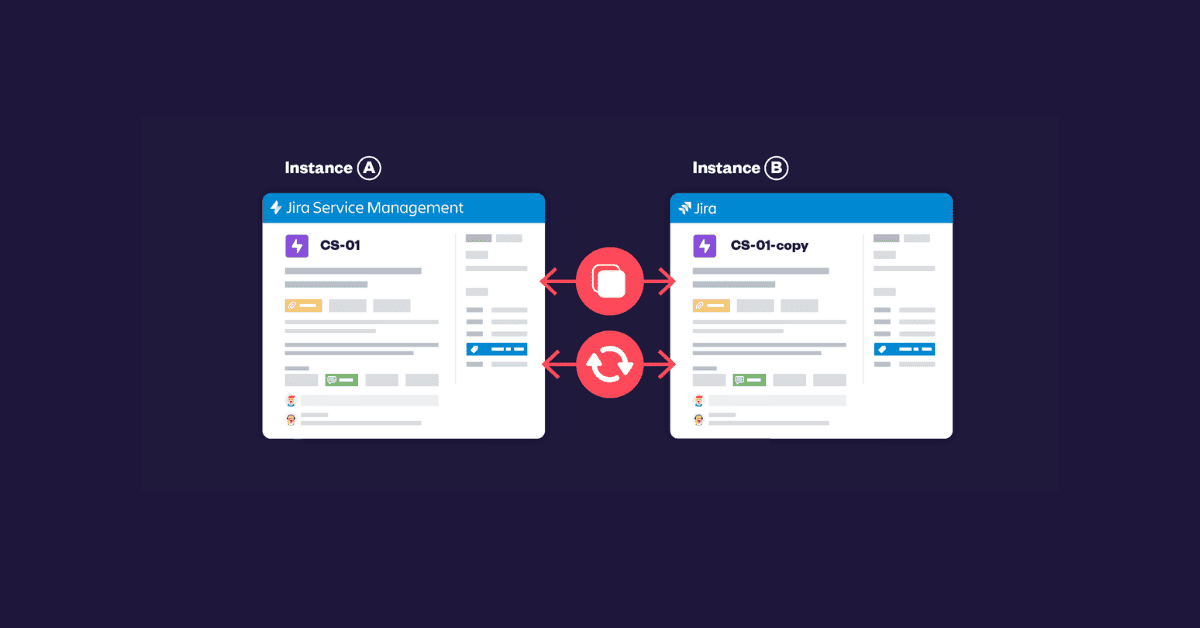
Elements Copy & Sync is a Jira app that lets you clone and link issues between projects, including across Jira instances, while keeping fields, comments, and attachments synchronized after the initial copy.
The core concept is the recipe: a reusable configuration that defines:
- What gets copied: summary, description, custom fields, attachments, comments, subtasks
- How synchronization works: which fields stay aligned between the original and the clone after creation
- Who can trigger it and under what conditions
Configure the recipe once. Then reuse it across any of the three trigger modes described below.
Why isn’t Jira’s built-in clone feature enough?
Jira’s native clone creates a copy of an issue, but it stops there. It does not:
- Keep the original and the clone synchronized after duplication
- Scale efficiently across large volumes of issues
- Let you define which fields to copy and which to leave blank
- Give users selective control over when cloning happens
When teams need to duplicate Jira tickets repeatedly, for escalations, recurring tasks, or cross-project workflows, the native clone becomes a manual bottleneck or requires complex, fragile automation rules.
Elements Copy & Sync addresses this with a dedicated recipe system that centralizes cloning logic, controls permissions, and handles field synchronization natively.
Read more in the comparison: Jira Automation vs Elements Copy & Sync – which to use?
How to clone a Jira ticket: the three methods
Method 1: How do you clone a Jira ticket manually (on demand)?
Manual cloning is appropriate when a human needs to decide whether and when to create the duplicate, for example, in support escalation or project hand-off workflows.
Typical use cases:
- A support agent escalates a customer request to the development project
- A project manager creates a follow-up task from a completed issue
- A service desk analyst mirrors a ticket into a second project for tracking
How it works:
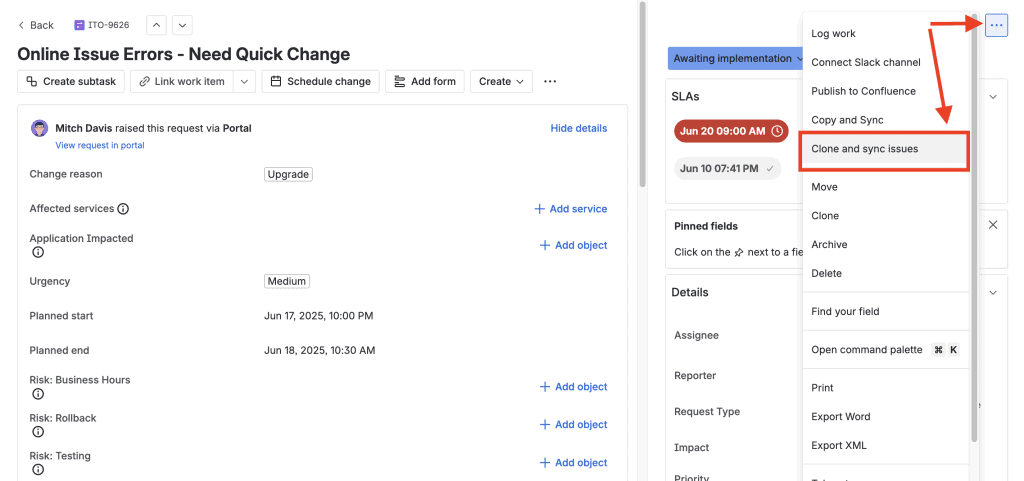
Once a recipe is published and configured with the Work item action menu trigger, a button appears inside the Jira issue view. Any user with the right permissions can click it to generate the clone immediately.
Setup steps:
- In Elements Copy & Sync, go to Recipes and click Create a new recipe
- Define what to copy: summary, description, custom fields, comments, attachments, subtasks
- Configure synchronization rules (for example: keep comments aligned after creation)
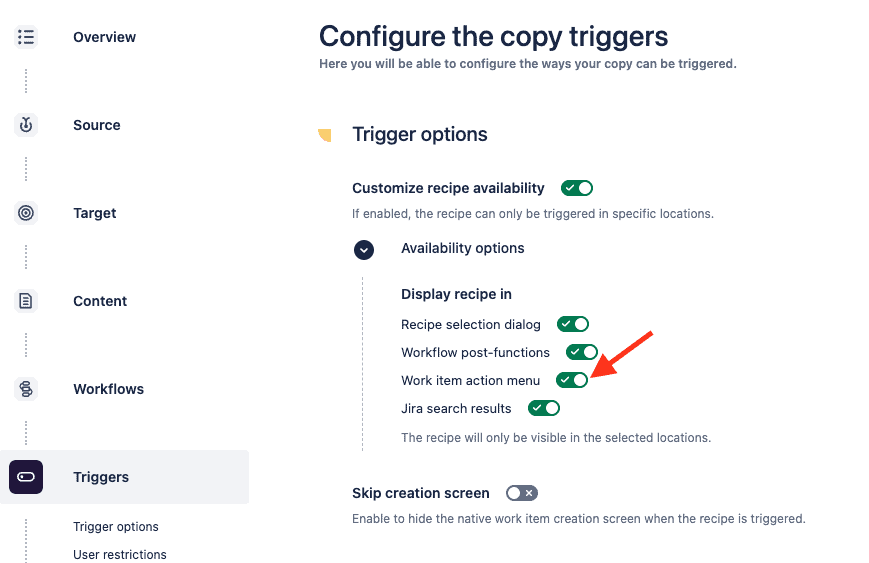
- In the Triggers section, enable Work item action menu
- Publish the recipe
The recipe now appears as an action inside every eligible issue. Users click once, the clone is created and linked to the original.
See the documentation: How to trigger a recipe from a Jira issue view
Method 2: How do you clone a Jira ticket automatically with Jira Automation?
Rule-based cloning is the right choice when the duplication should happen without user intervention, based on a condition or a schedule.
Typical use cases:
- Clone a ticket automatically when it transitions to “Ready for Development”
- Generate a duplicate of a monthly maintenance task on a fixed schedule
- Create linked issues for every new feature request that meets certain criteria
How it works:
A Jira Automation rule acts as the trigger. The rule watches for an event (transition, field change, or scheduled time) and then calls a recipe in Elements Copy & Sync to execute the clone. The recipe still controls what gets copied, the rule only controls when.
Setup steps:
- Create and publish a recipe in Elements Copy & Sync defining what to clone
- In Jira Automation, create a new rule with the appropriate trigger (e.g., “Issue transitioned” or “Scheduled”)
- Add an action that calls your Elements Copy & Sync recipe
- Add any conditions needed (e.g., project = “Support” AND status = “Escalated”)
- Test and enable the rule
Why use a recipe instead of a native Jira Automation clone action?
Jira Automation’s own clone action does not synchronize fields after the fact, hits execution limits at scale, and requires duplicating rule logic for every variation. A recipe handles synchronization natively and can be reused across multiple rules.
See the documentation: How to trigger recipes with Jira Automation
Method 3: How do you clone a Jira ticket via a workflow post-function?
Workflow post-function cloning embeds the duplication directly into a Jira status transition. The clone fires the moment an issue moves from one status to another — no separate rule, no user action.
Typical use cases:
- When a bug moves from “In Progress” to “Done,” clone it to a QA project for validation
- When a change request is approved, automatically generate an implementation ticket
- When an issue is reopened, create a follow-up in the development backlog
How it works:
A Jira workflow post-function runs as part of a status transition. You attach a recipe to the transition, so every time an issue passes through it, the clone is created automatically.
Setup steps:
- Open the workflow editor for your project
- Select the transition where cloning should happen
- Click on + Rules inside the transition settings

4. Select your Elements Copy & Sync recipe

5. Save and publish the workflow
From that point, every issue that passes through the transition will trigger the recipe and generate a clone in the target project.
See the documentation: How to automatically copy an issue during a workflow transition
Frequently asked questions about cloning Jira tickets
Can you clone a Jira ticket across different projects?
Yes. When configuring a recipe in Elements Copy & Sync, you define the destination project. The clone can be created in any project the recipe has access to, including projects in a different Jira instance when using the remote connection feature.
Does cloning a Jira ticket copy all fields, attachments, and comments?
It depends on what you configure in the recipe. You can choose exactly which fields are copied at the time of cloning, and which fields remain synchronized between the original and the clone afterwards. Attachments, comments, subtasks, and custom fields are all supported, but each needs to be explicitly included in the recipe.
Can you clone multiple Jira tickets at once?
Yes. Elements Copy & Sync supports bulk cloning, which lets you select multiple issues and apply a recipe to all of them in a single operation. This is useful for duplicating a sprint’s worth of recurring tasks or creating linked issues in batches.
What happens to the original ticket when you clone it in Jira?
The original ticket is not modified. A link is created between the original and the clone (the link type is configurable in the recipe). After that, field synchronization rules in the recipe determine which data points stay aligned going forward.
Is there a limit to how many times you can trigger a cloning recipe?
There are no recipe-level limits imposed by Elements Copy & Sync. Jira Automation execution limits apply when you use the automation trigger method, which is one reason some teams prefer the workflow post-function trigger for high-volume cloning scenarios.
Summary
Cloning a Jira ticket goes beyond creating a copy. For teams managing escalations, recurring workflows, or cross-project processes, the real requirement is controlled duplication with ongoing synchronization.
Elements Copy & Sync covers the three scenarios where this is needed: on-demand cloning triggered by a user, rule-based cloning triggered by conditions, and workflow-embedded cloning triggered by a status transition. All three use the same recipe-based configuration, which means you define the logic once and reuse it wherever the duplication is needed.